Whether it's a forgotten passcode, a carrier restriction, or Activation Lock — unlocking your iPhone depends on what's actually locked. Here's the safe, official path for each scenario.
How Do I Unlock My iPhone? Start With the Type of Lock
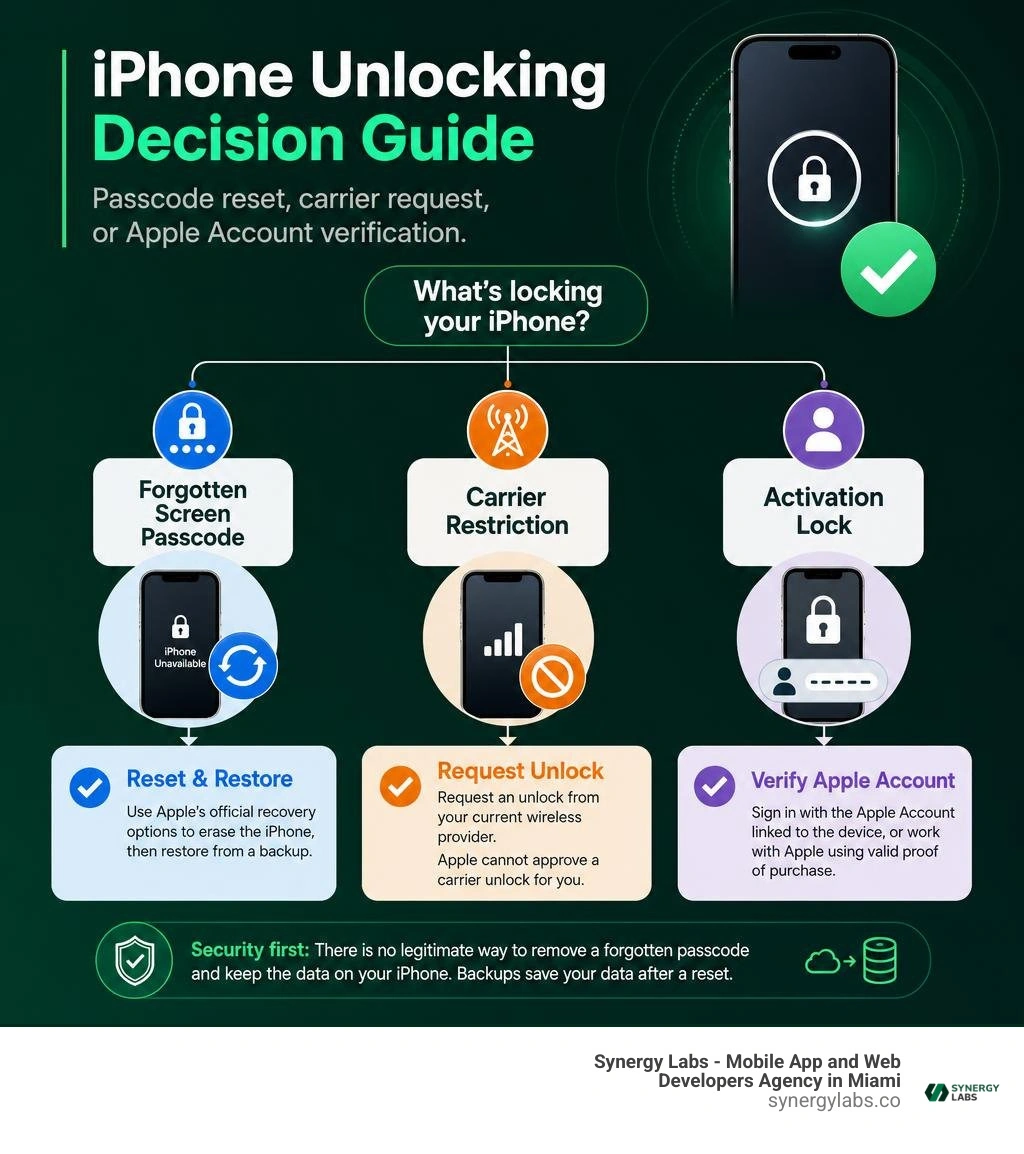
How do i unlock my iphone depends on what is locked: the screen passcode, the cellular carrier, or the Apple Account Activation Lock.
If your iPhone is locked by...Quick answerA forgotten screen passcodeApple’s official recovery options erase the iPhone, then let you restore an available backup.A carrier restrictionRequest an unlock from your current wireless provider. Apple cannot approve a carrier unlock for you.Activation LockSign in with the Apple Account linked to the device, or work with Apple using valid proof of purchase.
A forgotten passcode is stressful, especially when important files may only exist on the phone. But do not keep guessing at random. Too many incorrect attempts can lead to a Security Lockout or unavailable device screen.
The key security truth is simple: there is no legitimate consumer method to remove a forgotten iPhone passcode and preserve the encrypted data on the device. Backups can save your information after a reset; they cannot bypass the passcode itself. Third-party "no data loss" promises deserve a very skeptical eyebrow raise.
As Director of Product at Synergy Labs, I will walk through the safe, official paths so you can regain access without making a bad situation worse.
Understanding the Lock Types: How Do I Unlock My iPhone?
When someone asks, "How do I unlock my iPhone?", they are usually dealing with one of three distinct software barriers. Understanding which lock you are facing saves you hours of frustration and prevents accidental data loss or unnecessary service expenses.
At Synergy Labs, mobile security architecture is a core focus when we engineer custom applications. Apple’s security model is designed as a multi-tiered fortress. Each layer serves a specific purpose, requiring a different key to open:
Screen Passcode Lock: A local 4-digit, 6-digit, or alphanumeric code (or biometric Face ID / Touch ID) configured directly on the device. This key unlocks the local Secure Enclave processor and decrypts user data stored on the physical storage chip.
Carrier Lock: A cellular network restriction configured by telecommunication providers. It limits your iPhone’s cellular baseband hardware so it can only register on the issuing carrier's network.
Activation Lock: A cloud-level security feature linked to Find My and your Apple Account (formerly Apple ID). It prevents unauthorized usage or resale if your phone is lost or stolen, requiring cloud authentication before the device can be reactivated after a system reset.
Screen Passcode Lock vs. Carrier Lock
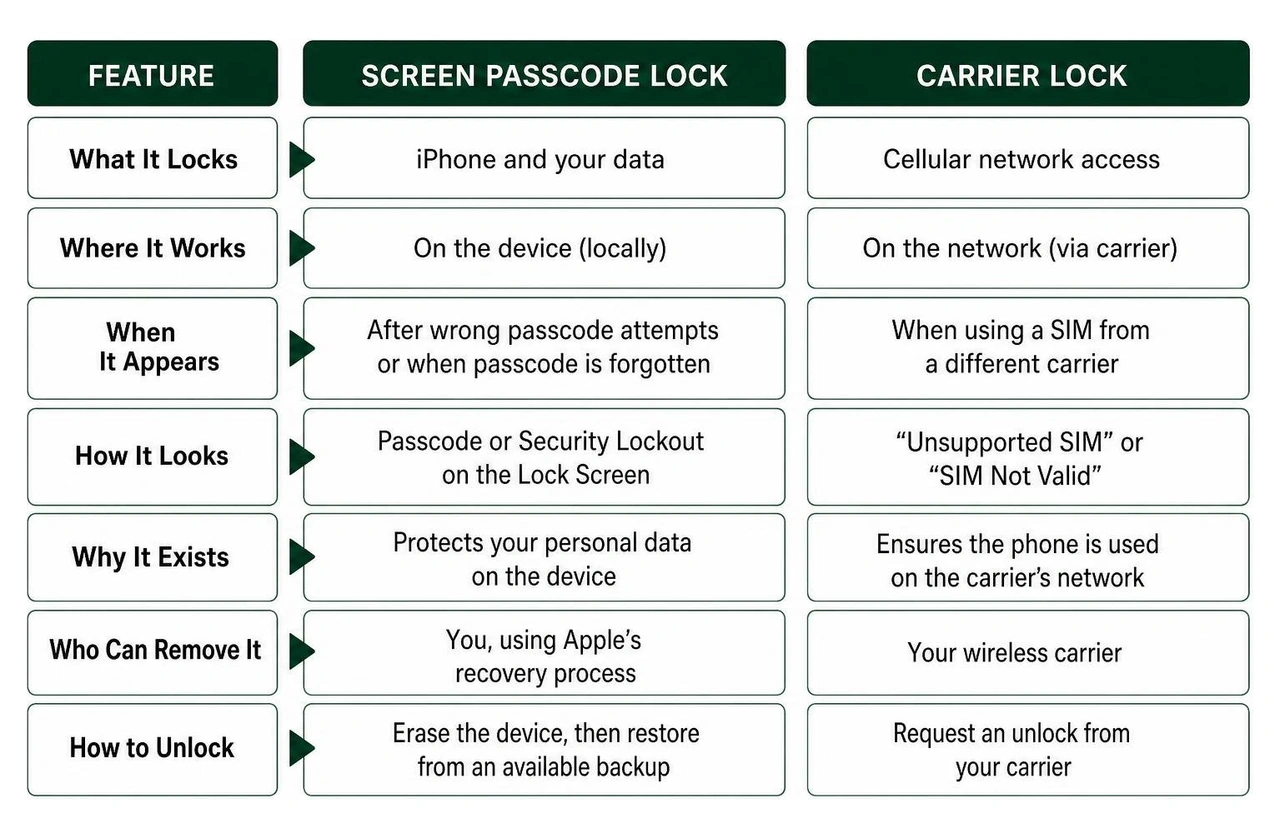
It is common to confuse a screen passcode lockout with a network carrier lock, but they exist on completely opposite ends of the technical spectrum.
Screen Passcode Lock: If you forget your passcode, you are locked out of the operating system interface. When you type the wrong code repeatedly, iOS triggers a timed lockout (ranging from 1 minute up to permanent Security Lockout). Standard recovery requires performing a software restore.
Carrier Lock: If your phone is locked to a specific network (such as a major wireless carrier), the phone turns on normally, and your passcode works fine. However, inserting a SIM card from a different provider results in an "Unsupported SIM" or "SIM Not Valid" error message.
Understanding this distinction is vital. Attempting to fix a carrier restriction by wiping your device screen passcode will leave you right where you started—and without your local photos. Conversely, calling a wireless carrier to help you bypass a forgotten 6-digit lock screen passcode will yield a quick redirect back to Apple's support pages.
If you are interested in how passcode policies are enforced at the application level within iOS, check out our deep dive into Application Lock in iPhone.
Official Methods to Bypass a Forgotten Lock Screen Passcode
If you are staring at a locked screen because you forgot your newly created passcode, you need an official, safe recovery path. While it can feel overwhelming, Apple has built straightforward recovery mechanisms into modern iOS releases.
Before trying any software method, ask yourself two questions:
Do I know my Apple Account (Apple ID) email and password?
Do I have a recent iCloud backup or local desktop backup?
How Do I Unlock My iPhone Without a Computer via Lock Screen
If your iPhone runs iOS 15.2 or later, you do not need a computer or cable to regain access. Apple built a self-service reset feature directly into the Lock Screen interface, saving you a trip to an Apple Store.
Here is how to unlock your iPhone directly on the device:
Trigger the Lockout Screen: Intentionally enter an incorrect passcode on the Lock Screen until you see the "iPhone Unavailable" or "Security Lockout" screen.
Select the Reset Option: In the bottom corner of the screen, tap "Forgot Passcode?" (on iOS 17 or later) or "Erase iPhone" (on iOS 15.2 through iOS 16).
Initiate Device Reset: Tap "Start iPhone Reset" to confirm that you want to wipe the phone's data and settings.
Authenticate via Apple Account: Enter your Apple Account password to sign out of Find My and disarm Activation Lock.
eSIM Retention Option (iOS 17+): If you are running iOS 17 or newer and use an active eSIM, iOS will ask whether you want to keep your cellular plan or erase it. Choose to Keep eSIM so your phone retains cellular connectivity after rebooting.
Complete the Erase: Tap "Erase iPhone" to begin the process. Once the phone restarts to the multi-language "Hello" screen, follow the setup assistant to restore your data from an iCloud backup.
Note: This feature requires your device to be connected to an active Wi-Fi or cellular network. If your device is offline or in Airplane Mode, you must use the Recovery Mode method outlined below.
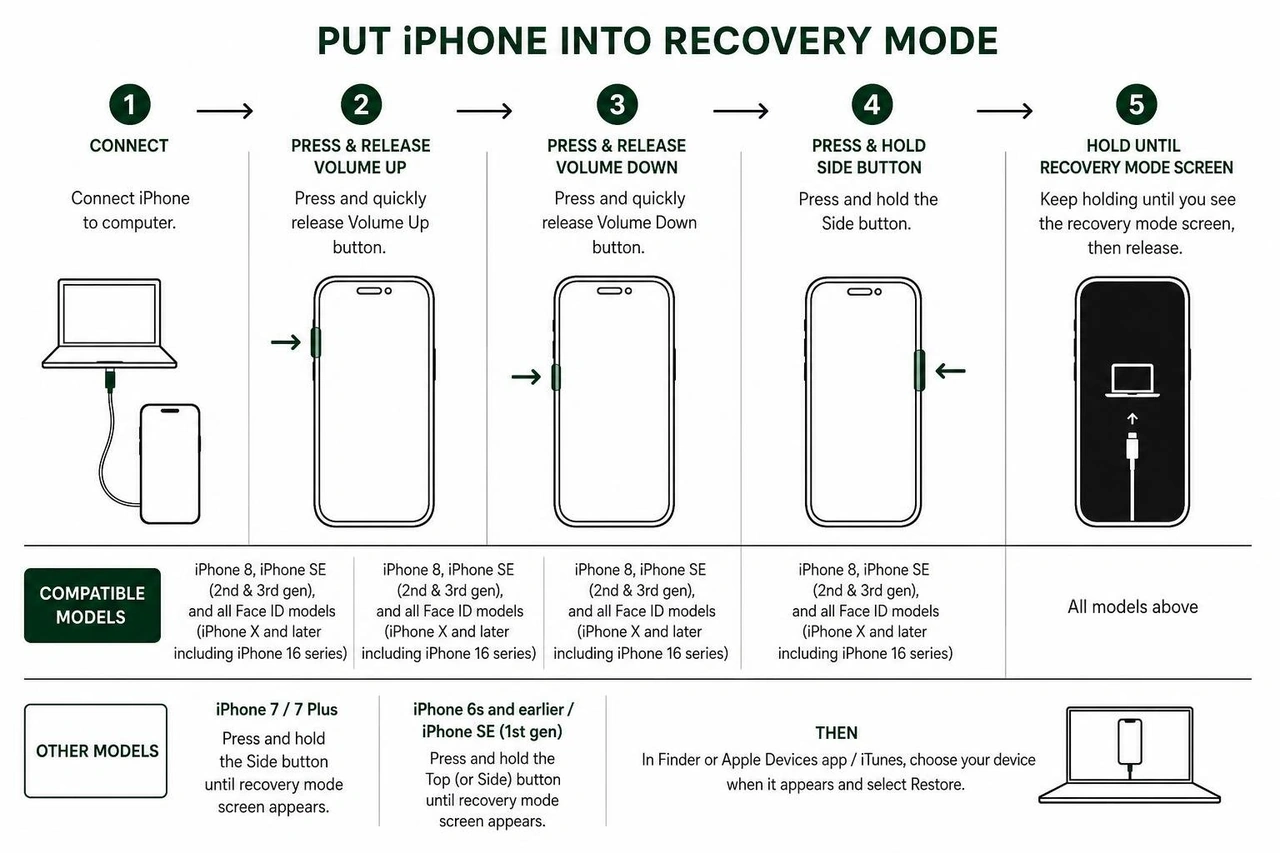
How Do I Unlock My iPhone Using Recovery Mode and Finder
When on-device lock screen reset options are unavailable—or if your iPhone displays a completely disabled screen—you must place the device into Recovery Mode and restore it using a computer. You can read the complete guidelines at If you forgot your iPhone passcode or your iPhone is disabled - Apple Support.
You will need:
A Mac (running macOS Catalina or later using Finder) or a Windows PC (with the Apple Devices app or latest version of iTunes installed).
A high-quality USB-C or Lightning cable (preferably official Apple-certified).
An active internet connection.
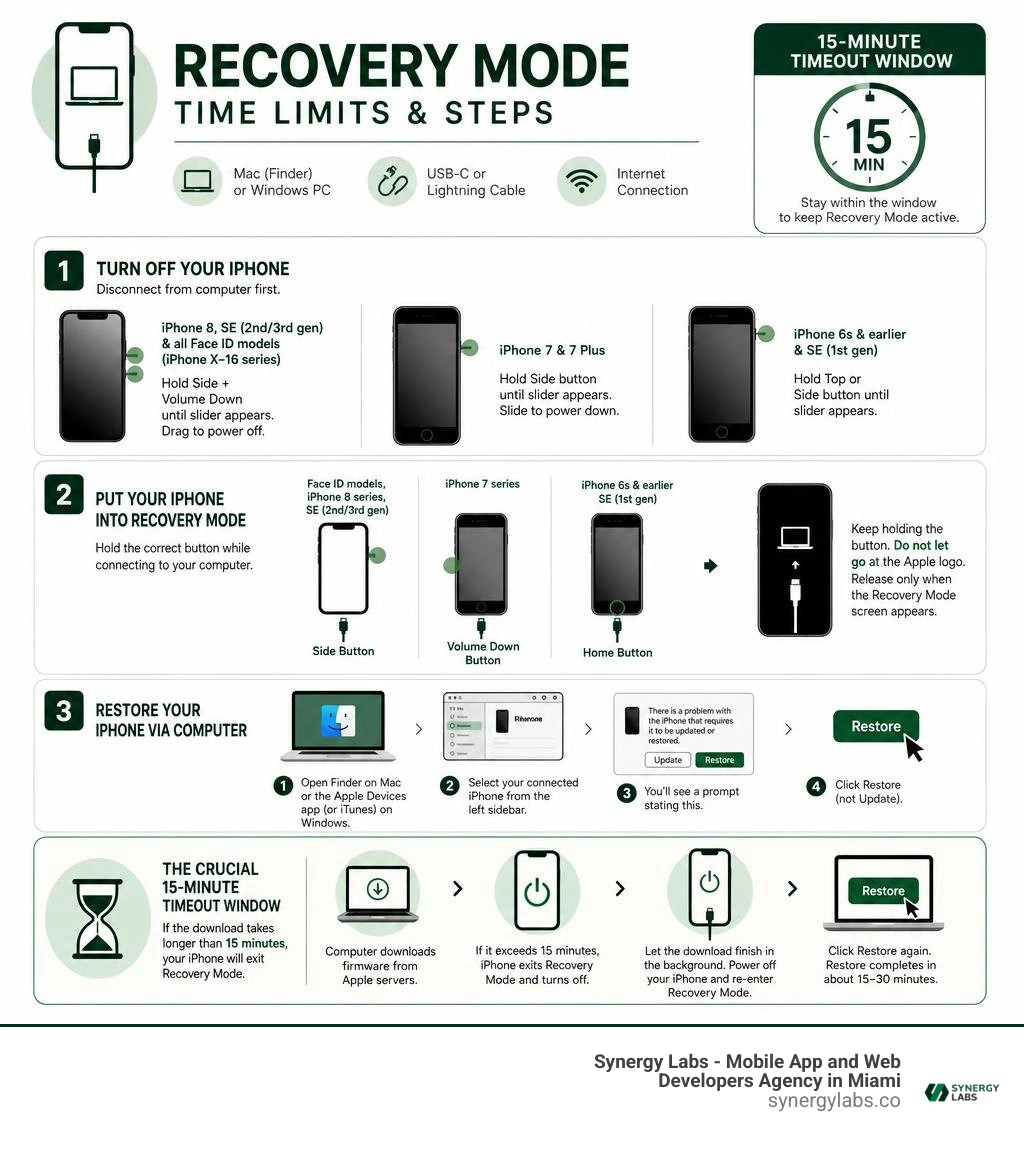
Step 1: Turn Off Your iPhone
Disconnect your phone from the computer first, then turn it off based on your model:
iPhone 8, iPhone SE (2nd/3rd gen), and all Face ID models (iPhone X through iPhone 16 series): Press and hold both the Side button and the Volume Down button until the power-off slider appears. Drag the slider and wait 30 seconds for complete shutdown.
iPhone 7 and 7 Plus: Press and hold the Side button until the power-off slider appears, then slide to power down.
iPhone 6s and earlier or iPhone SE (1st gen): Press and hold the Top or Side button until the power-off slider appears.
Step 2: Put Your iPhone into Recovery Mode
While holding the correct button for your model, connect your iPhone immediately to your computer using your cable:
Face ID models, iPhone 8 series, iPhone SE (2nd/3rd gen): Use the Side button.
iPhone 7 series: Use the Volume Down button.
iPhone 6s and earlier / SE (1st gen): Use the Home button.
Keep holding the button! Do not let go when you see the Apple logo. Continue holding until the Recovery Mode screen appears (showing an image of a computer and a cable).
Step 3: Restore Your iPhone via Computer
Open Finder on Mac, or the Apple Devices app (or iTunes) on Windows.
Select your connected iPhone from the left sidebar.
A pop-up prompt will appear stating: "There is a problem with the iPhone that requires it to be updated or restored."
Click Restore (not Update).
The Crucial 15-Minute Timeout Window
Your computer will begin downloading the official firmware from Apple servers. If the software download takes longer than 15 minutes, your iPhone will automatically exit Recovery Mode and turn off its screen.
Do not panic if this happens! Simply allow the computer to finish downloading the firmware file in the background. Once the download completes, power off your iPhone, re-enter Recovery Mode using the button sequence above, and click Restore again. The restore will complete in about 15 to 30 minutes.
Restoring via iCloud Find My Remote Erase
If your iPhone is locked, turn-on connected to Wi-Fi or cellular data, and you don't have access to a desktop cable, you can wipe it remotely using Apple's web services.
On a secondary phone, tablet, or computer, visit iCloud.com/find or open the Find My app on another signed-in Apple device.
Log in using the same Apple Account credentials registered on the locked iPhone.
Select All Devices and click on your locked iPhone.
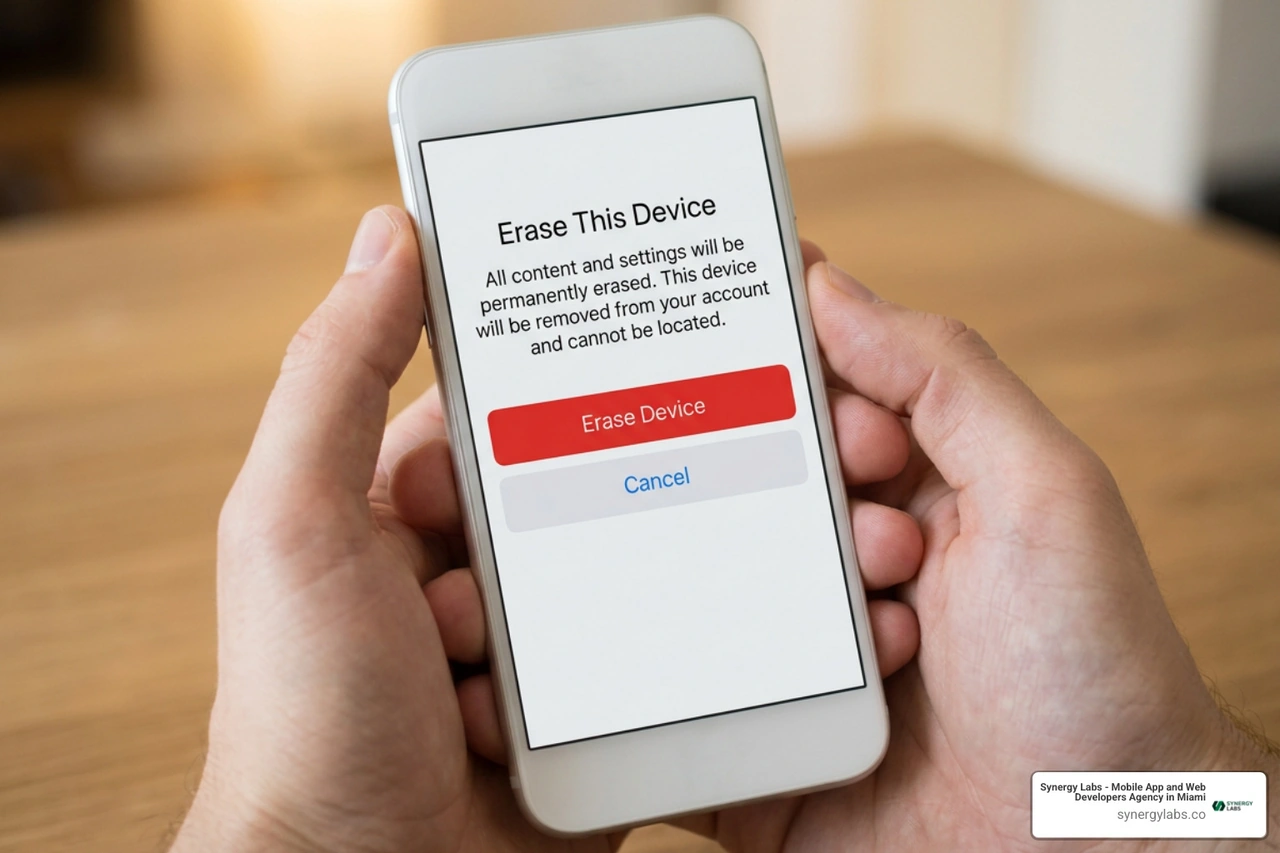
Click Erase This Device.
Enter your Apple Account password to confirm.
Once the remote wipe signal reaches the device over the air, the phone will perform a factory reset, clearing the passcode and dropping you at the initial setup screen where you can restore your latest cloud backup.
Unlocking an iPhone for a Different Network Carrier
Switching network operators can save you hundreds of dollars annually, but putting a new SIM card into a carrier-locked iPhone results in radio refusal. Fortunately, unlocking an iPhone for carrier freedom is governed by clear carrier policies and rules.
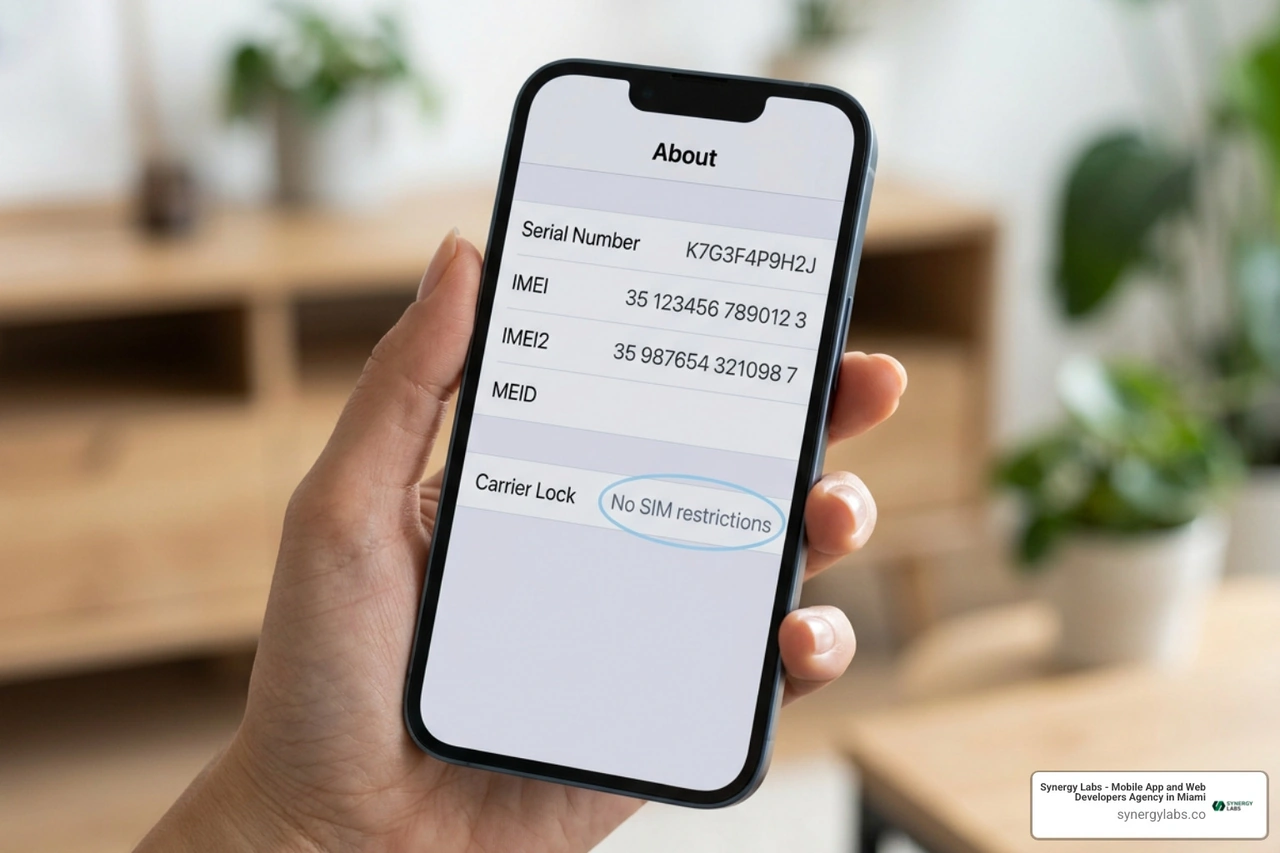
Before calling your wireless provider, check whether your iPhone is already unlocked. iOS provides a clear indicator built right into system preferences:
Open the Settings app on your iPhone.
Tap General, then tap About.
Scroll down to the Carrier Lock field.
If it says "No SIM restrictions", your iPhone is completely unlocked! You can insert any compatible SIM card or activate an eSIM globally.
If it displays a carrier name or "SIM locked", your device is currently tied to that specific provider.
Contacting Your Wireless Provider for an Official Unlock
Only your current wireless carrier can authorize a network unlock. Apple support personnel cannot remove a carrier lock from their backend systems, regardless of ownership proof.
To request a carrier unlock:
Contact customer support for your network operator (or submit an unlock request through their web portal).
Provide your device's IMEI number (found in Settings > General > About or dialed via *#06#).
Verify that your device meets the carrier's eligibility criteria:
The iPhone must be fully paid off with no outstanding installment balances.
The associated account must be in good financial standing with no unpaid bills.
The device must not be reported lost, stolen, or flagged for fraudulent activity.
Minimum active network duration requirements must be fulfilled (typically 60 days for postpaid accounts).
International Travel Exceptions: If you are traveling abroad and haven't fully paid off your device installment plan, some carriers will grant temporary travel unlocks or allow early unlocks upon request.
Once your carrier processes the unlock request on their servers:
If using a physical SIM or eSIM: Insert the new carrier's SIM or scan their eSIM QR code. The iPhone will automatically contact Apple activation servers and clear the restriction.
If you don't have a new SIM card ready: Back up your iPhone, erase all content and settings, and restore from your backup. The unlock status will register during setup.
Unlocking Workarounds, Security Truths, and Data Loss Realities
When you search "how do i unlock my iphone" on search engines or video platforms, you will encounter thousands of videos and ads claiming to unlock screen passcodes "without losing data" using secret dial pad codes, calculator tricks, or proprietary third-party software tools.
Let us be completely transparent as software architecture professionals: these claims are marketing traps.
Modern iPhones utilize hardware-level AES-256 encryption backed by the Secure Enclave. Your passcode is not merely a gatekeeper software check; it is mathematically blended into the hardware encryption key that scrambles your local files. Without entering the correct passcode, the file system remains scrambled. Wiping the device is the only way to remove the lock, which permanently destroys the local encryption keys.
There is only one exception to passcode removal without data loss: managed enterprise devices enrolled in a unified endpoint management (UEM) solution. If a business manages an iPhone using enterprise software, an IT administrator can issue a remote "Clear Passcode" command that bypasses the screen lock without erasing data. However, this relies on enterprise management profiles installed prior to the lockout.
For individual consumer iPhones, backup preservation is your only line of defense. Ensuring robust device security protects your private info; we recommend reviewing our guide on Best Free Virus Protection for iPhone and exploring custom enterprise protection strategies outlined in our article on Mobile Security Software.
Frequently Asked Questions About iPhone Unlocking
Is there any way to unlock my iPhone without erasing my data?
No, if you are a standard consumer dealing with a forgotten screen passcode, there is no legitimate way to bypass the lock without erasing device data. Because Apple hardware encrypts local storage using your passcode, removing the passcode requires clearing the local encryption keys—which wipes local data. However, as long as you have an active iCloud or desktop backup, you can fully restore your photos, messages, app data, and settings immediately after the erase completes.
What happens if the software download takes longer than 15 minutes in Recovery Mode?
If your internet connection is slow and the iOS firmware file download takes longer than 15 minutes, your iPhone will exit Recovery Mode automatically and reboot to its locked screen. This is a normal safety mechanism. Simply leave your computer connected so it can finish downloading the software package. Once the download is complete in Finder or the Apple Devices app, turn off your iPhone, put it back into Recovery Mode manually, and click "Restore" again. The process will proceed instantly without needing to redownload.
Can Apple unlock my iPhone from a carrier lock for me?
No. Apple Support cannot remove or alter a carrier lock on an iPhone. Network restrictions are controlled entirely by the telecommunications carrier that originally sold or activated the device. You must contact your wireless provider directly, verify that your account meets their unlock requirements, and submit an official unlock request through their support channels.
Unlocking Seamless Mobile Innovation with Synergy Labs
Recovering access to your smartphone highlights the critical importance of balancing user accessibility with rock-solid security engineering. Whether you are navigating device recovery options or building next-generation digital products, data security and seamless user journeys must go hand-in-hand.
At Synergy Labs, we bring that exact engineering mindset to custom mobile app and web development. As a premier agency, we partner with ambitious startups and enterprises to design, build, and scale world-class cross-platform mobile software.
Why top brands choose Synergy Labs as their tech partner:
Fixed-Budget Model: Predictable pricing structures that keep your project on track without unexpected cost overruns.
In-Shore CTO with Elite Offshore Development Teams: Enjoy top-tier technical leadership, direct access to senior talent, and continuous communication coupled with cost-effective offshore engineering execution.
Milestone-Based Payments: You pay as key deliverable milestones are met, ensuring transparency, accountability, and total peace of mind at every stage of development.
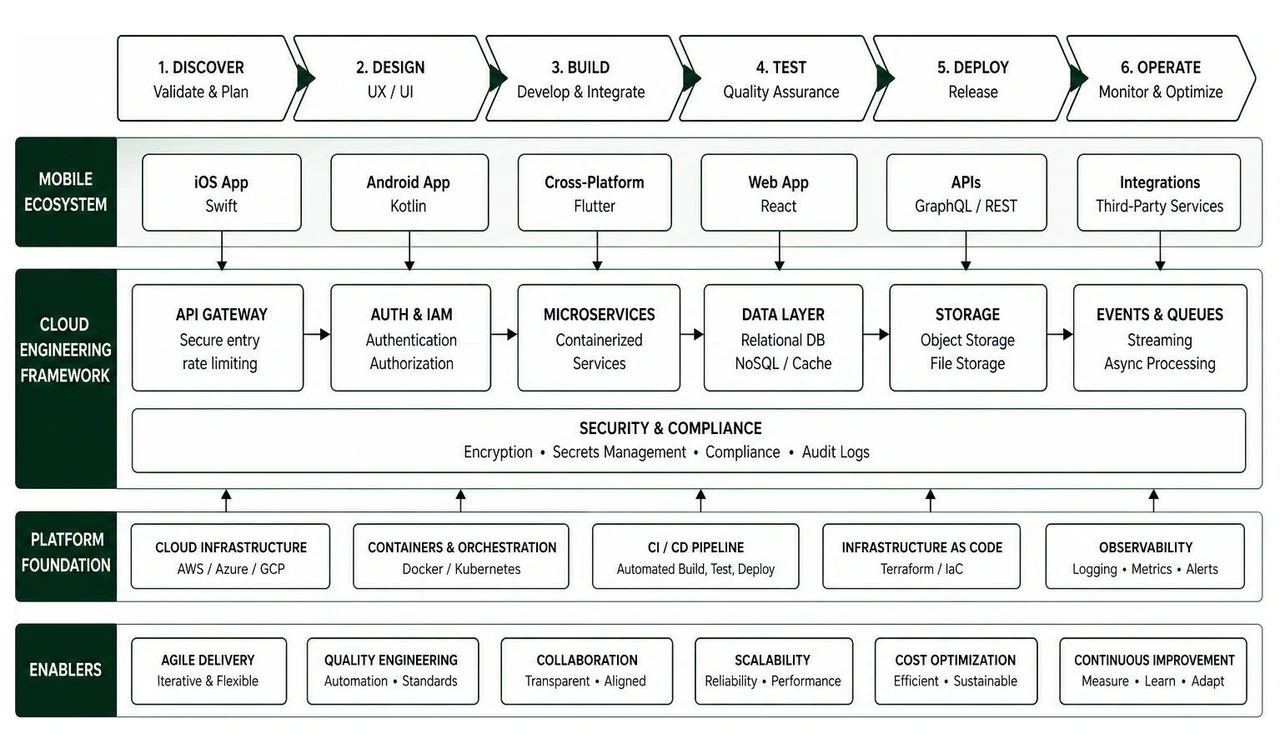
Security-First Architecture: From encrypted local storage to secure API gateways, we build mobile applications that protect your users' sensitive data while delivering flawless performance.
Ready to build your next mobile app or modernize your existing enterprise software architecture? Explore our Services, review our track record in our Client Portfolio, or get in touch directly at Synergy Labs today!


.avif)

.avif)


