McAfee's device location tools are only useful if you've set them up before the moment you need them — here's the setup that actually works under pressure.
Why Knowing How to Use McAfee Find My Phone Could Save You a Lot of Grief

McAfee Find My Phone is a feature inside McAfee Mobile Security that lets you locate, lock, or wipe your device remotely — here's the quick version of how to use it:
- Open the McAfee Mobile Security app on a secondary device or visit the McAfee web portal.
- Sign in to your McAfee account.
- Select your lost device from the dashboard.
- Choose an action — track its location on a map, trigger a loud alarm, lock the screen remotely, or erase all data.
That's the core of it. But there's a lot more to know if you want to actually recover your phone — or protect your data if you can't.
Picture this: you're at a crowded event, you look down, and your phone is gone. It happens more than most people think. Over 10 million devices were stolen globally in just the first two months of 2016 alone — and the problem hasn't slowed down since. What's worse, only 56% of adults even lock their phones with a passcode. That means nearly half of all stolen phones are essentially wide open to anyone who picks them up.
The good news? If you have the right tools set up before your phone goes missing, you have a real shot at getting it back — or at least keeping your data safe.
At Synergy Labs, our team builds mobile apps with security baked in from day one, which means we've spent a lot of time studying tools like McAfee Find My Phone and how they integrate with both Android and iOS platforms. That hands-on experience is exactly what informs this guide.
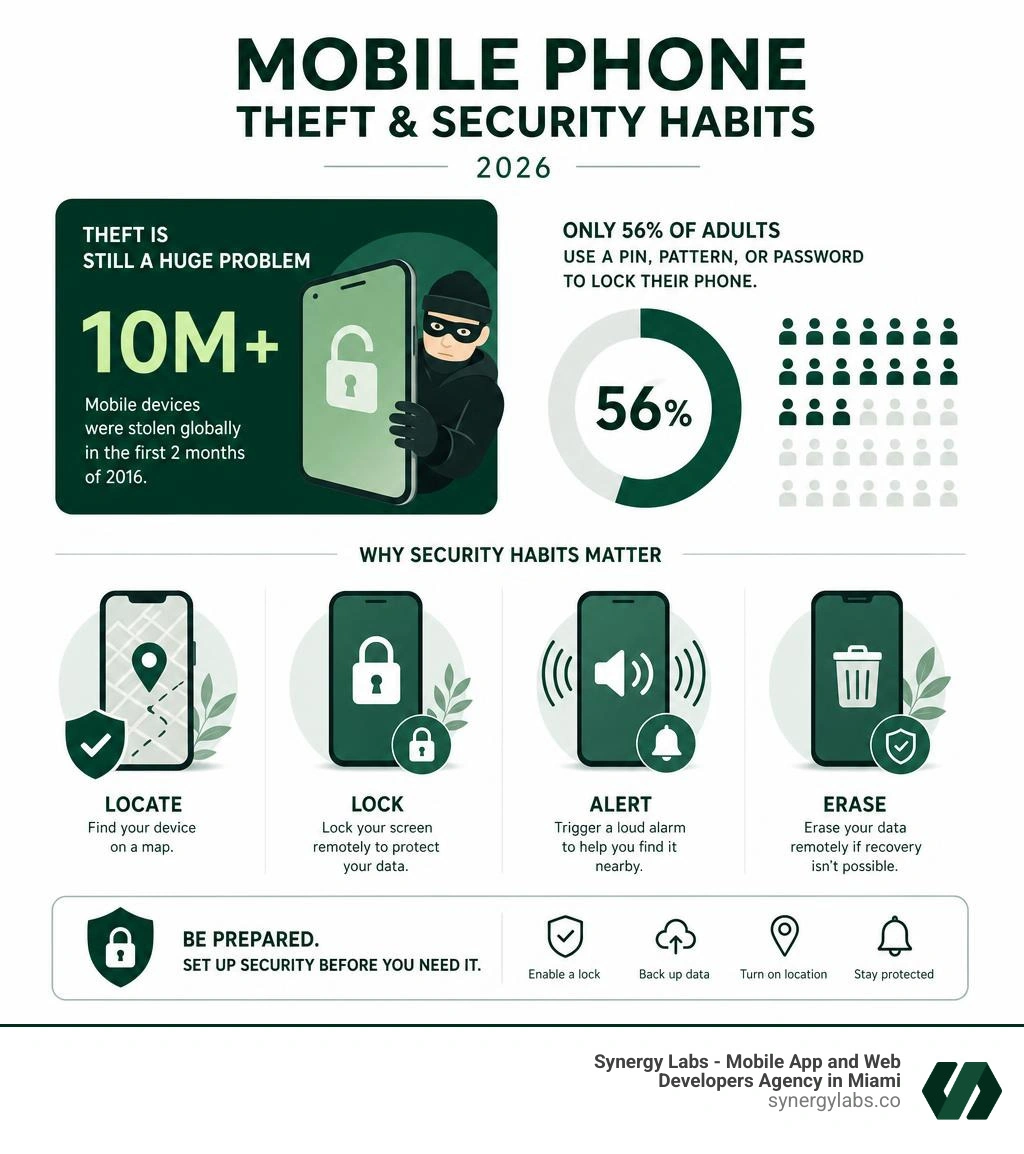
Mcafee find my phone definitions:
What is McAfee Find My Phone and How Does It Work?
At its core, McAfee Find My Phone is an advanced, software-based tracking and recovery system integrated into McAfee’s mobile security ecosystem. It acts as an active digital guardian for your smartphone, operating quietly in the background until the moment you need it most. But how exactly does it bridge the gap between a misplaced device and a successful recovery?
The system works by establishing a secure, continuous link between your mobile device and McAfee’s cloud-based management portal. By utilizing the global positioning system (GPS) chip inside your phone, alongside local Wi-Fi networks and cellular tower triangulation, the software calculates the precise physical location of your device. In 2026, these location capabilities are more precise than ever, often pin-pointing a device down to a few meters.
When you log into the McAfee console from a computer or another smartphone, you can send real-time commands to your lost phone. These commands are sent via push notifications or secure SMS protocols. Once your phone receives the command, it immediately executes the requested action — whether that is sharing its current coordinates, locking the screen, or initiating a complete factory reset.
This feature is a key component of comprehensive Mobile Security Software. Instead of relying solely on basic operating system utilities, McAfee combines location tracking with robust antivirus scanning, web protection, and identity monitoring, ensuring that your device is protected from both digital malware and physical theft.
Key Features of McAfee's Anti-Theft Suite
If you lose your phone, you need more than just a map pointing to a general area. You need a suite of tools that allows you to react dynamically based on whether your phone is slipped between couch cushions or in the hands of a pickpocket. McAfee’s anti-theft suite provides several layered defenses to help you manage the situation.
Real-Time GPS Tracking
The most immediate tool at your disposal is real-time tracking. When activated, the McAfee portal displays your phone's location on an interactive map. It also tracks historical location points, showing you where the phone has been. This is incredibly helpful if the phone is on the move, such as in the back of a taxi or a thief's pocket.
Remote Lock
If you realize your phone is missing, your first priority should be securing the personal data stored on it. The remote lock feature allows you to instantly lock your device from the web portal. You can also display a custom message on the screen, such as "Lost Phone - Please call [Alternative Number]" to encourage an honest finder to return it. To understand how this works on different operating systems, you can read more about how to Remote Lock Android Phone.
Scream Alarm
Can't find your phone around the house, but you know it's nearby? The "Scream" or alarm feature bypasses your phone's silent settings, triggering a high-pitched, loud alarm at maximum volume. It will continue to ring for several minutes, allowing you to locate it even if it is buried deep under cushions or lost in a dark room.
Remote Data Wipe (Factory Reset)
When recovery is no longer possible, you must protect your identity. The remote wipe feature sends a command to completely erase all personal data, photos, accounts, and settings from the phone's internal memory and any connected SD cards. This is the ultimate fallback to keep your financial and personal life private.
How to Set Up and Use McAfee Find My Phone on Android and iOS
Setting up your anti-theft protection before an emergency occurs is critical. If your phone is already gone and you haven't configured these settings, your recovery options will be severely limited. Let's walk through how to install, configure, and activate these features on both major mobile platforms.
Before diving into platform-specific steps, ensure you have a registered McAfee account. This account will serve as your universal key to access the remote management dashboard from any web browser. For iOS users looking to maximize their overall device security alongside tracking, checking out the Best Free Virus Protection for iPhone can provide a solid foundation.
Configuring the McAfee Find My Phone Feature on Android
Android's open architecture allows McAfee to offer deep integration with system-level security features. Follow these steps to set it up correctly:
- Download the App: Navigate to the Google Play Store and download the official McAfee Security app. You can also utilize Google’s Find Hub - Apps on Google Play as a complementary tool.
- Log In and Grant Permissions: Open the app and log into your McAfee account. The app will prompt you for several permissions. To track your phone, you must grant "Always Allow" location access.
- Enable Device Administrator Privileges: To allow McAfee to lock your screen or wipe your data remotely, you must activate it as a Device Administrator in your Android settings. The app will guide you directly to this setting during onboarding.
- Set Up a Backup PIN: Create a secure, dedicated McAfee PIN. This PIN is separate from your lock screen passcode and is used to unlock your device if you lock it remotely via the web portal.
Setting Up McAfee Find My Phone on iOS Devices
Due to Apple's strict sandboxing and security protocols, the setup on iOS focuses heavily on location permissions and integration with Apple's system settings.
- Install from the App Store: Download the McAfee Security app on your iPhone.
- Configure Location Services: Go to your iPhone's system settings, select Privacy & Security, then Location Services. Find McAfee and set the access to Always. This ensures the app can report its location even when closed.
- Enable Notifications: Allow McAfee to send push notifications. This is the channel through which remote commands (like the scream alarm) are delivered to your iPhone.
- Set Up App Locks: For an extra layer of defense, configure an Application Lock in iPhone to prevent unauthorized access to sensitive apps if someone manages to bypass your lock screen.
McAfee vs. Built-In Tracking Solutions
A common question we receive at Synergy Labs is: "Why should I use McAfee when my phone already has Apple's Find My or Google's Find My Device built-in?" It's a valid question. Both Apple and Google have built incredible, robust tracking networks. However, McAfee serves a slightly different purpose and offers unique advantages when integrated into a broader security strategy.

Let's look at how these systems compare across key categories:
| Feature | Apple Find My | Google Find My Device | McAfee Find My Phone |
|---|
| Primary Focus | Device tracking & hardware ecosystem | Device tracking & hardware ecosystem | Holistic data, device, and identity security |
| Cross-Platform Portal | Best on iOS/macOS; limited on web | Excellent on Android/web | Unified portal for both Android and iOS |
| Offline Tracking | Excellent (uses Bluetooth mesh network) | Excellent (uses Find My Device network) | Limited (requires active cellular/Wi-Fi connection) |
| Antivirus Integration | None | Basic (Google Play Protect) | Full antivirus, VPN, and safe browsing suite |
| Scream Alarm | Yes | Yes | Yes (highly customizable) |
| Remote Wipe | Yes | Yes (via web or app) | Yes (integrated with cloud backup) |
While Google's official documentation on how to Find, secure or erase a lost Android device - Android Help highlights the power of their crowdsourced network, McAfee's strength lies in its unified security management. If you manage a household or a business with a mix of Android and iOS devices, McAfee allows you to monitor and secure all of them from a single dashboard, rather than jumping between separate Apple and Google accounts.
Additionally, third-party applications like Find My: Phone, Watch, Earbuds or Find My Phone - Phone Tracker offer alternative tracking features such as clap-to-find or smartwatch alerts. However, they lack the enterprise-grade data security and encryption standards that McAfee brings to the table.
Proactive Security Measures to Take Before Your Phone Goes Missing
At Synergy Labs, we always say that the best time to resolve a crisis is before it ever begins. If you wait until your phone is stolen to think about security, you are already playing at a massive disadvantage.
To make sure you're fully prepared, implement these proactive measures immediately:
- Upgrade to a Six-Digit PIN: According to security studies, a four-digit PIN has only 10,000 possible combinations. Upgrading to a six-digit PIN increases those odds to 1 in 1 million. Furthermore, shoulder-surfing tests show that a six-digit PIN has only a 10.8% success rate for attackers on a single observation, compared to a massive 64.2% success rate for standard pattern unlocks.
- Set a Short Auto-Lock Timeout: Set your phone's screen to lock automatically after 1 minute or less of inactivity. If a thief snatches your phone off a coffee shop table while you are distracted, a short timeout ensures they only have a few seconds before the device locks them out.
- Write Down Your IMEI Number: Your International Mobile Equipment Identity (IMEI) is a unique 15-digit number that identifies your specific device. Keep this written down in a safe place at home. If your phone is stolen, your carrier and the police will need this number to blacklist the device.
- Enable Automatic Cloud Backups: Ensure your photos, contacts, and app data are continuously backed up to Google Drive or iCloud. If you have to trigger a remote wipe, a recent backup ensures you lose your hardware, but not your memories.
For a deeper dive into physical and digital safety habits, check out McAfee's official guide on Protecting Your Phone from Loss and Theft | McAfee Blog.
If the worst happens and your phone goes missing, speed is your absolute best ally. The first hour after a theft is often referred to as the "golden hour" for recovery and data protection.
Take these exact steps in this order to minimize the damage:
- Try to Locate and Lock It: Immediately log into the McAfee portal or use a friend's phone to access your tracking dashboard. Attempt to locate the device and trigger the Remote Lock feature to secure your screen.
- Contact Your Mobile Carrier: Call your provider immediately to report the phone as lost or stolen. They can suspend your SIM card, preventing thieves from using your phone number to bypass two-factor authentication (2FA) codes sent via SMS.
- Change Your Master Passwords: Change the passwords for your primary email, social media, and financial accounts. This prevents unauthorized access even if the thief manages to bypass your lock screen.
- File a Police Report: File a report with local law enforcement. Provide them with your phone's last known GPS location and its IMEI number. Never attempt to confront a thief or retrieve a stolen phone yourself.
- Initiate a Remote Wipe: If the tracking data shows your phone is in an unrecognizable or unsafe location, or if hours have passed with no progress, do not hesitate. Trigger the remote wipe command from your McAfee dashboard to erase your personal data permanently.
To understand how thieves operate in high-density areas and read real-world recovery case studies, explore McAfee's analysis of festival-goers in So, Your Phone Got Stolen. Here's What to Do. | McAfee Blog.
Frequently Asked Questions About Mobile Device Recovery
Can McAfee find my phone if it is turned off or offline?
If your phone is powered down or has no internet connection, McAfee cannot track its location in real-time. However, the system will display the last known location recorded before the device went offline. Additionally, any remote commands you send (such as a lock or wipe) will queue in the cloud and execute the exact millisecond the device reconnects to a cellular network or Wi-Fi.
Does McAfee Mobile Security impact my device's battery life?
In 2026, mobile operating systems and security apps are highly optimized. McAfee is designed to run efficiently in the background. It uses low-power geofencing protocols and only activates high-accuracy GPS tracking when you actively request a location update through the web portal. Under normal usage, its impact on your daily battery life is negligible.
No, a remote wipe command requires an active internet connection (cellular data or Wi-Fi) to reach your device. If the device is offline, the command remains pending. However, because thieves eventually connect stolen devices to the internet to attempt to unlock or resell them, the wipe command will trigger immediately upon connection.
Securing Your Digital Future with Synergy Labs
Protecting your mobile device is just one piece of a much larger digital puzzle. In today's hyper-connected world, the applications we use must be built with security as a core foundation, not an afterthought.
At Synergy Labs, we are a top-tier mobile app development agency specializing in creating high-quality, scalable, and secure cross-platform applications. Whether you are launching a brand-new startup or upgrading an enterprise platform, our team ensures your users' data remains completely safe from modern threats.
We operate on a unique, client-first philosophy designed to take the risk out of software development:
- Direct Access to Senior Talent: Work directly with our in-shore CTOs and experienced product strategists.
- Milestone-Based Payments: You only pay as we hit agreed-upon project milestones, ensuring complete transparency.
- Fixed-Budget Model: No surprise fees or creeping scopes — we deliver exactly what we promise within your budget.
- In-Shore Quality, Offshore Efficiency: Get the benefit of local strategic leadership paired with our highly skilled offshore development teams.
Ready to build a secure, user-centered mobile app that stands out in 2026? Let's discuss your vision. Visit the Synergy Labs App Development Services page to schedule a free consultation with our development experts today!


.avif)

.avif)


