Running Flutter inside Android Studio gives you the best of both worlds — a mature IDE with Dart tooling, hot reload, and a single codebase targeting iOS and Android.
What You Need to Know About Android Studio Flutter Web Development

If you want to use android studio flutter web development to build and deploy web apps from a single codebase, here is the fast answer:
- Install the Flutter and Dart plugins in Android Studio via File > Settings > Plugins > Marketplace
- Enable web support by running
flutter config --enable-web in your terminal - Create a new project with
flutter create my_app — web support is included by default in Flutter 3.44 - Add web to an existing project with
flutter create . --platforms web inside your project directory - Run in Chrome using
flutter run -d chrome or select Chrome as your target device in the Android Studio toolbar - Build for release with
flutter build web (add --wasm for WebAssembly output)
Most developers already know Android Studio as the go-to IDE for Android apps. But here is what surprises many: it is also a fully capable environment for building Flutter web apps — without switching tools.
Flutter 3.44 treats the web as just another device target. That means the same Dart codebase you run on Android can render in Chrome with minimal extra setup. A StackOverflow thread on this exact question has drawn over 15,000 views, which tells you how many developers are trying to figure out the same thing.
The challenge is not Flutter itself — it is knowing exactly which steps to follow inside Android Studio to get everything talking to each other cleanly.
At Synergy Labs, we have hands-on experience building cross-platform solutions using android studio flutter web workflows for startup clients who need mobile and web coverage from one codebase. We have worked through the plugin setup, the build configuration, and the browser-specific quirks so you do not have to.
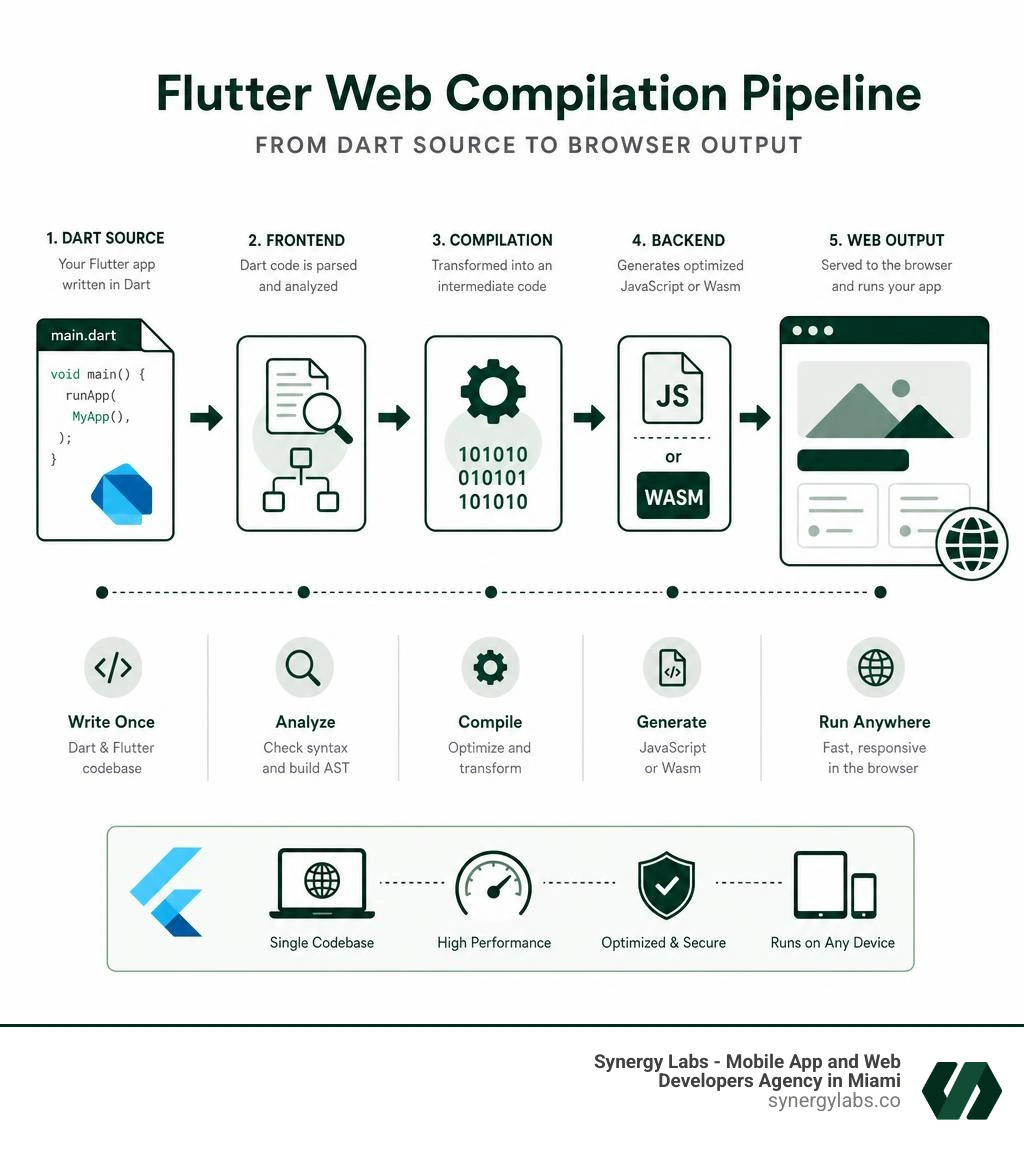
Important android studio flutter web terms:
Setting Up Android Studio Flutter Web Development
Before we start writing Dart code, we need to lay down a solid foundation. Flutter web development relies on having a properly configured development environment where your IDE can talk directly to your system's web browsers.
To get started, you must satisfy a few system requirements:
- The Flutter SDK (version 3.44 is the stable release we use in 2026)
- Android Studio (ideally the latest stable version, such as Koala or newer)
- Google Chrome (highly recommended, as it serves as the default debugging target)
- The Dart SDK (which comes bundled automatically with Flutter)
If you are developing on ChromeOS or need to configure your underlying Android environment, you can refer to the official guide on how to Set up Android development.
Once your basic tools are installed, the real magic happens inside Android Studio. Even though Android Studio is traditionally built for JVM-based languages, it can easily handle the triad of web development. If you are curious about how Android Studio manages web technologies in general, check out our deep dive on android studio html css javascript.
Configuring the Flutter SDK and IDE Plugins
To turn Android Studio into a Flutter web-building powerhouse, you need to install the official integration plugins.
- Open Android Studio.
- Navigate to File > Settings > Plugins (on Windows/Linux) or Android Studio > Preferences > Plugins (on macOS).
- Select the Marketplace tab at the top of the window.
- Search for "Flutter" and click Install. Android Studio will prompt you to install the "Dart" plugin as well. Accept this prompt, as the Flutter plugin relies on it.
- Once the installation finishes, click Restart IDE to apply the changes.
After restarting, verify your path settings. Go to Settings > Languages & Frameworks > Flutter and ensure the path to your Flutter SDK directory is correctly specified. Do the same for Dart.
To ensure everything is configured correctly, open the terminal tab at the bottom of Android Studio and run the validation tool:
This command checks your system and outputs a report of the status of your installations. Look for a green checkmark next to Flutter, Android Studio, and Chrome. If you see warnings about missing Android licenses, you can quickly resolve them by running:
flutter doctor --android-licenses
Creating a New Android Studio Flutter Web Project
With your plugins active, creating a new web-enabled project is incredibly straightforward.

- In Android Studio, go to File > New > New Flutter Project.
- Select Flutter on the left menu, verify the SDK path, and click Next.
- Enter your project name (use lowercase letters and underscores, like
my_awesome_web_app). - Under Project type, select Application.
- In the Platforms section, you will see checkboxes for Android, iOS, Web, macOS, Linux, and Windows. Ensure Web is checked.
- Click Create.
Android Studio will run flutter create behind the scenes and open your new workspace. If you look at the project explorer on the left, you will notice a folder named web. This folder contains the entry point for your web application, including the index.html file, manifest files, and asset configurations.
This multi-platform project structure is what makes a true android studio web app so powerful; you are editing a single lib/main.dart file that serves both mobile and web platforms simultaneously.
Adding Web Support to an Existing Flutter App
What if you already have a mobile app running on Android or iOS and want to bring it to the web? You do not need to start over or copy-paste your code into a new project. You can add web support to your existing codebase with two simple terminal commands.
First, open the terminal in Android Studio and ensure web support is globally enabled on your machine:
flutter config --enable-web
Next, navigate to your project's root directory in the terminal and run the creation command with the web platform flag:
flutter create . --platforms web
This command tells Flutter to look at your existing project and generate the missing web directory along with its essential configuration files. Your existing mobile code in the lib directory remains completely untouched.
Now, when you look at your IDE's target device dropdown menu, you will see Chrome (web) or Edge (web) appear as valid targets alongside your mobile emulators!
Running, Debugging, and Deploying Flutter Web Apps
Running a Flutter web app from Android Studio feels very similar to running a mobile app, but under the hood, the execution model is completely different.
When you target an Android emulator, Android Studio compiles your Dart code into native ARM or x86 machine instructions (or runs it in the Dart VM during debug mode) and pushes an APK to the device. When you target the web, Flutter compiles your Dart code into JavaScript or WebAssembly and hosts a local development web server to serve these files to your browser.
To launch your app, look at the top toolbar in Android Studio. In the device selector dropdown, choose Chrome (web-device). Then, click the green Run button (or press Shift+F10/Control+R).
Android Studio will start a local web server (usually on localhost:port) and automatically open a new Chrome window rendering your application. This unified workflow is the cornerstone of modern cross platform app development flutter projects.
Debugging a web app requires different tools than debugging on a physical mobile device. Fortunately, Android Studio integrates directly with Flutter DevTools and Chrome DevTools to make this process seamless.
If you want to debug your code step-by-step:
- Set breakpoints in your Dart files by clicking in the gutter next to the line numbers.
- Start your app using the Debug icon (the green bug icon next to the Run button).
- When execution hits your breakpoint, the IDE will pause, allowing you to inspect variables, evaluate expressions, and step through the call stack.
To analyze performance, use the Flutter Performance tool window in Android Studio. You can open it via View > Tool Windows > Flutter Performance.
One of the most useful features here is the Widget rebuild information option. When enabled in debug mode, it overlays statistics on top of your running code, showing you exactly how many times each widget is rebuilding. If you notice a widget rebuilding hundreds of times during a simple scroll action, it is a sign that you need to refactor your state management or split your build methods into smaller, localized widgets.
For deeper performance profiling, click the Open DevTools icon in the Flutter run console. This opens a browser-based suite of diagnostics, including:
- CPU Profiler: To find bottlenecks in your Dart code.
- Memory Analyzer: To track down memory leaks or heavy asset allocations.
- Network Tab: To monitor API requests and response times.
For a comprehensive breakdown of IDE-specific debugging features, refer to the official Android Studio and IntelliJ Guide.
For years, one of the main criticisms of Flutter web was its initial load time and rendering performance compared to traditional lightweight HTML/CSS frameworks. In 2026, those performance concerns are largely a thing of the past, thanks to production-ready WebAssembly (Wasm) compilation.
By default, Flutter web uses a combination of HTML elements and CanvasKit (a WebAssembly-compiled version of the Skia/Impeller graphics engine) to draw pixels directly onto a web canvas. This achieves incredibly smooth 60 FPS animations but requires downloading a larger bundle size.
With full WebAssembly support, your entire Dart application logic can compile directly to Wasm bytecode. This results in significantly faster execution speeds, reduced CPU overhead, and much smoother UI rendering on lower-end devices.
To build your application for production using WebAssembly, run the following command in your Android Studio terminal:
If your target hosting environment does not support the specific headers required for Wasm, or if you want a highly compatible fallback, you can build a standard release using:
flutter build web --release
This command outputs your compiled web application to the build/web directory. To deploy your app, you must serve the entire contents of this folder (including the assets, index.html, and JavaScript files) using a web server or hosting provider. For an in-depth look at how this compilation process works, check out the official documentation on building a web application with Flutter and explore the benefits of an HTML5 cross platform architecture.
Advanced Web Integration, Responsiveness, and Best Practices
Building a successful web app is about more than just getting your mobile code to compile; it requires adapting your design and architecture to the unique characteristics of the web.
A mobile app is designed for a fixed portrait or landscape screen with touch inputs. A web app, on the other hand, must handle infinitely resizable browser windows, mouse hovers, scroll wheels, and physical keyboard inputs. This fundamental difference is a key topic of discussion when comparing flutter vs react native which framework is right for your 2026 project.
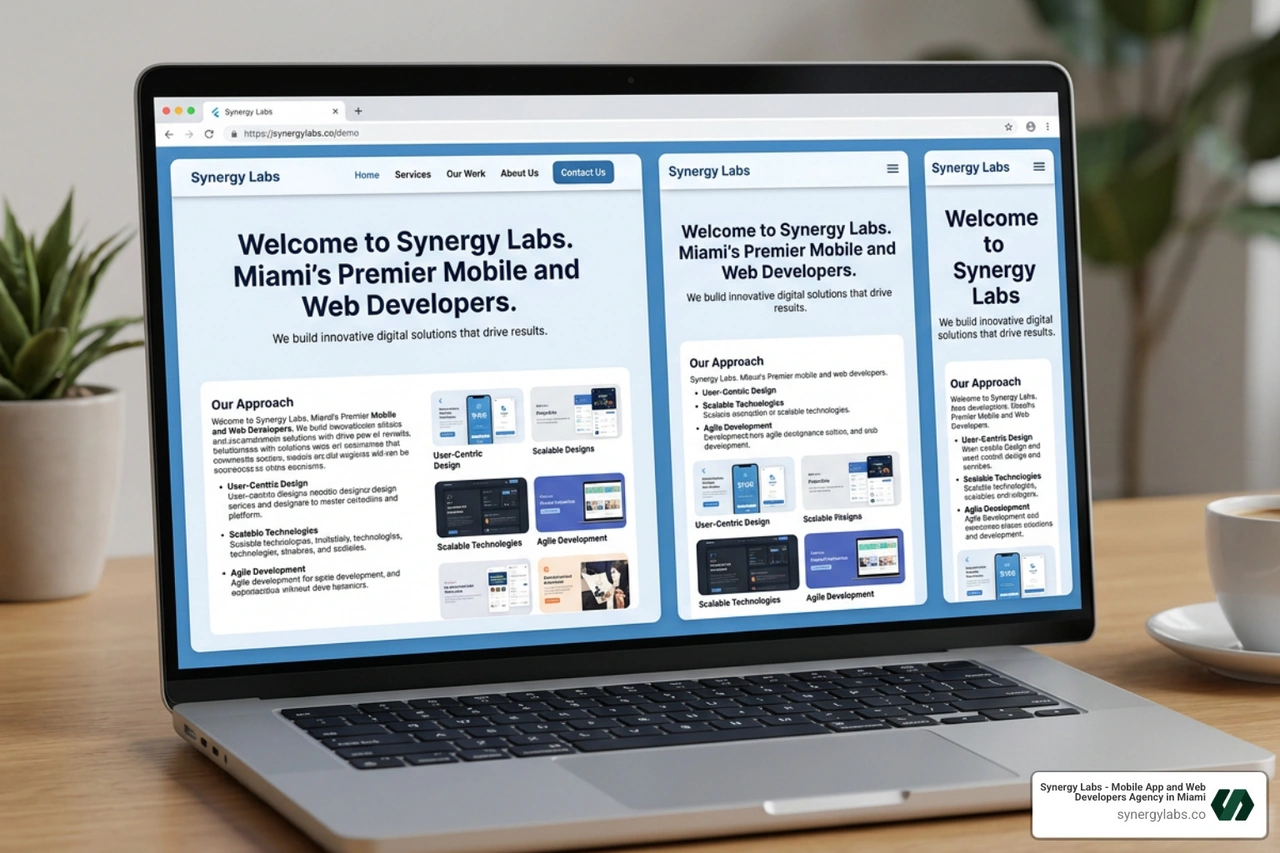
Designing Responsive UIs for Diverse Screen Sizes
To make your Flutter web app feel like a real website rather than a stretched-out mobile app, you must implement responsive design patterns.
Flutter provides several built-in widgets to help you build fluid layouts:
- MediaQuery: Allows you to query the current window dimensions, orientation, and device pixel ratio.
- LayoutBuilder: Passes the parent widget's constraints to its builder method, letting you return different widget trees based on the available width or height.
- Flex, Row, and Column: Combine these with
Expanded and Flexible widgets to create grid systems that resize dynamically.
Here is a practical example of how to use LayoutBuilder to switch between a mobile-friendly drawer navigation and a desktop-friendly sidebar navigation:
import 'package:flutter/material.dart';class ResponsiveNavigation extends StatelessWidget { final Widget child; const ResponsiveNavigation({super.key, required this.child}); @override Widget build(BuildContext context) { return LayoutBuilder( builder: (context, constraints) { if (constraints.maxWidth > 800) { // Desktop Layout with Sidebar return Scaffold( body: Row( children: [ const NavigationRail( destinations: [ NavigationRailDestination( icon: Icon(Icons.home), label: Text('Home'), ), NavigationRailDestination( icon: Icon(Icons.settings), label: Text('Settings'), ), ], selectedIndex: 0, ), Expanded(child: child), ], ), ); } else { // Mobile Layout with Bottom Navigation return Scaffold( body: child, bottomNavigationBar: BottomNavigationBar( items: const [ BottomNavigationBarItem(icon: Icon(Icons.home), label: 'Home'), BottomNavigationBarItem(icon: Icon(Icons.settings), label: 'Settings'), ], ), ); } }, ); }}
By establishing clear breakpoints (e.g., 600px for mobile-to-tablet and 1000px for tablet-to-desktop), you ensure a consistent and professional UI across all screen sizes.
Integrating Backend Services and State Management
Managing state and connecting to backend services in a web app requires careful planning, especially when dealing with browser refreshes. When a user refreshes a web page, the in-memory state of your Flutter app is completely wiped out.
To build robust, production-grade applications, we recommend following a clean architecture pattern:
- State Management: Use lightweight, scalable options like
ChangeNotifier combined with Provider (or ChangeNotifierProvider) to manage app-wide state. It is simple, highly testable, and prevents unnecessary widget rebuilds. - Data Persistence: To persist user sessions and local data across browser refreshes, integrate
shared_preferences or direct browser storage APIs. - Backend Integration: For real-time databases, authentication, and hosting, Firebase is an excellent choice.
When configuring your development workspace, you can preview and test your backend-connected applications using the integrated workspace tools outlined in the Preview your app | Firebase Studio documentation. This ensures your cloud functions, database security rules, and client-side Dart code work in perfect harmony before you deploy to production.
Frequently Asked Questions about Flutter Web in Android Studio
To help you navigate the common hurdles of web development inside Android Studio, we have compiled answers to some of the most frequently asked questions. For a broader look at building apps with this framework, you can also explore our Top Flutter App Development Guide.
Does stateful hot reload work for Flutter web in Android Studio?
The short answer is: No, stateful hot reload is not supported on the web platform.
When targeting mobile devices, Flutter uses Dart’s Just-In-Time (JIT) compiler to inject updated source code directly into the running Dart VM without destroying the app's state. However, web browsers run compiled JavaScript or WebAssembly, which do not support this type of live injection.
Instead, when you save changes in Android Studio while targeting Chrome, Flutter performs a Hot Restart. A hot restart compiles your changes, reloads the browser page, and restarts your application from the main entry point. While this does reset your app’s current state (such as text field inputs or current navigation depth), it still takes only a couple of seconds, keeping your development cycle incredibly fast.
Troubleshooting Android Studio Flutter Web Launch Issues
One of the most frustrating issues developers face when launching a Flutter web app from Android Studio on Windows is a browser crash. The browser opens to a blank screen and immediately displays Google Chrome's "Aw, Snap!" error page, often accompanied by the error code:
STATUS_STACK_BUFFER_OVERRUN
This issue has been widely documented in the Flutter community. Interestingly, the crash does not happen when running the app via the command line or from other editors like VS Code.
The root cause is almost always an unexpected Windows compatibility setting on the Android Studio executable itself. If your Android Studio executable (studio64.exe) is configured to run in Windows 8 compatibility mode, it interferes with how Android Studio spawns the Chrome debugging process, triggering a buffer overrun in Chrome.
To fix this:
- Locate your Android Studio installation folder (usually
C:\Program Files\Google\Android Studio\bin). - Right-click on
studio64.exe and select Properties. - Go to the Compatibility tab.
- Uncheck the box that says "Run this program in compatibility mode for:".
- Click Apply and restart Android Studio.
How do I handle browser-specific APIs in Flutter?
When writing a cross-platform app, you might occasionally need to access web-specific APIs that do not exist on mobile devices, such as manipulating the browser's window object, reading cookies, or registering HTML platform views.
In the past, developers imported dart:html directly. However, doing so would cause compilation errors when building the app for Android or iOS, because those platforms do not have a DOM.
In 2026, the standard way to handle web-specific interactions is through the dart:ui_web library - Dart API. This library provides safe abstractions over browser internals, allowing you to manage URL strategies (like removing the # from your web URLs) and register custom HTML elements using the PlatformViewRegistry without breaking your mobile builds.
For more complex browser integrations, always use conditional imports or platform checks to isolate your web-only code:
import 'package:flutter/foundation.dart';if (kIsWeb) { // Execute web-only logic here safely}
Transitioning your mobile development workflow to include the web can seem like a daunting task, but with android studio flutter web integration, you have all the tools you need right at your fingertips. By leveraging a single codebase, you can dramatically reduce your development time, eliminate duplicate effort, and reach your users wherever they are—whether they are on a mobile phone or a desktop browser.
At Synergy Labs, we specialize in turning complex cross-platform visions into beautifully polished, high-performance realities. As a premier mobile and web development agency with active hubs in Miami, Dubai, Hartford, San Francisco, Doha, New York City, Austin, Riyadh, London, Chicago, and Phoenix, we bring elite engineering to startups and enterprises alike.
What makes us different? We bypass the traditional agency friction points by offering a highly efficient, client-first model:
- Direct Access to Senior Talent: You work directly with senior architects and an in-shore CTO who understand your business goals, backed by a highly skilled offshore development team to keep your project moving around the clock.
- Fixed-Budget Model: No surprise bills or runaway scopes. We scope your project meticulously and commit to a single, transparent price.
- Milestone-Based Payments: You only pay as we deliver verifiable results, keeping us fully aligned with your success.
Whether you are looking to spin up a new web application from scratch or expand your existing mobile app to desktop browsers, we are here to help you scale.
Ready to bring your cross-platform project to life? Let's build something incredible together. Explore our Synergy Labs Web App Development Services and get in touch with our team today!


.avif)

.avif)


