Wrapping a web app inside an Android Studio project gives you a deployable APK without rebuilding everything natively — and knowing the right approach saves you from the common pitfalls that break the experience.
Why Android Studio HTML CSS JavaScript Is the Fastest Path from Web to Mobile
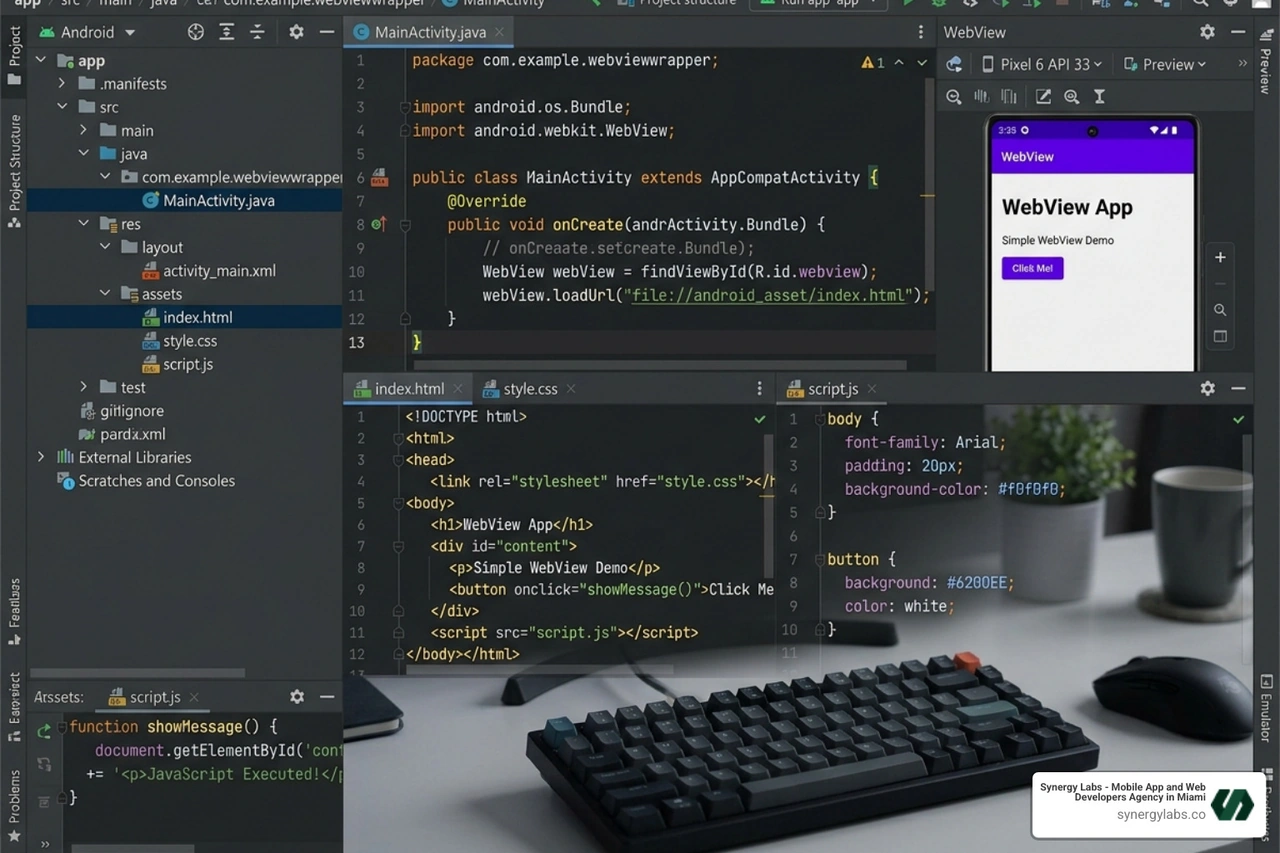
Android Studio HTML CSS JavaScript development lets you wrap your existing web code inside a native Android app using a built-in component called WebView — no need to rewrite everything from scratch in Kotlin or Java.
Here's the quick version of how it works:
- Create a new Android Studio project with an Empty Activity
- Add a
WebView component to your layout XML - Place your HTML, CSS, and JS files in the
assets folder - Enable JavaScript in WebView settings with
setJavaScriptEnabled(true) - Load your local file using
webView.loadUrl("file:///android_asset/index.html") - Add the
INTERNET permission to AndroidManifest.xml if loading remote content
That's the core of it. A working hybrid Android app, built entirely with web technologies.
Now, why would you want to do this? If you already know HTML, CSS, and JavaScript, building a native Android app from zero feels like learning a new language just to say the same thing. WebView skips that detour. It renders your web code inside a native Android container — giving users an app experience while you write code you already know.
This approach is especially useful for startups and developers who need to ship fast, test an idea, or reuse an existing web codebase without doubling the development effort.
At Synergy Labs, we've helped founders navigate exactly this kind of decision — whether to go native, hybrid, or full web — and have shipped android studio html css javascript hybrid apps that balance speed, performance, and maintainability. We know where this approach shines and where it hits its limits, so we'll walk you through both.
Understanding WebView: The Bridge for Android Studio HTML CSS JavaScript
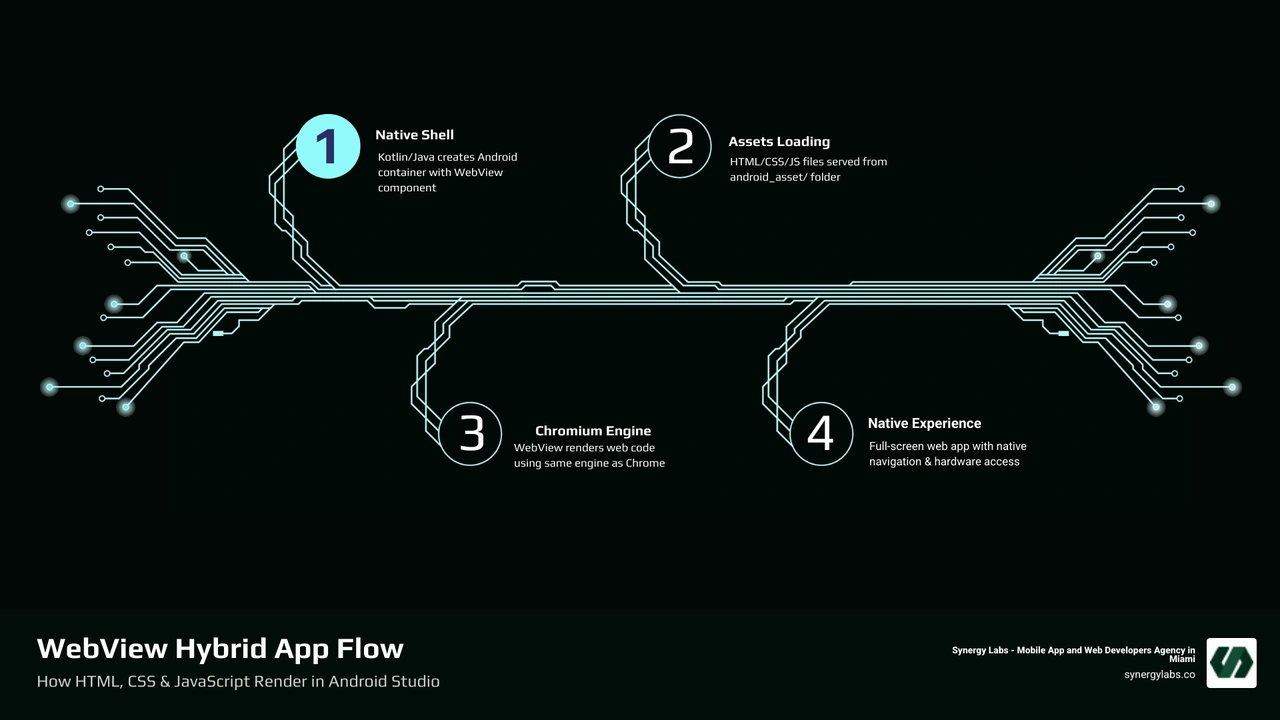
To understand how we use android studio html css javascript, we first have to talk about the WebView class. Think of a WebView as a mini-browser window that lives inside your app. It doesn't have the address bar, the tabs, or the bookmarks of Chrome, but it uses the same underlying rendering engine (Chromium) to display web content.
When we build a hybrid app, the Android "shell" is written in Kotlin or Java, but 90% of what the user sees and interacts with is actually a web page. This is the foundation of many famous apps you use every day. By using web app development services, developers can maintain one codebase that works on the web and inside a mobile wrapper.
The WebView acts as the essential bridge. It allows the Android OS to talk to your JavaScript code and vice-versa. This means you can trigger a native Android "Toast" message from a simple HTML button click.
We often get asked: "Is a hybrid app as fast as a native one?" The honest answer is: it depends on what you're building.
In April 2026, the gap between hybrid and native performance is smaller than ever, but it still exists. Native apps (built entirely in Kotlin) have direct access to the device's processor and memory. They are generally smoother for high-intensity tasks like 3D gaming or complex video editing.
Hybrid apps, on the other hand, run inside the WebView's rendering engine. While Chromium is incredibly fast, there is a slight overhead because the app has to "translate" web instructions into native actions. However, for 95% of business apps — think e-commerce, internal tools, or news readers — the difference is barely noticeable to the average user. Keeping up with the top 5 Android app development trends to follow in 2026 shows that hybrid solutions remain a dominant force for rapid deployment.
Real-World Use Cases and Limitations
When should you use android studio html css javascript?
- Content-Heavy Apps: If your app is mostly text, images, and videos (like a blog or a magazine), WebView is perfect.
- Rapid Prototyping: Need to show an MVP to investors in Miami or New York City next week? Wrap your web prototype in a WebView and you have an APK ready to demo.
- Cross-Platform Consistency: If you want your mobile app to look exactly like your web dashboard, sharing the same CSS is the easiest way to achieve that.
However, there are limitations. If your app requires heavy use of background processing, complex offline data syncing, or intensive hardware access (like advanced camera filters), a fully native approach might be better. Even with Android 17's Min Mode offering new ways to view apps, the core performance still relies on how well your code interacts with the hardware.
Step-by-Step: Setting Up Your Android Studio Project
Let’s get our hands dirty. First, you’ll need the latest version of Android Studio installed. Whether you are working from our offices in Dubai, Riyadh, or San Francisco, the process remains the same.
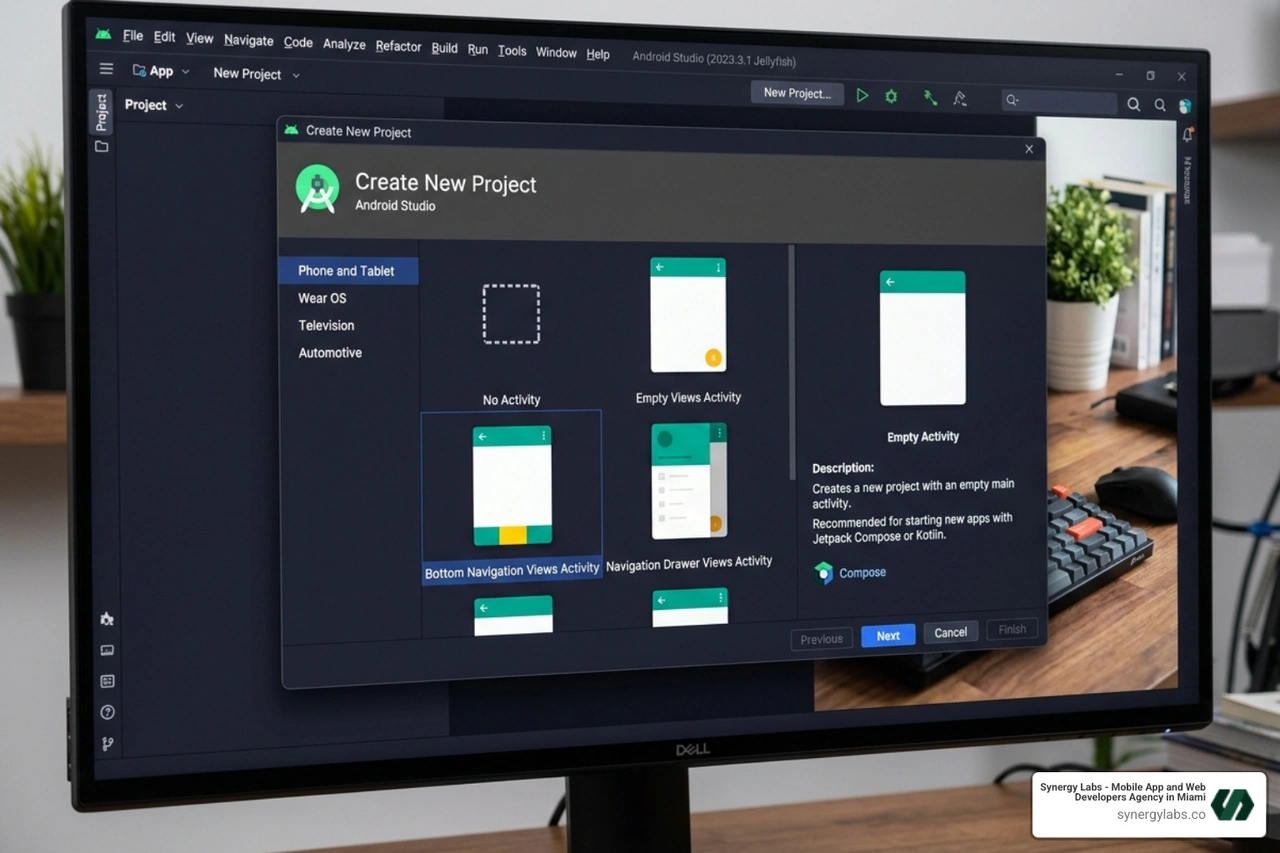
- Start a New Project: Open Android Studio and select "New Project."
- Choose Template: Select "Empty Activity." This gives us a clean slate without unnecessary native UI components.
- Configure Project: Name your app, choose a package name (e.g.,
com.synergylabs.webviewapp), and select Kotlin as the language. For the Minimum SDK, we recommend API 24 or higher to ensure compatibility with modern web features. - Gradle Sync: Let Android Studio do its thing and sync your files. This is a great time to grab a coffee.
Having the essential tools for mobile app development ready is key to a smooth setup.
Configuring the Android Studio HTML CSS JavaScript Assets Folder
By default, Android Studio doesn't create an "assets" folder. We need to create it manually to store our android studio html css javascript files.
- Right-click on the
app folder in the project view. - Select
New > Folder > Assets Folder. - Inside the
assets folder, we recommend creating a subfolder named www. This keeps things organized. - Create your files:
index.html, style.css, and script.js.
To load these files, you will use the special protocol file:///android_asset/. For example, if your file is in the www folder, the path is file:///android_asset/www/index.html. This tells the WebView to look inside the app's internal storage rather than the internet.
Essential Permissions and Manifest Settings
Before your app can do anything, you need to talk to the AndroidManifest.xml. This file is the "boss" of your app; it tells the Android system what your app is allowed to do.
If your app needs to load any content from the internet (even just a Google Font), you must add this line inside the <manifest> tag but outside the <application> tag:
<uses-permission android:name="android.permission.INTERNET" />
Additionally, if you are testing on a local server or using non-HTTPS links (though we strongly advise against this for production!), you might need to enable android:usesCleartextTraffic="true" inside the <application> tag.
Also, keep an eye on Google Play's 16 KB compliance to ensure your app meets the latest store standards as we move through 2026.
Coding the WebView: Kotlin Implementation and JavaScript Integration
Now for the fun part: writing the Kotlin code that brings your android studio html css javascript to life. Open your MainActivity.kt file. We need to find the WebView in our layout and tell it what to do.
First, make sure your activity_main.xml has a WebView element:
<WebView android:id="@+id/myWebView" android:layout_width="match_parent" android:layout_height="match_parent" />
Now, in MainActivity.kt, we initialize it:
val myWebView: WebView = findViewById(R.id.myWebView)myWebView.webViewClient = WebViewClient() // This ensures links open inside the app, not a browsermyWebView.loadUrl("file:///android_asset/www/index.html")
Enabling JavaScript in Android Studio HTML CSS JavaScript Apps
By default, Android disables JavaScript in WebViews for security reasons. Since we are building an interactive app, we need to turn it back on. This is done through the WebSettings class.
val webSettings = myWebView.settingswebSettings.javaScriptEnabled = true
A Word on Security: Enabling JavaScript opens the door to Cross-Site Scripting (XSS) attacks. If you are loading remote content, ensure that the website is yours and that you are using HTTPS. Never use addJavascriptInterface with content you don't trust. Always prioritize security when bridging web and native environments.
Establishing Communication via JavaScriptInterface
One of the coolest features of android studio html css javascript development is the ability to call native Android functions from your JavaScript code. We do this using a JavaScriptInterface.
Imagine you want to show a native Android Toast when a user clicks an HTML button.
Step 1: Create the Interface Class in Kotlin
class WebAppInterface(private val mContext: Context) { @JavascriptInterface fun showToast(toast: String) { Toast.makeText(mContext, toast, Toast.LENGTH_SHORT).show() }}
Step 2: Bind it to the WebView
myWebView.addJavascriptInterface(WebAppInterface(this), "Android")
Step 3: Call it from your JavaScript
function callNative() { Android.showToast("Hello from JS!");}
This "bridge" allows your web code to access device sensors, the camera, or the local database, making your hybrid app feel truly native.
Advanced Configuration and Debugging for Production
Building the app is one thing; making it production-ready is another. Debugging a WebView can be tricky because you can't see the console logs in Android Studio's standard logcat very easily.
The secret weapon? Chrome Developer Tools.
- Connect your Android device to your computer via USB.
- Enable "USB Debugging" in the device's Developer Options.
- Open Chrome on your desktop and type
chrome://inspect/#devices in the address bar. - You will see your app listed. Click "Inspect."
Now you have the full power of the Chrome Inspector — including the Console, Elements, and Network tabs — acting directly on your mobile app! This is essential for debugging Android games or complex web apps.
Production Settings: Caching, Zoom, and User Agents
For a professional finish, you should fine-tune your WebSettings:
- Caching: Use
webSettings.cacheMode = WebSettings.LOAD_DEFAULT to speed up load times for returning users. - Zoom: If your app is designed to be a mobile UI, you probably want to disable user zoom:
webSettings.setSupportZoom(false). - User Agent: Sometimes you want the server to know the request is coming from your specific app. You can append a custom string to the User Agent:
webSettings.userAgentString += " SynergyLabsApp".
Don't forget the most important part of web-to-mobile: the Viewport Meta Tag. Without this in your HTML <head>, your app will look like a tiny desktop website on a phone screen:
<meta name="viewport" content="width=device-width, initial-scale=1.0, maximum-scale=1.0, user-scalable=no">
Troubleshooting Common WebView Errors
Even the best of us run into walls. Here are the most common "gotchas" when working with android studio html css javascript:
- The White Screen of Death: Usually caused by a path error. Double-check that your file is actually in
assets/www/index.html and that you didn't misspell "assets" (it’s plural!). - JavaScript Not Working: Did you remember
setJavaScriptEnabled(true)? It’s the #1 reason for broken buttons. - Back Button Closes App: By default, the Android back button closes the Activity. To make it go back through your web history instead, you need to override
onKeyDown:
override fun onKeyDown(keyCode: Int, event: KeyEvent?): Boolean { if (keyCode == KeyEvent.KEYCODE_BACK && myWebView.canGoBack()) { myWebView.goBack() return true } return super.onKeyDown(keyCode, event)}
Frequently Asked Questions about WebView Integration
How do I load a remote URL versus a local HTML file?
To load a live website, use myWebView.loadUrl("https://www.synergylabs.co"). To load a local file, use myWebView.loadUrl("file:///android_asset/yourfile.html"). Remote URLs require the INTERNET permission in your manifest, whereas local files do not (unless the files themselves fetch external data).
Can I use modern JS frameworks like React or Vue in a WebView?
Absolutely! You just need to "build" your React or Vue project first. Take the output of your npm run build command (the dist or build folder) and copy those static files into your Android assets folder. The WebView will treat it like any other HTML/JS site.
Is a WebView app secure enough for handling user data?
Yes, provided you follow best practices. Use HTTPS for all network requests, sanitize any user input to prevent XSS, and be very careful with what native functions you expose through the JavaScriptInterface. For high-security apps (like banking), we often recommend a more native-heavy approach to leverage biometric hardware more directly.
From Web Code to Play Store: Launching with Synergy Labs
Wrapping your web code in an Android Studio project is a powerful way to enter the mobile market without the overhead of learning a completely new stack. By leveraging android studio html css javascript, you can maintain agility while providing a native presence for your users.
At Synergy Labs, we specialize in exactly this kind of strategic development. Whether you're based in Miami, London, or Chicago, we help you decide when a hybrid approach is the smartest move for your bottom line. We’ve built an extensive portfolio of cross-platform wonders that prove you don't have to sacrifice quality for speed.
When you work with us, you aren't just getting another dev shop. You get direct access to an in-shore CTO and a senior talent pool that understands the nuances of the Chromium engine and the Android OS. We operate on a fixed-budget model with milestone-based payments, meaning you know exactly what you’re paying for and when it will be delivered. No "black box" development, no hidden fees — just high-performance code that grows your business.
Ready to turn your web vision into a mobile reality? Contact Synergy Labs today and let’s build something incredible together.


.avif)

.avif)


