Regain Access to a Locked iPhone Safely
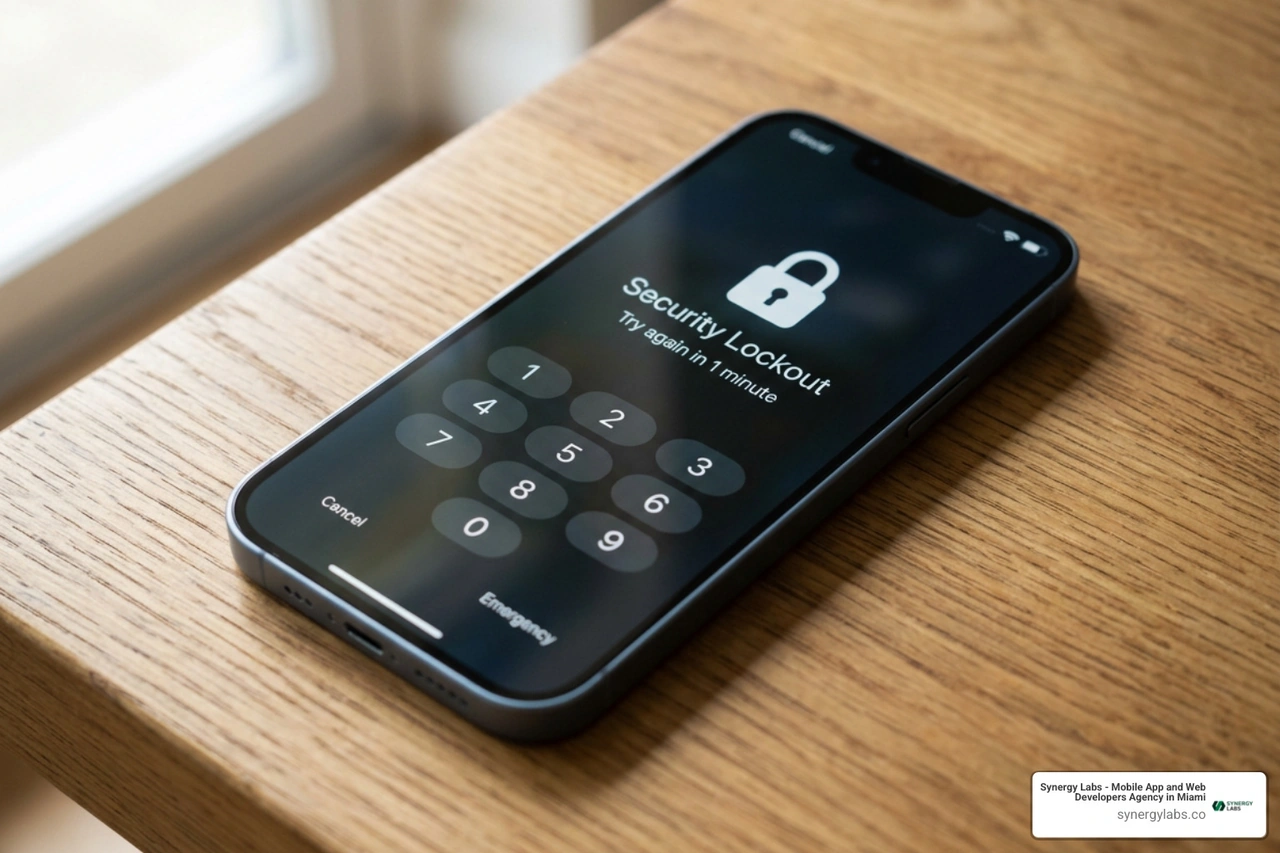
If you forgot your passcode, you cannot safely bypass it. To unlock a locked iPhone, you must reset and erase the device, then sign in with your Apple Account and restore a backup if one exists.
Your best path depends on what was enabled before the lockout:
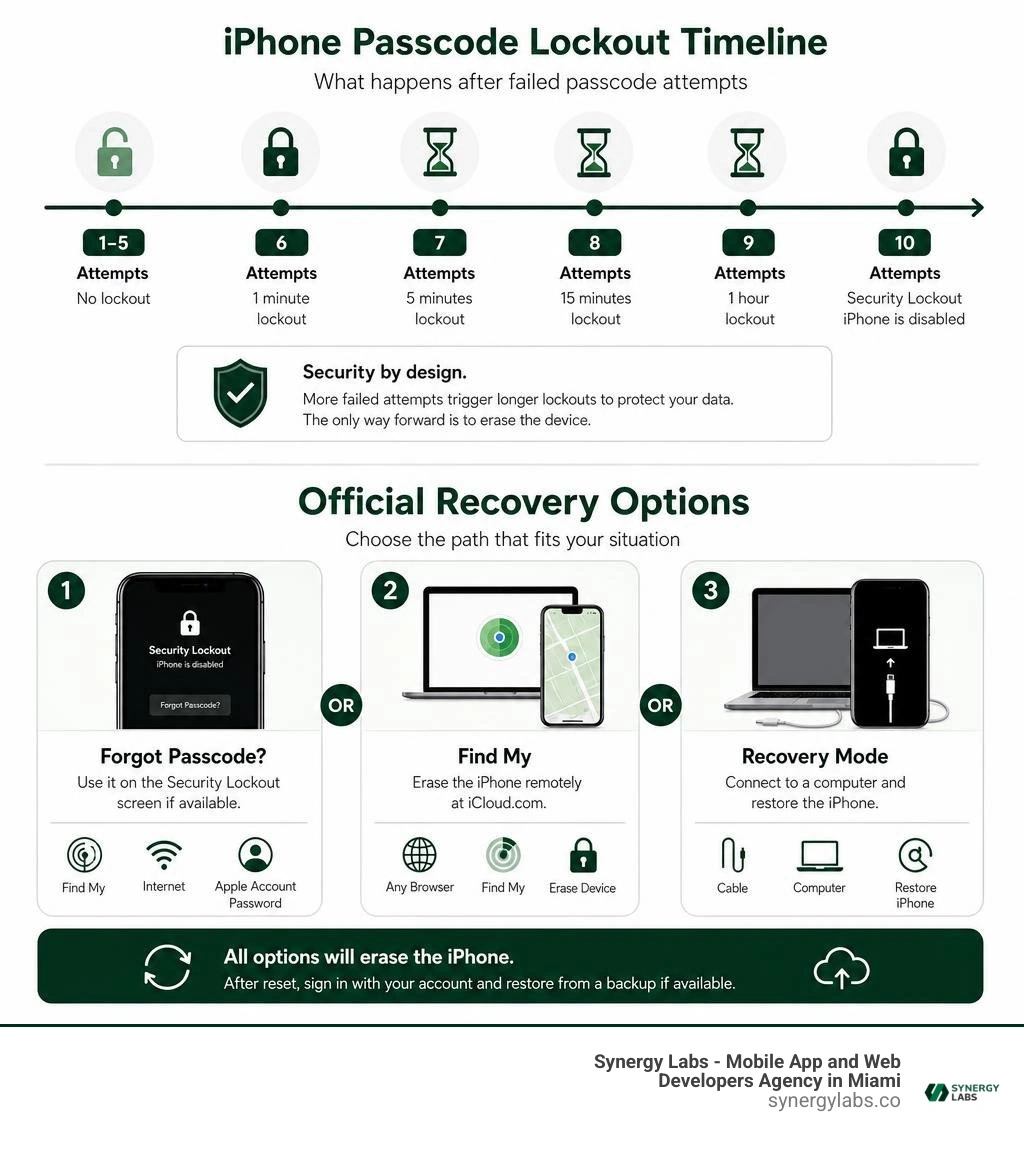
- Use Forgot Passcode? on the Security Lockout screen if Find My, internet access, and your Apple Account password are available.
- Use Find My at iCloud.com to erase the iPhone remotely.
- Use Recovery Mode with a Mac or Windows PC if the on-device option is not available.
These options remove the passcode, but they also remove data stored only on the phone. That is not a flaw; it is the security design that keeps a lost or stolen iPhone from becoming an open book. A backup in iCloud or on a computer is the only reliable way to get your data back after the reset.
I am the Director of Product at Synergy Labs, and the next sections explain which type of lock you have and the safest recovery path for it.
Explore more about how can you unlock a locked iphone:
Understanding Device Locks: Passcode Lock vs. Carrier Lock vs. Activation Lock
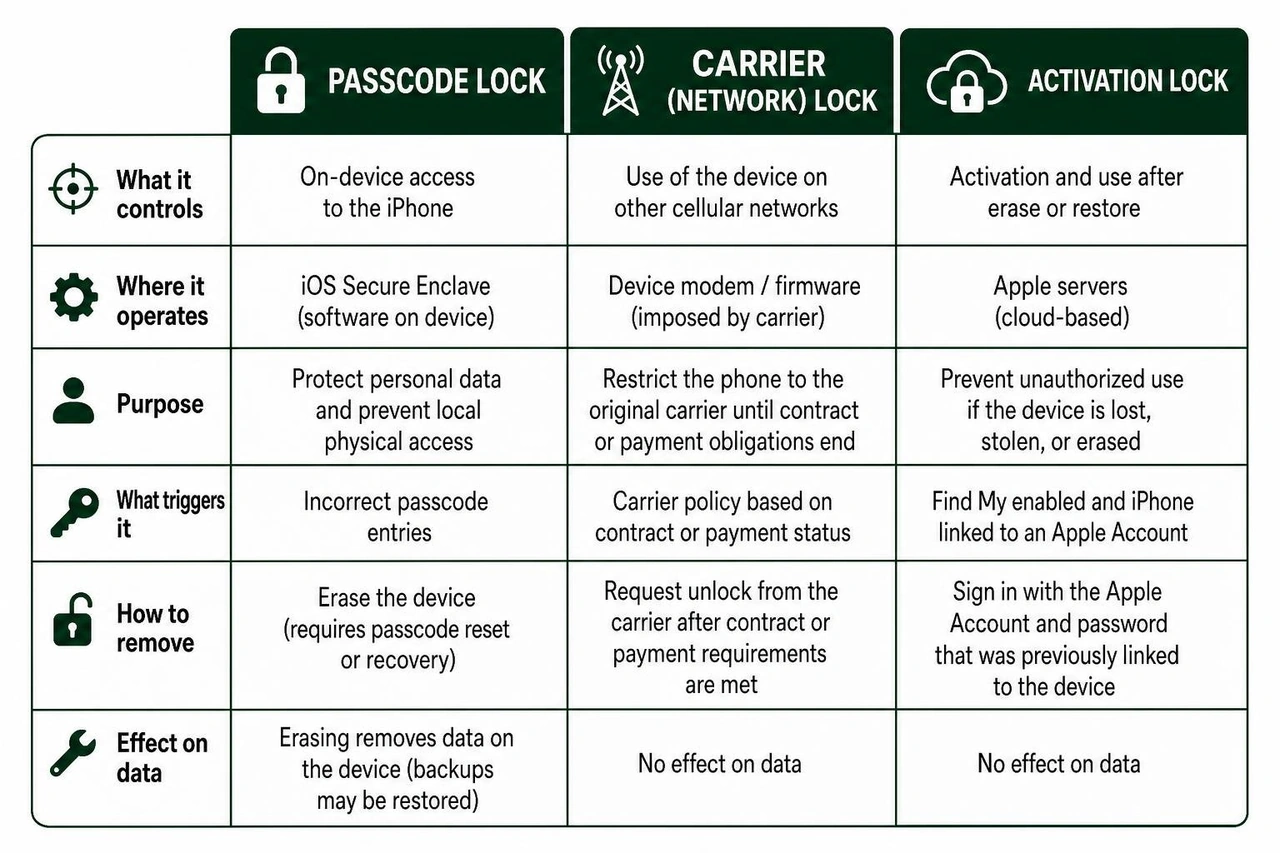
When an iPhone screen stops responding to your inputs, determining the exact security layer involved is the essential first step. Modern iOS security operates across distinct software, firmware, and network layers.
At Synergy Labs, we frequently engineer enterprise mobile architectures, and we know that Apple's hardware-based encryption safeguards user data behind dedicated cryptographic co-processors. A basic passcode lock prevents local physical access, whereas carrier locks and cloud-based activation barriers serve completely different operational purposes. If you need to lock phone systems remotely or secure lost hardware, understanding these boundaries prevents permanent data loss.
Passcode Lock vs. Network Carrier Lock
A passcode lock is an on-device security measure managed by the iOS Secure Enclave. When you enter an incorrect pin repeatedly, internal lockout timers delay further attempts to protect against brute-force attacks.
A network carrier lock, by contrast, has nothing to do with your personal passcode or local encryption. It is an operator restriction placed on the device modem to prevent the phone from functioning on rival cellular networks until specific financial contracts or service durations conclude.
Major telecommunication providers establish strict criteria before authorizing a carrier unlock:
- AT&T requires the device to be active on an account for at least 60 days with all installment plans fully paid.
- T-Mobile mandates a minimum of 40 active days of postpaid service on the network.
- Verizon requires 365 days of paid, active service for prepaid devices before lifting carrier constraints.
For full network flexibility, you must follow the official carrier process as outlined in Apple's guide on How to unlock your iPhone for use with a different carrier.
Activation Lock and Apple ID Security
Activation Lock is a server-side deterrent tied directly to Apple's Find My infrastructure. The moment an Apple ID links to an iPhone, Apple's activation servers register the device hardware identifier (IMEI/MEID) with that specific account.
Even if someone wipes the iPhone via a hard reset, the device cannot complete the initial setup screen without authenticating the original Apple ID credentials. This anti-theft protocol protects user assets and reinforces robust mobile app security standards across consumer and commercial ecosystems alike.
Official Reset Methods: How Can You Unlock a Locked iPhone
When an iPhone displays "iPhone Unavailable" or "Security Lockout," official Apple reset procedures are your only legitimate path forward. Over 4,513 users on Apple Support Community forums report getting locked out after forgetting a newly updated pin.
A common misconception is that a secret developer tool can bypass the screen without erasing the operating system. Because local files are protected with AES-256 encryption keys tied directly to your passcode, removing an unknown pin requires erasing the cryptographic keys and wiping the device clean. The official instructions in If you forgot your iPhone, iPad, or Apple Vision Pro passcode, reset your device without a computer - Apple Support detail the direct reset workflow.
On-Device Reset: How Can You Unlock a Locked iPhone Without a Computer?
Starting in iOS 15.2, Apple introduced direct on-screen resetting. In iOS 17 and later versions running in 2026, this system includes a convenient 72-hour grace period if you recently changed your passcode and forgot the new code.
To use the on-device reset flow:
- Enter incorrect passcodes until the screen displays "Security Lockout" or "iPhone Unavailable."
- Tap the "Forgot Passcode?" prompt in the bottom corner of the display.
- If you changed your passcode within the last 72 hours, select the option to enter your previous passcode to regain access without data loss.
- If that grace period has elapsed, tap "Start iPhone Reset."
- Enter your Apple ID password to sign out of your Apple Account.
- Choose whether to retain or remove your installed eSIM profiles.
- Confirm the reset to initiate a complete wipe and return the iPhone to factory settings.
Remote Wipe via iCloud Find My
If the locked device is connected to an active cellular or Wi-Fi network, you can wipe it remotely using a web browser:
- Open any web browser and navigate to iCloud.com/find.
- Sign in with the Apple ID credentials associated with the locked iPhone.
- Select "All Devices" from the top navigation bar and choose your locked iPhone.
- Click "Erase iPhone" and confirm the command.
- Provide your Apple ID password and verify via two-factor authentication if prompted.
- Once the remote signal reaches the device, the iPhone erases its local storage, clears the passcode, and restarts to the setup screen.
For additional remote access techniques, review our guide on how do i unlock my iphone.
Computer Recovery Mode and Device Restores
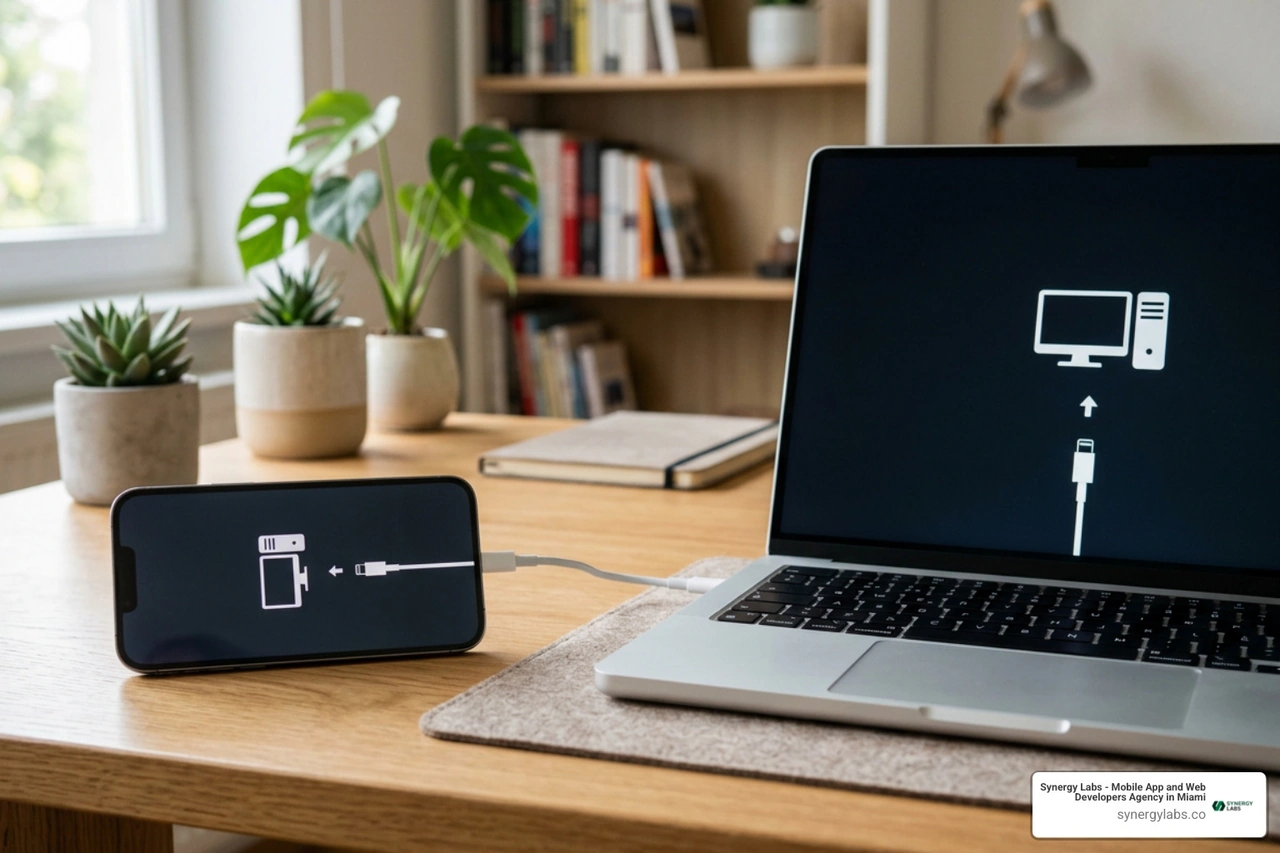
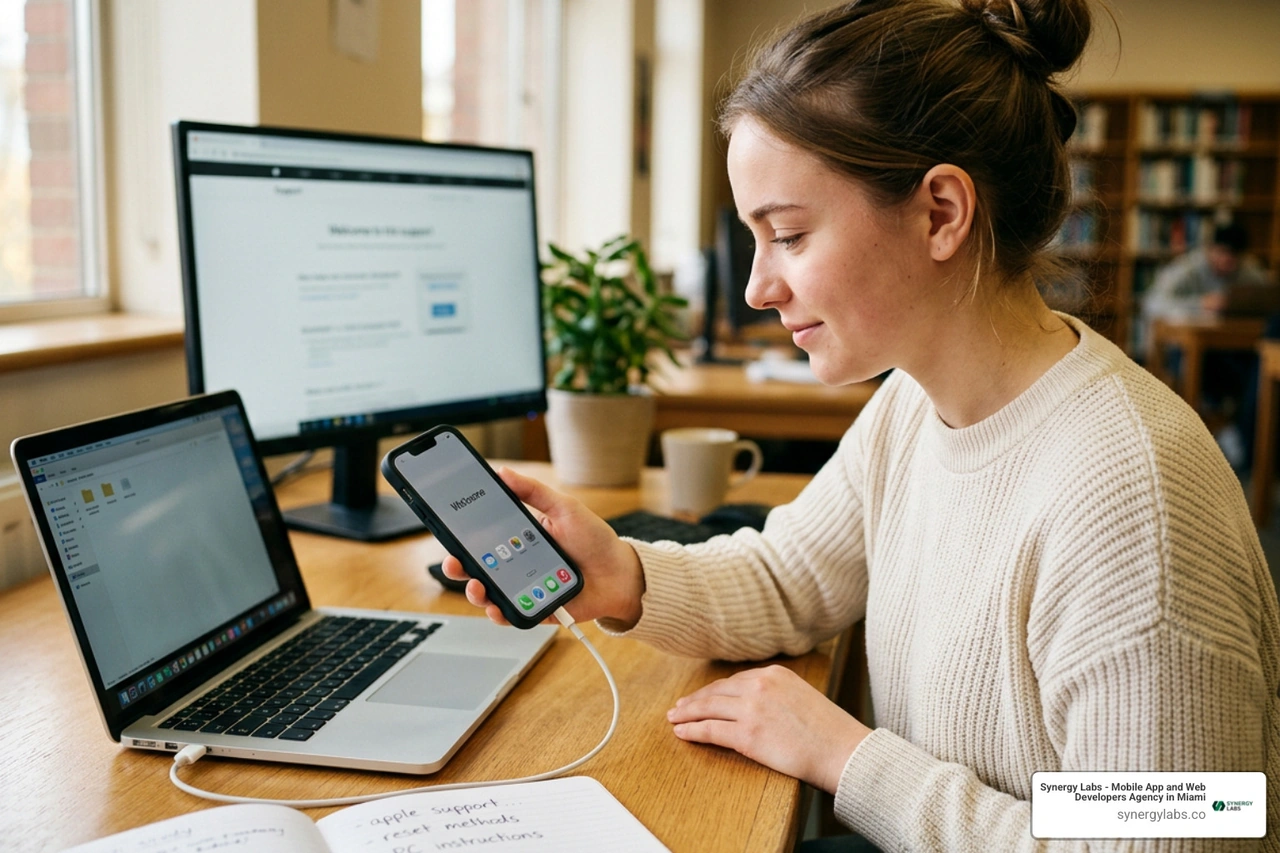
When an iPhone cannot connect to Wi-Fi, lacks cellular service, or does not present an on-screen reset option, computer-based Recovery Mode provides a universal fail-safe.
This low-level hardware communication method bypasses the locked operating system to flash fresh firmware directly to storage. Official steps outlined in Use a computer to reset your iPhone and your passcode - Apple Support confirm that the recovery download process may take more than 15 minutes, with total computer restore operations requiring up to 60 minutes.
Putting Different iPhone Models into Recovery Mode
To initiate Recovery Mode, disconnect your iPhone from the computer, power the device down completely, and use the exact hardware button sequence for your specific device model:
- iPhone 8, iPhone SE (2nd/3rd gen), iPhone X, and all Face ID models: Press and quickly release Volume Up, press and quickly release Volume Down, then press and hold the Side button while connecting the phone to your computer. Keep holding until the computer-and-cable recovery screen appears.
- iPhone 7 and iPhone 7 Plus: Press and hold the Volume Down button while connecting the iPhone to your computer. Continue holding until the recovery screen is visible.
- iPhone 6s, iPhone SE (1st gen), and older models: Press and hold the physical Home button while plugging the Lightning cable into the computer until the recovery prompt displays.
Restoring Firmware and Data
Once your device enters Recovery Mode, complete the restore through your computer interface:
- Open Finder on macOS or the Apple Devices app (or iTunes) on a Windows PC.
- Locate the connected iPhone in the sidebar navigation.
- A dialog box will appear stating that there is a problem with the iPhone that requires it to be updated or restored. Select Restore.
- Confirm the restore prompt. Your computer will download the latest signed iOS firmware package directly from Apple's servers.
- If the firmware download exceeds 15 minutes, your iPhone will exit Recovery Mode automatically. Allow the download to finish, power down the device, and trigger the button sequence once more.
- Once the firmware installation completes, the device will restart to the "Hello" screen, allowing you to restore your data from an iCloud or local computer backup.
Practicing robust device maintenance aligns with basic development concepts in how to secure mobile apps, ensuring your device states remain clean and recoverable.
Second-hand marketplaces offer substantial cost savings, with refurbished devices often priced 20% to 50% below new hardware. However, acquiring a pre-owned iPhone introduces potential lock scenarios that cannot be resolved with a standard Recovery Mode wipe. Maintaining vigilance against unauthorized access also requires running verified utility tools, much like installing trusted phone antivirus defenses on consumer electronics.
Used Devices: How Can You Unlock a Locked iPhone Linked to Another Apple ID?
If you purchase a used iPhone that displays an Activation Lock screen tied to someone else's email address, a computer factory reset will not bypass this screen. The device requires authentication from the registered account.
To resolve this legitimately:
- Contact the seller or original owner and request that they remove the device remotely by visiting iCloud.com/find, selecting the device, and clicking "Remove from Account."
- If the original owner is unavailable but you possess verifiable documentation, submit an Activation Lock support request directly to Apple. You must present the original commercial receipt detailing the device serial number, IMEI, and original point of sale.
The Reality of Third-Party Unlocking Software
Numerous commercial utilities advertise instant passcode unlocks. It is critical to understand their technical limitations:
- Third-party software utilities are paid tools; free versions rarely provide functional execution.
- These tools cannot bypass Apple's hardware encryption without triggering a full data wipe.
- No commercial tool can bypass server-side iCloud Activation Lock on modern iOS releases.
- Recovery Mode provides the exact same factory restore functionality for free through Apple's official software suite.
Frequently Asked Questions About Forgotten iPhone Passcodes
Can you unlock a locked iPhone without losing your personal data?
No legitimate method can bypass an unknown passcode on a locked iPhone without erasing device data, unless you are within the 72-hour grace period on iOS 17+ using your previous passcode. Apple's Secure Enclave ties the file decryption keys directly to your passcode. Without that key, data stored on the hardware remains encrypted and inaccessible.
How many failed passcode attempts does it take to disable an iPhone?
An iPhone initiates escalating lockout delays after consecutive incorrect attempts:
- 6 failed attempts: Device disabled for 1 minute.
- 7 failed attempts: Device disabled for 5 minutes.
- 8 failed attempts: Device disabled for 15 minutes.
- 9 failed attempts: Device disabled for 60 minutes.
- 10 failed attempts: The device locks down completely, displaying "iPhone Unavailable" or erasing all data automatically if the "Erase Data" security toggle was previously activated.
To complete a Recovery Mode restore, you need:
- An official Apple or MFi-certified USB-C or Lightning charging cable.
- A Mac running macOS Catalina or later (using Finder) or a Windows PC with the Apple Devices app installed.
- A stable, high-speed internet connection to download the multi-gigabyte iOS firmware file.
- Your Apple ID and password to complete setup after the device restarts.
Securing Your Digital Ecosystem with Synergy Labs
Regaining access to a locked device highlights the importance of comprehensive security management and reliable cloud backups. In 2026, safeguarding sensitive mobile architectures demands proactive engineering across every application layer. For enterprises evaluating full-scale mobile protection, exploring dedicated mobile security software ensures critical infrastructure stays protected against unauthorized intrusions.
At Synergy Labs, we engineer custom mobile and web applications designed with defense-in-depth security principles. Whether you are launching an enterprise iOS application or modernizing cross-platform systems, we accelerate development while eliminating technical risks.
Our client-first engagement model delivers exceptional value:
- Fixed-Budget Model: Clear scopes and transparent pricing ensure you never encounter surprise overages.
- Elite Senior Leadership: Direct collaboration with an in-shore CTO paired with a high-velocity offshore engineering team.
- Milestone-Based Payments: You only approve funds as measurable development deliverables are completed.
Ready to build scalable, highly secure digital products? Partner with Synergy Labs today to turn your product vision into reality.


.avif)

.avif)


