Fingerprint sensor location varies widely across Android devices — and knowing where yours is and how it works is the first step to setting up reliable biometric security.
Where Fingerprint Sensors Are Located on Android Devices
Before you set out to lock android phone with fingerprint biometrics, you need to know where your scanner actually lives. Hardware layouts vary significantly across manufacturers and price points.
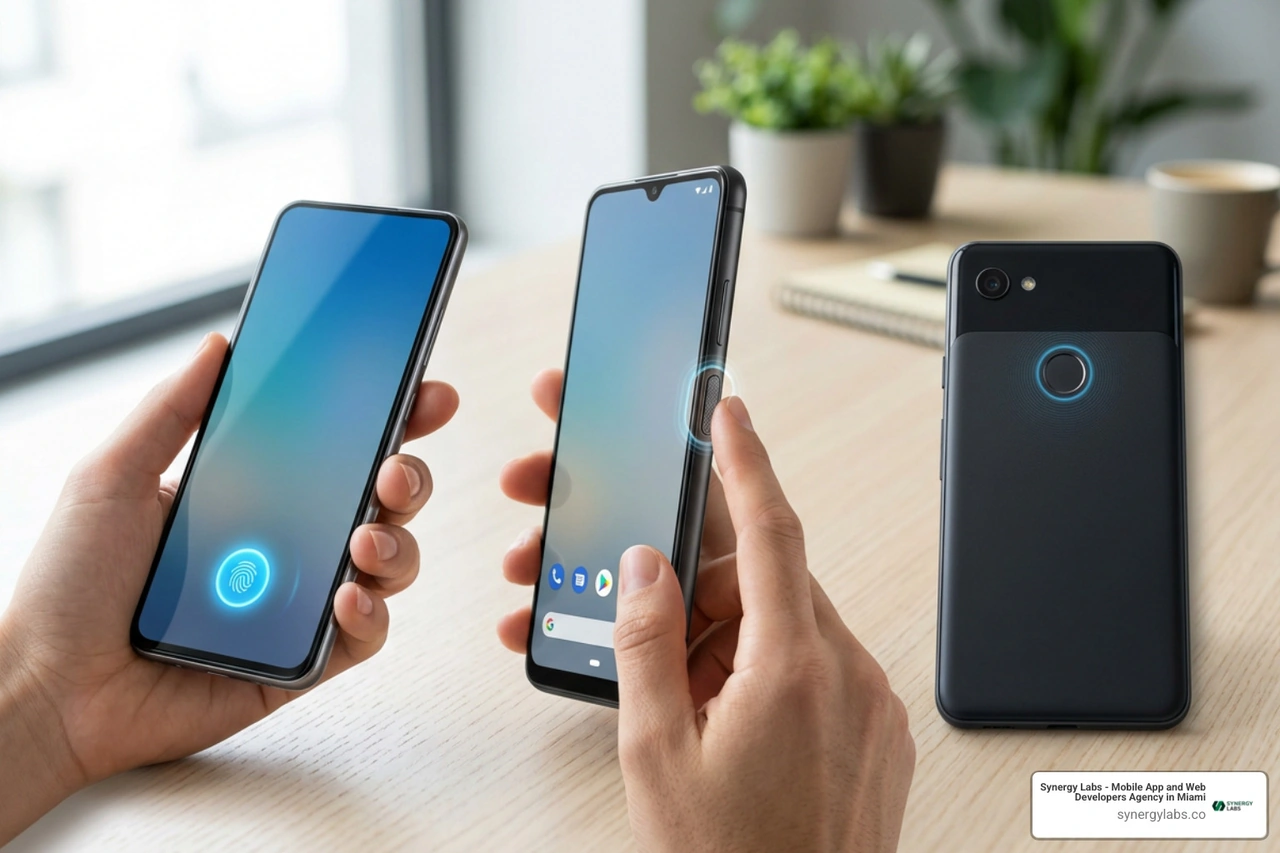
Here is where you will typically find the hardware sensor on modern devices:
In-Display Readers (Under-Screen): Found on most modern mid-range and flagship smartphones. These sensors shoot light up through the glass (optical) or send soundwaves to read your skin's ridges (ultrasonic). Ultrasonic readers work even when your fingers are slightly damp, whereas optical sensors require a clean touch and light up brightly when scanned.
Side Power Button Scanners: Common on modern budget devices, foldable phones, and select manufacturer hardware. These physical capacitive sensors double as your power button. They are lightning-fast because you touch them naturally as you press the button.
Rear-Mounted Physical Sensors: Popular on classic smartphones and older device models. Located on the upper back panel, these circular physical pads let your index finger rest in place while holding the phone.
Front Home Button Readers: Found on older generation devices with physical front home buttons below the screen.
Step-by-Step: How to Lock Android Phone with Fingerprint Security
Activating native biometric security takes under two minutes. While menu labels can vary slightly depending on whether your phone runs stock Android or a custom manufacturer interface, the underlying path is almost identical.
Follow these universal steps:
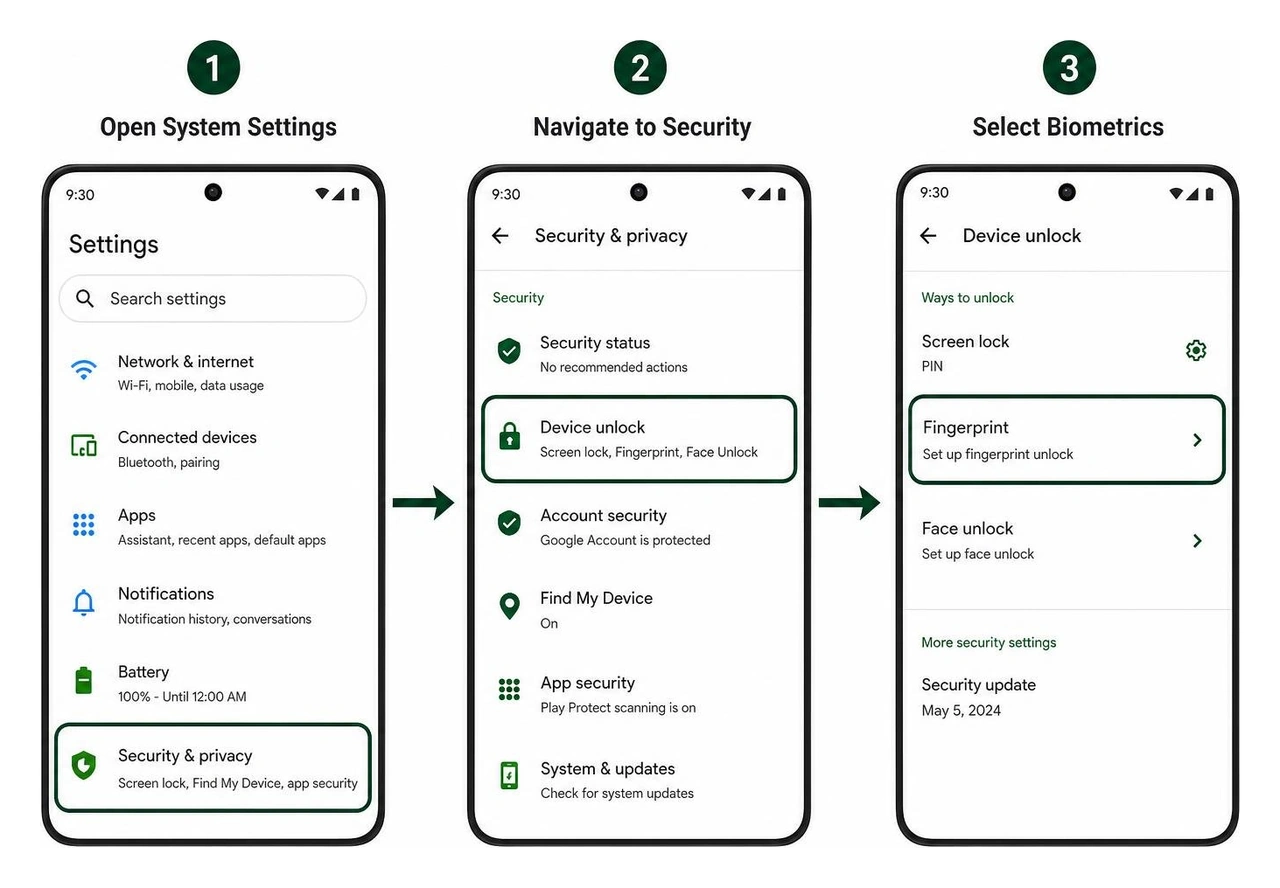
Open System Settings: Pull down your notification shade and tap the gear icon, or open the Settings app.
Navigate to Security: Scroll down and select Security & privacy (or Lock screen on certain devices).
Select Biometrics: Tap Device unlock and choose Fingerprint (or Face and fingerprint unlock).
Confirm Credentials: Enter your existing backup PIN, pattern, or password. If you haven't set one up yet, Android will prompt you to create it now.
Scan Your Finger: Place the primary finger you use to hold your device flat against the scanner. Lift your finger when you feel a vibration, then place it down again.
Calibrate Edges and Tips: Slightly shift the angle of your finger with each press to capture the outer edges and tip of your print.
Complete Registration: Once the screen shows 100% completion, tap Done. Make sure the toggle for Fingerprint unlock is switched on.
For deeper technical insights on mobile app data protection, read our full article on How To Secure Mobile Apps.
How to Add or Remove Prints to Lock Android Phone with Fingerprint
Registering just one finger can lead to awkward handling if your main hand is busy carrying groceries or coffee. Most Android operating systems allow you to register up to 4 distinct fingerprints per user profile.
To manage your stored prints:
Add Additional Prints: Return to Settings > Security & privacy > Device unlock > Fingerprint, authenticate with your PIN, and tap Add fingerprint. We strongly recommend registering both index fingers and both thumbs.
Rename Prints: Tap on an existing fingerprint name (e.g., "Fingerprint 1") and rename it to something recognizable like "Right Thumb" or "Left Index."
Delete Prints: Tap the trash bin or delete icon next to a stored print to wipe it instantly from your device's secure enclave.
If you share a device with a partner or child, never add their finger to your primary profile. Instead, set up separate user profiles under Settings > System > Multiple users. Each profile maintains isolated biometric storage, ensuring your personal banking credentials, app data, and private notifications remain strictly separate.
How Backup PIN and Pattern Work to Lock Android Phone with Fingerprint
You cannot enable biometric unlocking on Android without setting up a secondary backup lock method—such as a PIN, pattern, or password.
Your backup lock method serves two critical purposes:
System Encryption: Android uses your PIN, pattern, or password to generate master cryptographic keys that encrypt your local device storage and secure automatic cloud backups. Biometric templates alone cannot generate these primary encryption keys.
Fallback Access: If your finger gets injured, dirty, or the hardware sensor fails, your backup lock ensures you are never permanently locked out of your phone.
We recommend using a 6-digit PIN or longer. On Android systems, 6-digit PINs support an "Auto-confirm unlock" feature that opens the phone as soon as the last correct digit is entered without requiring you to hit the Enter button.
Expanding Biometric Security Beyond Screen Lock to Mobile Commerce
Unlocking your device is only the start. Biometric integration has revolutionized mobile commerce (m-commerce), allowing users to approve financial transactions in milliseconds.
Mobile purchases now account for approximately 60% of all global e-commerce transactions. Moreover, mobile wallet payments are projected to surpass $16 trillion worldwide by 2028. Because app users engage with mobile shopping platforms 3 times more frequently than mobile web visitors, securing mobile transactions via local biometric verification is paramount.
When you lock android phone with fingerprint credentials, you enable the same Android BiometricPrompt API used by digital wallets, mobile banking apps, and shopping platforms. To configure app-level security, look at manufacturer guides like Use fingerprint security.
Using biometrics for in-app purchases eliminates checkout friction. Instead of typing long credit card numbers or complex passwords on small glass keyboards, users touch the sensor to complete transactions securely. You can explore modern security architectures further in our comprehensive guide on Mobile Security Software.
Fingerprint Lock Screen Apps vs Native Android Security
If you search app stores for lock screen utilities, you will discover popular downloads and third-party personalization packages with millions of installs. However, there is a fundamental structural difference between native Android security and third-party app lockers.
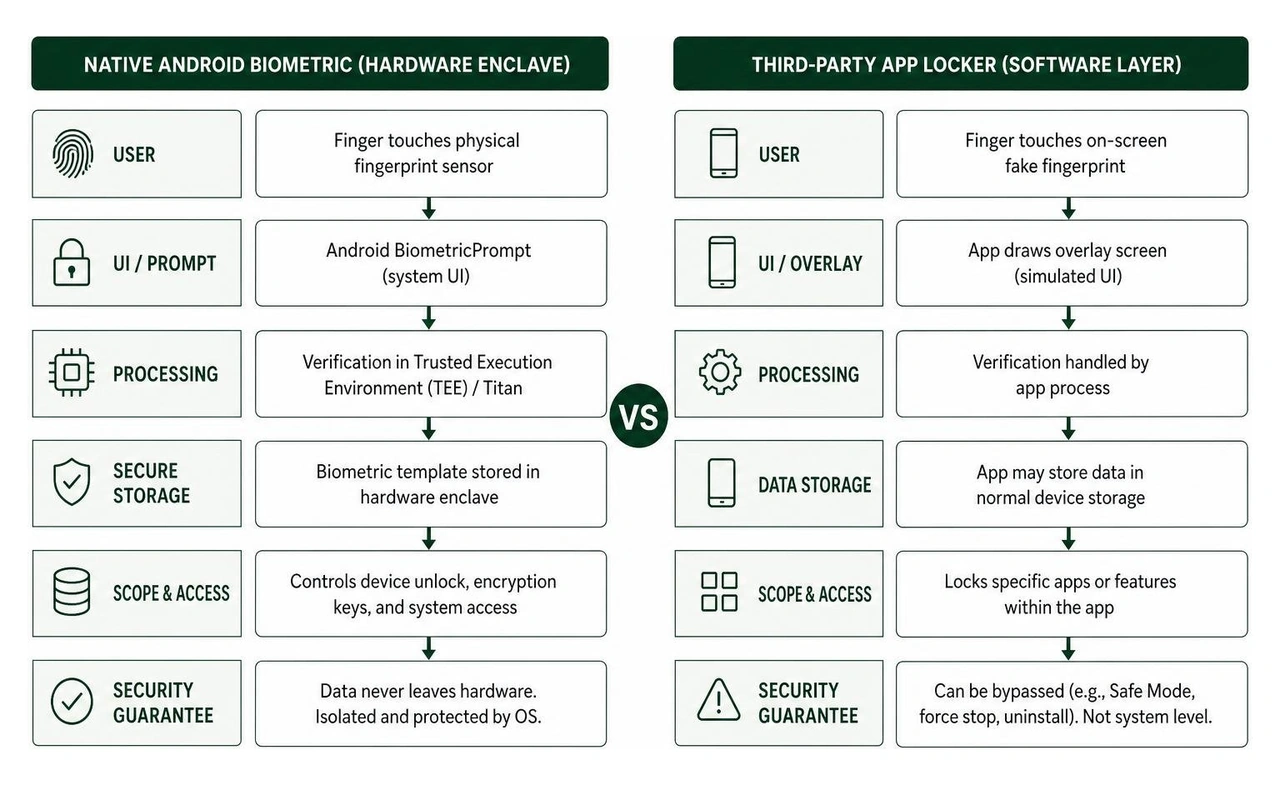
Many third-party lock screen tools function primarily as visual simulations or software overlays rather than actual biometric access controls. Here is how they contrast:
Native System Lock: Built into the Android OS kernel. Biometric data is stored in isolated hardware—such as a Trusted Execution Environment (TEE) or Titan security module. The print data never leaves the hardware chips, is never stored on cloud servers, and cannot be read by third-party apps.
Third-Party App Lockers: Software applications running on top of the OS. They draw overlay windows over specific applications (like messaging, social media, or gallery folders). While they offer fun extras—like "intruder selfie" capture or disguised app icons—they can be bypassed if the phone is booted into Safe Mode or if the app process is force-stopped.
Always rely on native Android system settings to secure your primary screen lock, and use third-party tools only as supplementary software locks for individual media folders or apps.
Troubleshooting Fingerprint Scanner Issues and Security Protocols
Fingerprint sensors can occasionally misread skin ridges or fail to trigger. Before assuming your device hardware is broken, try these technical troubleshooting steps:
Clean the Sensor and Fingers: Wipe your screen or hardware reader with a dry microfiber cloth. Excessive skin oil, dirt, moisture, or sweat prevents optical and capacitive sensors from reading ridge patterns.
Inspect Screen Protectors: Uncertified or thick tempered glass screen protectors can prevent under-display optical or ultrasonic readers from capturing your print. Look for screen protectors certified to work with in-display biometric hardware.
Re-Register Fingerprints: If weather changes make your hands excessively dry or calloused, delete your existing registered prints and scan your fingers again under ambient room lighting.
Check for Third-Party App Conflicts: System optimizer apps, RAM boosters, or third-party app lockers can interfere with background biometric services, causing the fingerprint option to temporarily disappear from system menus.
Test in Safe Mode: Hold the power button, tap and hold Restart, and reboot into Safe Mode. If your fingerprint reader functions normally in Safe Mode, a downloaded third-party app is causing software interference.
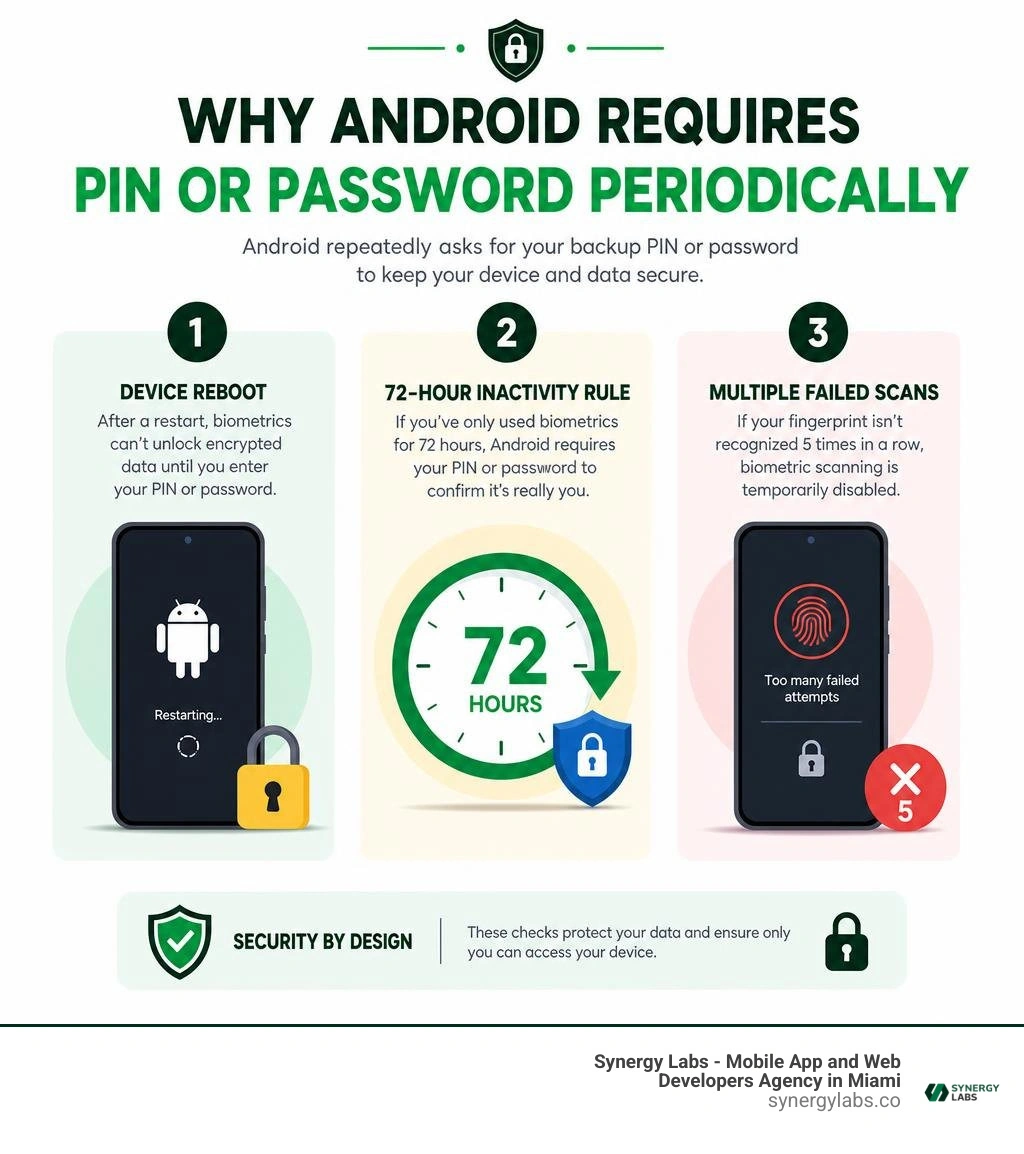
Why Android Requires a PIN or Password Periodically
Even when fingerprint unlock is configured correctly, Android frequently requires you to enter your backup PIN, pattern, or password. Users often assume this is a glitch, but it is an intentional Android security architecture requirement.
Android forces a fallback PIN or password under the following conditions:
Device Reboot: When your device powers on from a complete shutdown, local storage remains fully encrypted. Biometrics cannot decrypt the device master key until you enter your password or PIN manually.
72-Hour Inactivity Rule: If you have unlocked your phone exclusively via biometrics for 72 consecutive hours without entering your backup code, Android mandates PIN entry to confirm you have not forgotten your passcode.
Multiple Failed Scans: If the sensor fails to recognize your fingerprint 5 consecutive times, biometric scanning is temporarily disabled.
Lockdown Mode: If you activate Android's built-in Lockdown Mode from the power menu, biometric unlock and lock screen notifications are immediately turned off until you authenticate using your backup password. This feature protects users against coerced or involuntary biometric unlocking.
Security Risks of Biometric Unlock vs Passwords
Is choosing to lock android phone with fingerprint security safer than using a traditional passcode? The answer involves a trade-off between convenience and physical threat models.
Biometric lock screen authentication completely eliminates "shoulder surfing"—preventing onlookers in crowded coffee shops or public transit from memorizing your PIN as you type it. Additionally, because fingerprint templates are stored strictly in local hardware enclaves, they cannot be intercepted via remote network breaches.
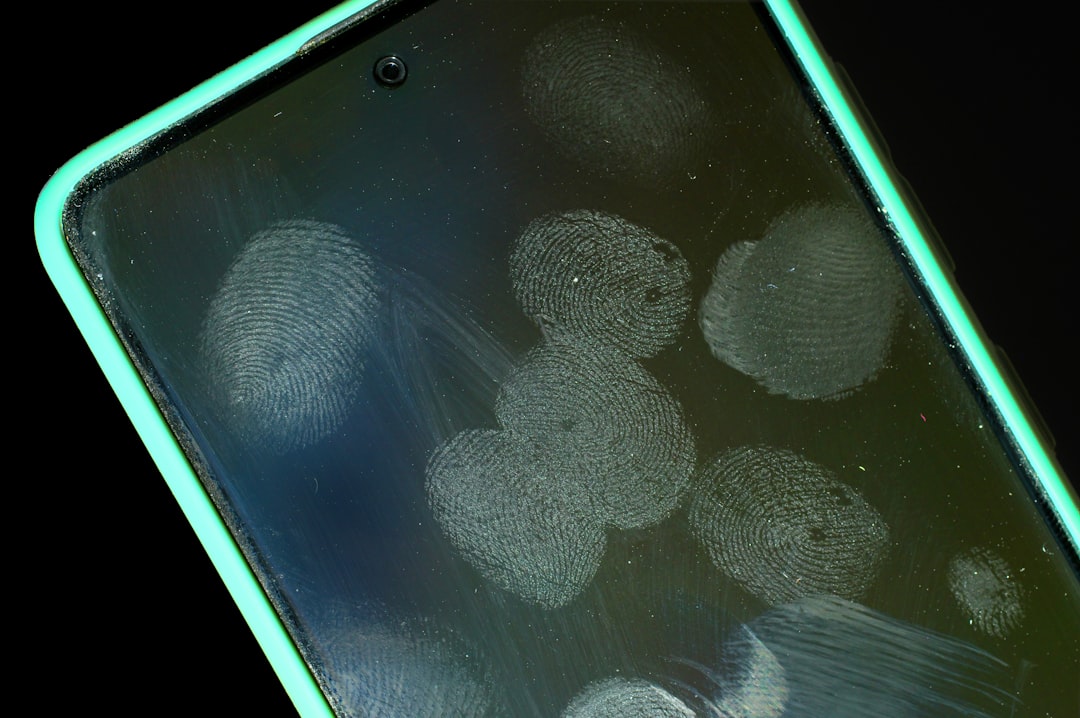
However, physical fingerprints leave traces on glass screens and shiny surfaces. If physical security or legal compulsion is a primary concern in high-risk environments, activating Lockdown Mode or relying on a complex alphanumeric password offers stronger protection.
Frequently Asked Questions About Android Fingerprint Lock
How do I enable fingerprint lock on my Android device?
To enable fingerprint unlock, navigate to Settings > Security & privacy > Device unlock > Fingerprint. Set or confirm your backup PIN, pattern, or password, then tap Add fingerprint and place your finger against the scanner repeatedly until the registration progress reaches 100%.
Why does my phone ask for a PIN after restarting even with fingerprint enabled?
When an Android phone restarts, its internal storage remains cryptographically locked. Biometric data is stored securely in an isolated hardware chip that cannot release the device's decryption keys. Entering your backup PIN or password during a cold reboot is required to decrypt your local phone storage and launch background system services.
Can I use fingerprint scanning for app locks and mobile payments?
Yes. Enabling system fingerprint security activates the standard Android BiometricPrompt framework. Supported applications—such as Google Wallet, mobile banking platforms, password managers, and retail shopping apps—allow you to approve payments and log in securely using the same registered fingerprint.
Mastering Android Biometric Security Solutions
Learning how to lock android phone with fingerprint protection provides the ultimate balance between rapid device access and robust personal data defense. By registering multiple fingers, maintaining a secure 6-digit backup PIN, and understanding how fallback authentication works, you can keep your personal messages, files, and financial apps completely safe from unauthorized access.
When building modern mobile software, delivering fast, safe, and frictionless authentication is key to retaining users. At Synergy Labs, we specialize in building top-tier mobile applications across Miami, San Francisco, New York, London, and global tech hubs.
Whether you need to implement biometrics using native device APIs or build secure mobile commerce platforms, our specialized development agency offers an in-shore CTO paired with an offshore engineering team. Operating under a fixed-budget model with milestone-based payments, we ensure your mobile app projects are delivered on time, within budget, and built to modern security standards.
Ready to build your next secure mobile app? Discover our full range of services by reading our expert guide on Mobile Security Software, explore our development portfolio, or contact the software experts at Synergy Labs today.


.avif)

.avif)


