What Is an Android Studio Web App (and Why Should You Care)?

Android studio web app development is one of the most practical ways to bring existing web content into a native Android experience — without rebuilding everything from scratch.
Here's the quick answer if you need it fast:
How to build a web app in Android Studio:
- Create a new project in Android Studio using the Empty Activity template
- Add a
WebView element to your activity layout XML - Add the
INTERNET permission to AndroidManifest.xml - Load your URL with
myWebView.loadUrl("https://yoursite.com") - Override
WebViewClient to keep navigation inside the app - Enable JavaScript via
myWebView.settings.javaScriptEnabled = true - Run and test on an emulator or physical device
Android has two main tools for embedding web content: WebView (for full control over inline web content) and Custom Tabs (for seamless in-app browsing powered by the user's default browser). Most startup teams reach for WebView first — and for good reason. It lets you wrap an entire web platform inside a native shell, access device features like GPS and camera from JavaScript, and ship updates without going through the Play Store review process every time.
But there are tradeoffs, pitfalls, and security considerations that catch a lot of developers off guard — especially around JavaScript bridging, navigation handling, and modern web standards like HTML5 and same-origin policy.
This guide walks you through all of it, step by step.
At Synergy Labs, we've built and shipped hybrid Android apps for startups across industries — combining WebView-based android studio web app architecture with native performance where it counts. In this guide, we'll share exactly what we've learned so you can move fast without breaking things.
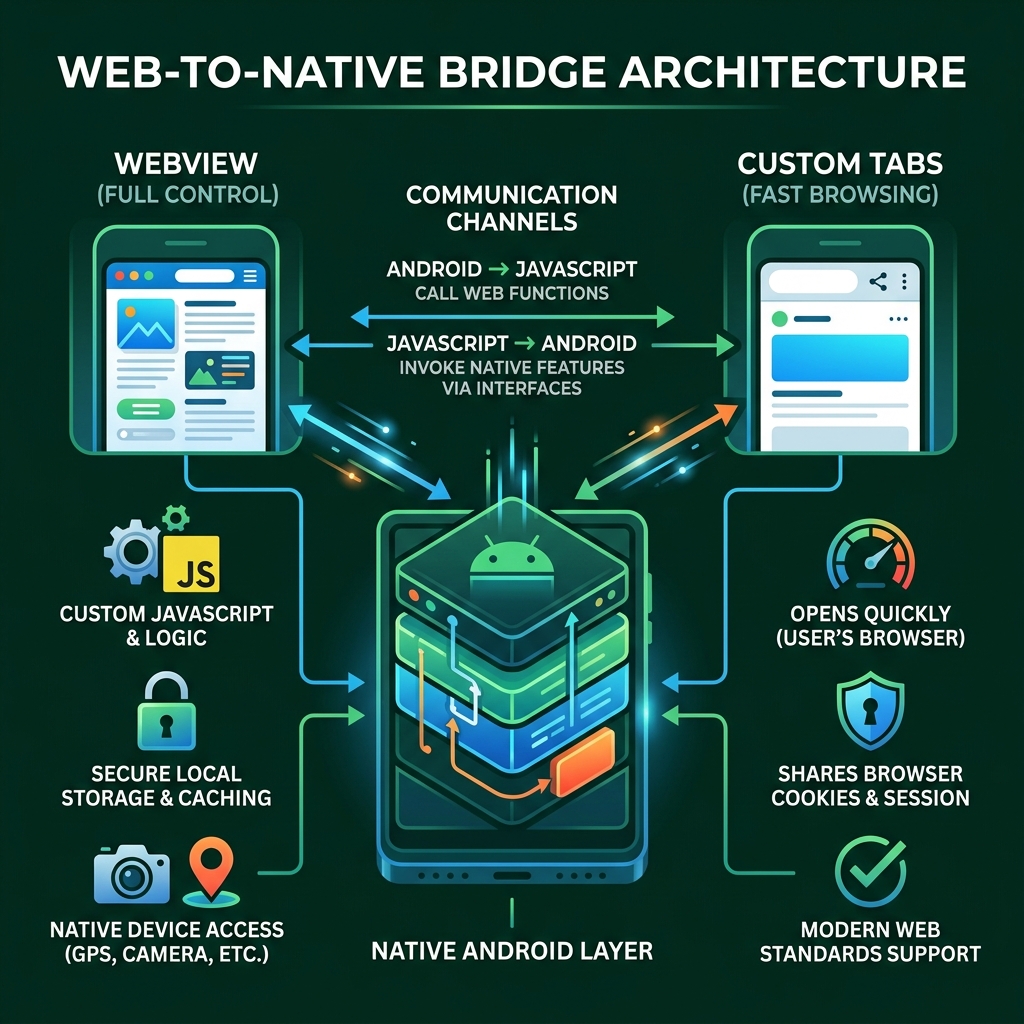
Choosing Your Weapon: WebView vs. Custom Tabs
When we talk about an android studio web app, we are essentially deciding how the Android OS should render web content. The two primary contenders are WebView and Custom Tabs. While they both show websites, they serve very different masters.
A WebView is an extension of Android’s View class. Think of it as a "mini-browser" that you can embed directly into your app’s layout. It doesn’t come with an address bar or navigation buttons; you have to build those yourself if you want them. Its superpower is customization. You can inject JavaScript, intercept URL requests, and make the web content feel like it’s a native part of your UI.
On the other hand, see browser support Custom Tabs: A full in-app browsing experience powered by the user's default browser for scenarios where you want to keep users in your app while they browse external links. Custom Tabs are powered by the user's default browser (like Chrome). They are faster because they can pre-warm the browser process and share cookies/saved passwords with the standalone browser.
At Synergy Labs, we often highlight the 4 Key Benefits of Cross-Platform Development Reaching Wider Audiences Efficiently when helping clients choose between these. If you need a seamless, branded experience where the web content is the app, WebView is your friend. If you just need to show a blog post or a third-party help page, Custom Tabs provide a better out-of-the-box experience.
For authentication, modern 2026 standards suggest using Credential Manager first. However, if you are stuck with a legacy web-based login, Custom Tabs are safer for third-party providers (like Google or Facebook) because they isolate the user's credentials from your app's code.
Primary Use Cases for Web Integration
We typically recommend integrating web content in an android studio web app for:
- Supporting Content: Help centers, user guides, and legal terms that change frequently.
- Dynamic Feeds: News sections or social walls that are already optimized for mobile web.
- Unified Login Flows: Using Cross-Platform App Solutions to maintain a single authentication logic across web and mobile.
- Mini-Games: HTML5-based games that don't require heavy native GPU access.
When to Stick with Native Components
Don't try to force everything into a WebView. For performance-heavy UIs, complex gesture-based animations, or deep hardware integration (like intensive Bluetooth or low-level sensor processing), native components are superior. You can find more on this in our guide to Essential Tools for Mobile App Development.
Building Your First android studio web app
Ready to get your hands dirty? Building a basic android studio web app starts with setting up your environment. You'll need Android Studio (the latest version, such as Panda 2 or Meerkat, is roughly 1.4 GB).
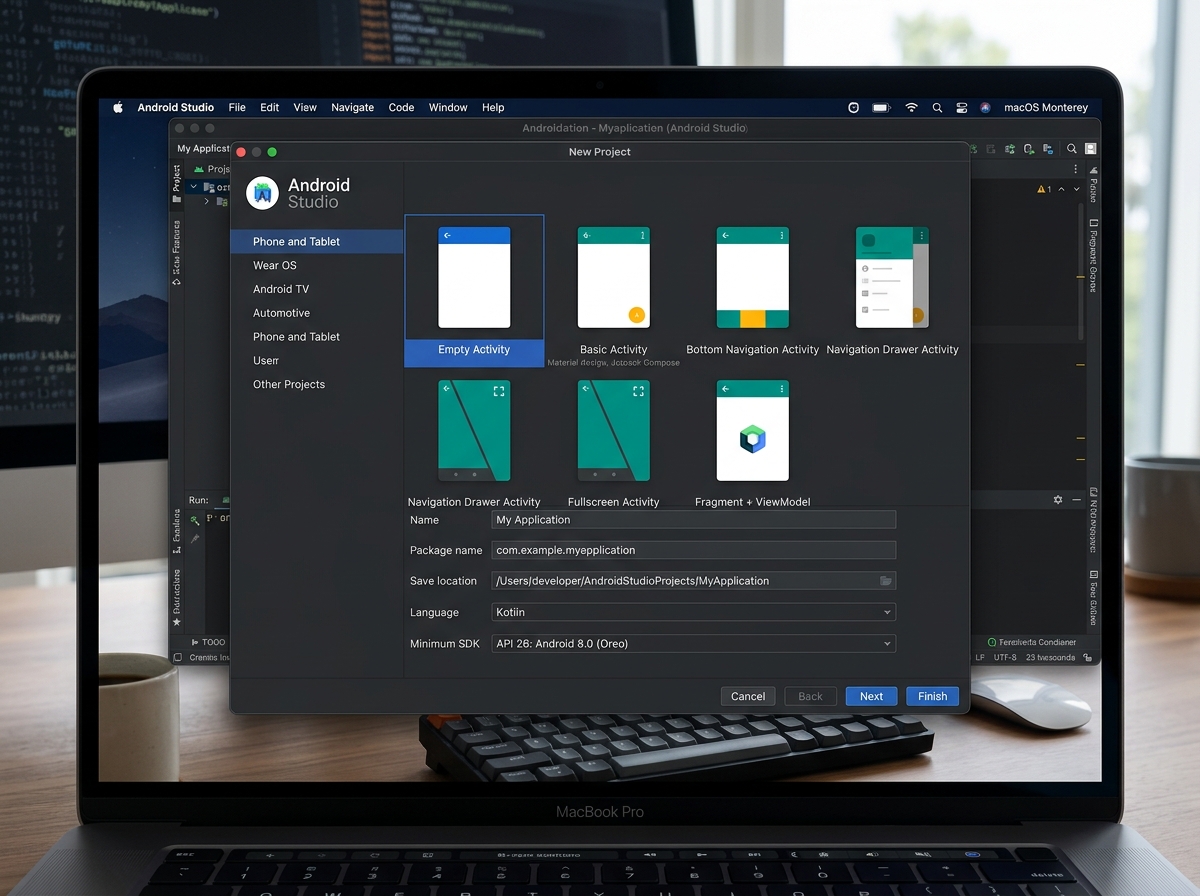
When you open the "New Project" wizard, select the Empty Activity template. While Java is still supported, we strongly recommend using Kotlin for your 2026 projects. Kotlin is Google's preferred language and offers better null safety and conciseness, which is vital when bridging web and native code.
Our Web App Development Service often starts with this exact foundation. Ensure your Minimum SDK is set to at least API Level 26 (Android 8.0) to take advantage of modern deployment features like "Apply Changes."
Configuring the Manifest for your android studio web app
The first hurdle most developers hit is the "Web page not available" error. This is usually because they forgot the INTERNET permission. You must open your application's manifest file (AndroidManifest.xml) and add the following line:
<uses-permission android:name="android.permission.INTERNET" />
Additionally, if you are testing against a local development server that doesn't use HTTPS yet, you might need to configure android:usesCleartextTraffic="true" or set up a Network Security Configuration. However, for production in 2026, HTTPS is non-negotiable.
Running and Testing your android studio web app
Once your code is ready, it's time to deploy. You can use the Android Emulator included with Android Studio, but for the most accurate performance testing, use a physical device.
One of our favorite features is Android Studio Project Marble: Apply Changes. This allows you to push code and resource changes to your running app without restarting the entire activity. It uses JVMTI capabilities available on Android 8.0+ to "hot-swap" code. If you're on Android 11 or later, Android Studio even includes deployment optimizations for incremental changes, making the "code-test-repeat" cycle much faster.
Mastering the WebView: JavaScript and Navigation
A bare-bones WebView is just a window. To make it a true android studio web app, you need to enable JavaScript. By default, JavaScript is disabled in WebView for security reasons.
To enable it, use:myWebView.settings.javaScriptEnabled = true
But the real magic happens with addJavascriptInterface. This allows you to bind a Kotlin/Java object to the web page, so your website's JavaScript can call native Android functions. For example, a "Share" button on your website could trigger the native Android share sheet.
Security Warning: Always annotate your native methods with @JavascriptInterface. This is required for security in any app targeting API 17+. Only use this bridge with web content you control. Loading untrusted third-party HTML with a JavaScript interface open is a recipe for disaster.
Managing cookies and file access is also handled via WebSettings. In 2026, we recommend using the Cross-Platform App Development Service approach to ensure your cookie sync logic works identically on both iOS and Android wrappers.
Preventing External Browser Redirects
If you don't configure a WebViewClient, clicking any link inside your WebView will cause Android to open the system's default browser (like Chrome). To keep the user inside your app, you must override shouldOverrideUrlLoading.
This method lets you decide: "If the URL belongs to my domain, load it here. If it's an external link (like Twitter or a support site), open it in a Custom Tab or the browser." You can also use this to handle custom Intent filters, such as launching a native "Profile" activity when the user clicks a specific web link.
Implementing Advanced Navigation Controls
Users expect the "Back" button to work. If you don't handle it, pressing back will exit the app instead of going to the previous web page. In modern Android, you should use the onBackPressedDispatcher to check myWebView.canGoBack(). If it returns true, call myWebView.goBack().
To improve the user experience, add a progress bar. By overriding onProgressChanged in a WebChromeClient, you can show a loading bar that moves as the page fetches data, making the android studio web app feel much more responsive.
Optimization, Security, and Modern Web Standards
Modern WebViews are incredibly powerful and support most HTML5 and CSS3 features out of the box. However, loading everything over the internet can be slow and data-heavy.
This is where WebViewAssetLoader comes in. Instead of using the old, insecure file:/// protocol, WebViewAssetLoader allows you to serve local HTML, CSS, and JS files from your app's assets folder using standard https:// URLs. This satisfies the same-origin policy, allowing your local files to use modern web APIs like fetch() or XMLHttpRequest without security errors.
When deciding between frameworks for these hybrid shells, you might wonder about Flutter vs React Native Which Framework is Right for Your 2026 Project. While those are great for full cross-platform builds, a simple WebView wrapper in Android Studio is often the fastest way to get to market if your web platform is already mobile-optimized.
The most common pitfall in android studio web app development is the memory leak. WebViews are heavy objects. If you don't destroy them properly when an Activity is closed, they will sit in memory, slowly killing your app's performance. Integrating LeakCanary is a great way to catch these during development.
As shown above, loading assets locally via WebViewAssetLoader is significantly faster than fetching them over a 4G/5G connection. We recommend an "offline-first" strategy: keep your core UI (CSS/JS) in the app's assets and only fetch the dynamic data (JSON) from your server.
Security Best Practices for 2026
- Avoid
MIXED_CONTENT_ALWAYS_ALLOW: Never allow an HTTPS page to load HTTP resources. It breaks the "green lock" trust and exposes users to man-in-the-middle attacks. - Certificate Pinning: For high-security apps (like fintech), ensure your WebView only talks to your specific server by pinning its SSL certificate.
- SSL Error Handling: Never tell your app to ignore SSL errors (
handler.proceed()). This is a common shortcut that will get your app rejected from the Play Store. - Crash Monitoring: Use Firebase Crashlytics to monitor your app. It can even help you track down crashes caused by specific web resources or JavaScript errors.
Frequently Asked Questions about Android Studio Web Apps
What are the main benefits of embedding web content in Android apps?
The primary benefit is flexibility. You can update your website and have those changes appear instantly in your Android app without waiting for a Play Store review. This is huge for seasonal promotions or bug fixes. Additionally, you get massive code reuse. As we mention in our guide on the 4 Key Benefits of Cross-Platform Development Reaching Wider Audiences Efficiently, being able to use one codebase across the web and mobile shells saves thousands of development hours.
How do I handle file uploads and camera access in a WebView?
This requires a WebChromeClient. You'll need to override onShowFileChooser to launch a native Android file picker. In 2026, you should use the Android 14+ media pickers for a better user experience. Don't forget to request runtime permissions for the camera or storage in your Kotlin code before the WebView tries to access them. For more on these requirements, check out Основные инструменты для разработки мобильных приложений.
Can I use Gemini AI to help build my web-based Android app?
Absolutely. Try Gemini in Android Studio to accelerate your workflow. Gemini can generate the boilerplate code for your WebViewClient, help you debug complex JavaScript-to-Native bridge issues, and even write unit tests for your navigation logic. It’s like having a senior developer sitting next to you while you build your android studio web app.
Beyond the WebView: Launching Your 2026 Digital Strategy
Building an android studio web app is a brilliant way to leverage your existing web assets, but doing it right requires a balance of web speed and native stability. Synergy Labs is the premier choice for businesses looking to bridge this gap. We offer a unique development model that combines the strategic oversight of an in-shore CTO with the high-performance execution of an offshore development team. This ensures that your project benefits from senior-level architectural decisions while remaining cost-effective.
By choosing Synergy Labs, you aren't just getting developers; you're getting a partner committed to your success. Our fixed-budget guarantee and milestone-based payments mean your project stays on track, within scope, and transparently managed from day one. We focus on user-centered design and robust security, ensuring that your hybrid app feels native, stays secure, and delights your users.
Whether you are wrapping a complex enterprise platform or building a high-performance hybrid solution for a new startup, our team has the expertise to make it happen. Ready to transform your web presence into a top-tier mobile experience? Partner with Synergy Labs for expert Web App Development Services.


.avif)

.avif)


