How to Unlock a Disabled iPhone
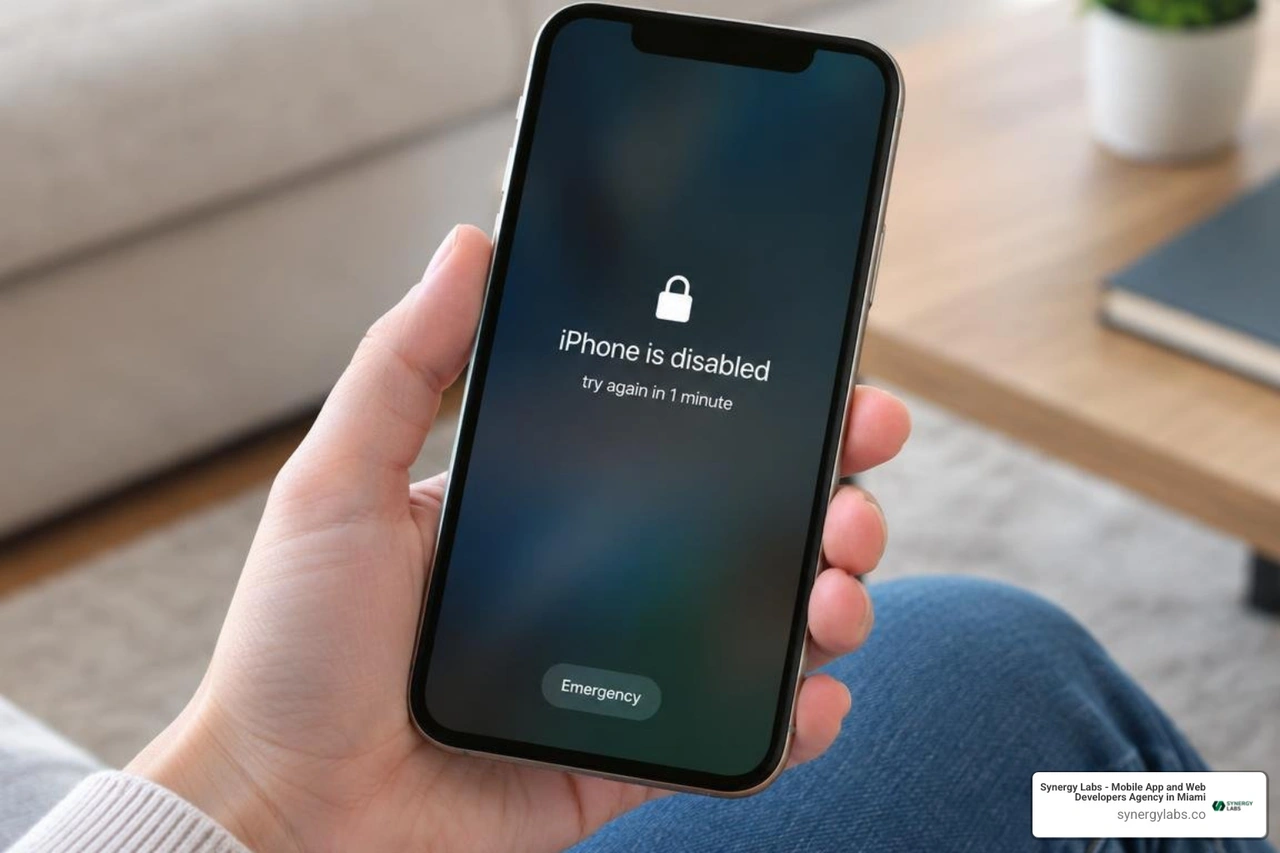
First, stop guessing the passcode. If you changed it within the past 72 hours and your iPhone runs iOS 17 or later, tap Forgot Passcode? to see whether you can use your previous passcode to reset it without erasing your data.
If that option is not available, you can erase the iPhone from its lock screen, through Find My, or by connecting it to a Mac or PC and restoring it in recovery mode. Erasing removes data stored on the phone, but you can restore it from a backup. You will also need the Apple Account linked to the iPhone to get past Activation Lock during setup.
I'm the director of product at Synergy Labs, and I'll walk you through which method fits your situation.
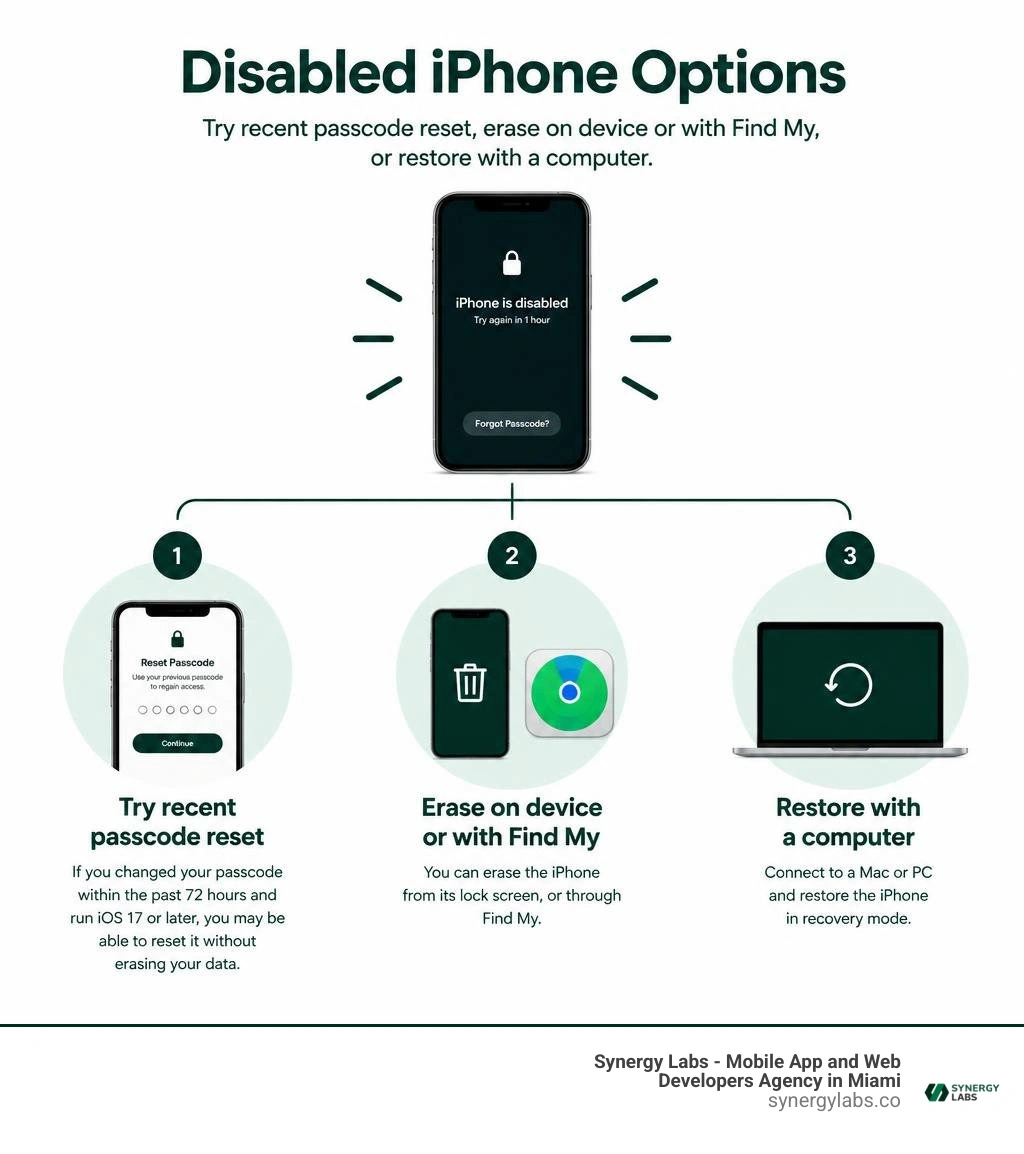
Terms related to how do i unlock a disabled iphone:
Understanding Why iPhones Become Disabled and the Lockout Timeline
When an iPhone says "iPhone is Disabled" or "iPhone Unavailable," it is not broken—it is actively defending your personal data. Apple designs its hardware and operating system with a dedicated security coprocessor called the Secure Enclave. This hardware component handles biometric data and cryptographic keys entirely separate from the main processor.
Every time you enter an incorrect passcode, the Secure Enclave records the failure and introduces an intentional delay. This delay prevents brute-force attacks, where automated programs attempt thousands of combinations per minute. When you understand how you can unlock a locked iPhone, you quickly realize that Apple's security thresholds follow a strict, non-negotiable schedule.
Temporary Lockouts vs. Permanent Security Lockout
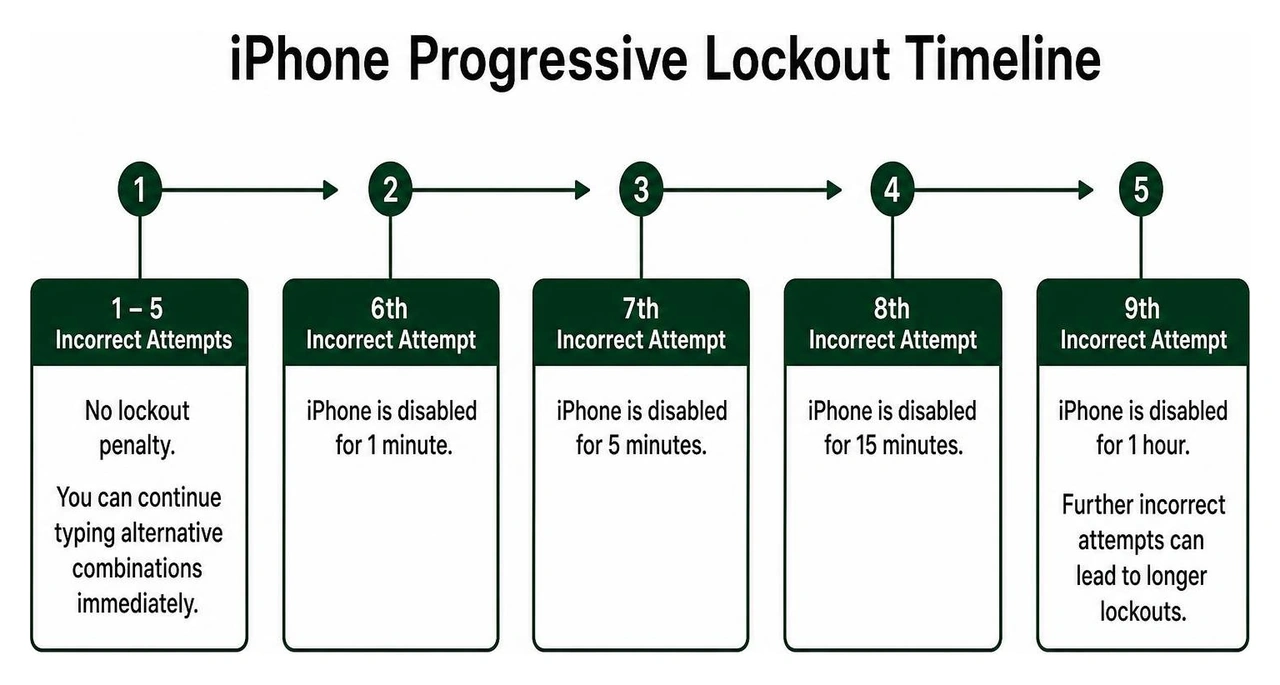
The lockout timeline escalates systematically with each failed attempt:
- 1 to 5 incorrect attempts: No lockout penalty. You can continue typing alternative combinations immediately.
- 6 incorrect attempts: The device disables itself for 1 minute.
- 7 incorrect attempts: The lockout duration increases to 5 minutes.
- 8 incorrect attempts: You must wait 15 minutes before trying again.
- 9 incorrect attempts: The delay jumps to 60 minutes.
- 10 incorrect attempts: The device enters permanent lockout ("iPhone is Disabled, Connect to iTunes" or "Security Lockout"). At this stage, timer-based delays end, and the device will not accept further passcode entries until completely reset.
If you enabled the "Erase Data" toggle under Face ID & Passcode settings beforehand, the tenth incorrect attempt automatically wipes the device to protect your privacy.
Can You Unlock Without Data Loss?
For years, getting locked out meant an automatic, total data wipe. However, Apple introduced a specific safeguard in iOS 17 and later: the Passcode Reset feature.
If you recently updated your passcode and forgot the new one, Apple provides a 72-hour grace period during which you can enter your previous passcode to reset the current one without losing any files, photos, or messages. Once that 72-hour window expires—or if you have entered the wrong passcode 10 consecutive times without having changed it recently—the encryption keys in the Secure Enclave are locked down.
At that point, a complete erase is the only official path to make the device usable again. Having a recent iCloud or local backup becomes essential for retrieving your personal data.
How Do I Unlock a Disabled iPhone Without a Computer?
If you find yourself asking, "how do i unlock a disabled iphone when I don't have a Mac or PC nearby?", modern iOS versions offer simple wireless recovery options. Learning how to unlock your iPhone without tethering to a computer saves significant time, provided your device has an active Wi-Fi or cellular data connection and you remember your Apple ID credentials.
Erase On-Screen: How Do I Unlock a Disabled iPhone Directly?
Starting with iOS 15.2, Apple introduced an on-device reset mechanism that displays directly on the lock screen.
- Wake your iPhone and examine the bottom corner of the lockout screen. You will see an option labeled Forgot Passcode? or Erase iPhone.
- Tap Forgot Passcode? or Erase iPhone to initiate the on-device reset workflow.
- Tap Start iPhone Reset on the confirmation prompt.
- Enter your Apple ID password when prompted to sign out of your Apple Account and turn off Find My.
- Tap Erase iPhone one final time to confirm. The device will restart, wipe all local contents and settings, and display the factory setup screen within a few minutes.
Remote Wipe via iCloud Find My
If the on-screen erase option does not appear—which can happen if the device lost its network connection or runs an older iOS build—you can execute a remote wipe from any web browser or another Apple device. Detailed device management guidance is available directly through iPhone - Official Apple Support.
- Open a browser on a tablet, computer, or secondary smartphone and navigate to iCloud's Find Devices page, or open the Find My app on a shared family device.
- Sign in with the exact Apple ID and password linked to the disabled iPhone.
- Select All Devices from the top menu and click on your disabled iPhone from the list.
- Choose Erase This Device (or Erase iPhone).
- Confirm your choice and enter your Apple ID password. Once the disabled iPhone connects to the internet, the erase signal triggers instantly, resetting the device to factory defaults.
Restoring Your Device with Recovery Mode and a Computer
When an iPhone is completely unresponsive to wireless commands, using a wired computer connection remains the definitive solution. By placing the phone into Recovery Mode, you can bypass the locked operating system and force the device to accept a fresh installation of iOS using Finder on macOS or the Apple Devices app (or iTunes) on Windows. For a broader look at mobile device access methods, review our comprehensive guide to unlocking locked phones.
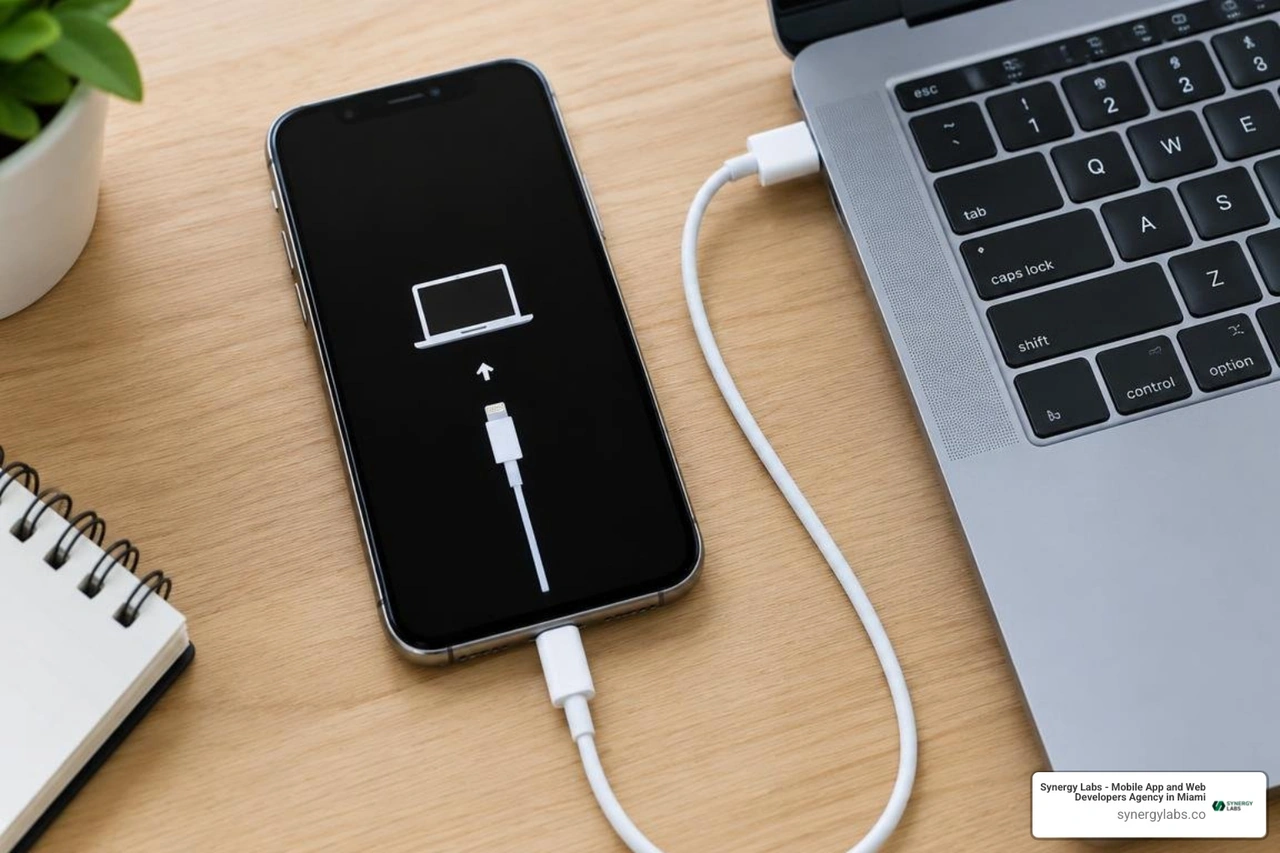
Entering Recovery Mode requires a precise physical button sequence while connecting your phone to the computer. Make sure your iPhone is disconnected from the computer before performing the power-off step.
- iPhone 8, iPhone SE (2nd/3rd generation), iPhone X, and all newer models (including iPhone 11 through iPhone 16):
- Press and hold both the Side button and the Volume Down button until the power-off slider appears. Drag the slider to turn the device completely off.
- Connect your iPhone to your computer using a certified USB cable while firmly holding down the Side button.
- Keep holding the Side button until the Recovery Mode screen (a computer icon and a cable) appears on the display.
- iPhone 7 and iPhone 7 Plus:
- Press and hold the Side button until the power slider appears, then drag it to power down.
- Connect the phone to the computer while holding the Volume Down button.
- Continue holding Volume Down until the Recovery Mode graphic appears.
- iPhone 6s, iPhone SE (1st generation), and earlier:
- Turn off the device using the Top or Side button.
- Connect the device to your computer while holding the Home button.
- Keep holding the Home button until the Recovery Mode screen displays.
Recovery Mode Steps: How Do I Unlock a Disabled iPhone via Mac or PC?
Once your iPhone shows the Recovery Mode screen, follow these steps on your computer:
- Open Finder (on macOS Catalina or later) or open the Apple Devices app / iTunes (on Windows or older macOS versions).
- Locate your iPhone in the sidebar or application window. A pop-up prompt will notify you that there is a problem with the iPhone that requires it to be updated or restored.
- Select Restore. Do not select "Update," as updating retains the existing passcode lock.
- Click Restore and Update to confirm. Your computer will contact Apple servers and download the latest verified iOS software for your model.
- Wait for the download and installation to complete. If the download takes longer than 15 minutes, your iPhone may automatically exit Recovery Mode. If this happens, let the download finish, turn off your iPhone, and enter Recovery Mode again. For detailed system software documentation, consult the official guide to Use a computer to reset your iPhone and your passcode - Apple Support.
- When the restore completes, your iPhone restarts with the initial "Hello" screen, ready for reconfiguration.
Troubleshooting Recovery Issues and Preventing Future Lockouts
While the restore process is generally straightforward, hardware glitches and connection dropouts can occasionally interrupt recovery.
Resolving Connection and Detection Errors
If your computer fails to recognize the disabled iPhone:
- Inspect your cable and ports: Use an official Apple or MFi-certified USB-C or Lightning cable. Faulty third-party cables frequently carry power but fail data transmission. Plug directly into your computer rather than through an unpowered USB hub.
- Update software: Ensure your Mac runs the latest macOS version, or update iTunes and the Apple Devices app on Windows to prevent driver conflicts.
- Use DFU Mode if Recovery Mode fails: Device Firmware Update (DFU) mode is a deeper restore state that communicates with the computer without loading the iOS bootloader. If regular Recovery Mode produces persistent error codes, a DFU restore provides a clean slate.
- Check physical hardware: If physical buttons are stuck, damaged, or unresponsive, software recovery mode cannot be triggered manually. In this case, schedule an appointment at an Apple Store or authorized service center for diagnostic evaluation.
Restoring Backups and Post-Unlock Best Practices
Once your iPhone restarts at the setup screen:
- Select your language and region.
- Connect to a stable Wi-Fi network.
- Enter your original Apple ID and password to authenticate through Activation Lock.
- On the Transfer Your Apps & Data screen, choose From iCloud Backup or From Mac or PC to recover your photos, messages, app configurations, and contacts.
- Create a new, memorable passcode. Make sure it is a 6-digit alphanumeric or custom numeric sequence rather than an easily forgotten string.
- Immediately configure Face ID or Touch ID to minimize relying solely on manual passcode entry.
- Set up granular security habits on your device, such as configuring application lock in iPhone to secure individual sensitive apps behind biometrics rather than constantly changing your primary lock screen passcode.
Frequently Asked Questions About Unlocking a Disabled iPhone
Will unlocking a disabled iPhone erase my personal data?
Yes, all standard methods to unlock a permanently disabled iPhone erase the local contents of the device. This policy is an intentional security design by Apple to prevent unauthorized individuals from extracting personal data from a locked phone. The only exception is the iOS 17+ 72-hour Passcode Reset feature, which preserves your data if you remember your previous passcode. Otherwise, you must restore your information from an iCloud or computer backup after the reset.
Does resetting a disabled iPhone remove the Activation Lock?
No. Erasing or restoring an iPhone removes the passcode lock, but it does not remove Apple's cloud-based Activation Lock. When the iPhone reboots, it connects to Apple servers and requires the Apple ID and password previously linked to that hardware. Without those credentials, the device cannot be set up or used.
If your Side, Home, or Volume buttons are physically damaged, you cannot manually trigger Recovery Mode. Your best option is to perform a remote erase using iCloud Find My via a web browser. If the device cannot connect to Wi-Fi or cellular networks to receive the remote wipe command, take the phone to an Apple Store or authorized service provider with proof of ownership for hardware assistance.
Securing Your Mobile Ecosystem with Synergy Labs
Recovering a disabled smartphone highlights just how critical device security architecture is in modern computing. At Synergy Labs, we understand that exceptional software requires both uncompromising security and seamless user experiences. As a premier mobile app and web development agency, our team builds robust, cross-platform mobile solutions designed to safeguard enterprise data while delivering high-performance digital products.
Whether you need enterprise mobile architecture, consumer applications, or custom integrations, Synergy Labs pairs you directly with an in-shore CTO backed by a dedicated offshore development team. Our fixed-budget model and milestone-based payments ensure your software projects launch rapidly, on schedule, and without budget surprises. Explore our specialized mobile security software solutions or connect with the Synergy Labs engineering team today to turn your digital roadmap into reality.


.avif)

.avif)


