Lock an Android Device Remotely Before Anyone Gets In
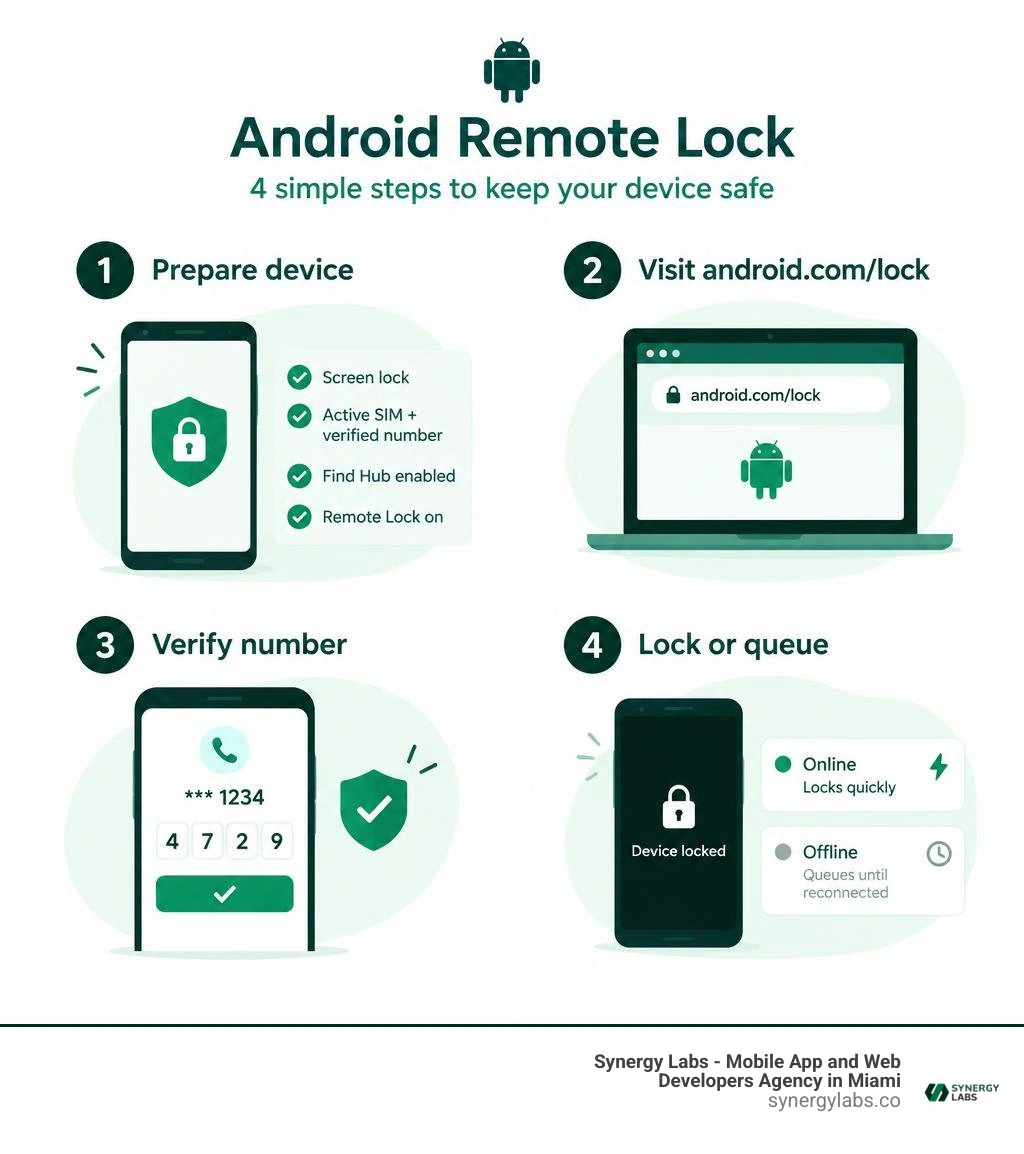
To lock an Android device remotely, go to android.com/lock, enter the verified phone number linked to the lost phone, complete the verification steps, and request the lock. If the phone is online, its screen locks quickly. If it is offline, the request waits and applies when the device reconnects.
This only works if you prepared the device first: it needs a screen lock—such as learning how to lock an Android phone with fingerprint recognition—an active SIM with a verified number, Find Hub enabled, and android remote lock turned on. Knowing how to configure a remote lock on an Android phone is a fast way to protect emails, work apps, photos, and financial accounts when a phone goes missing. Think of it as shutting the digital deadbolt before a thief gets through the door.
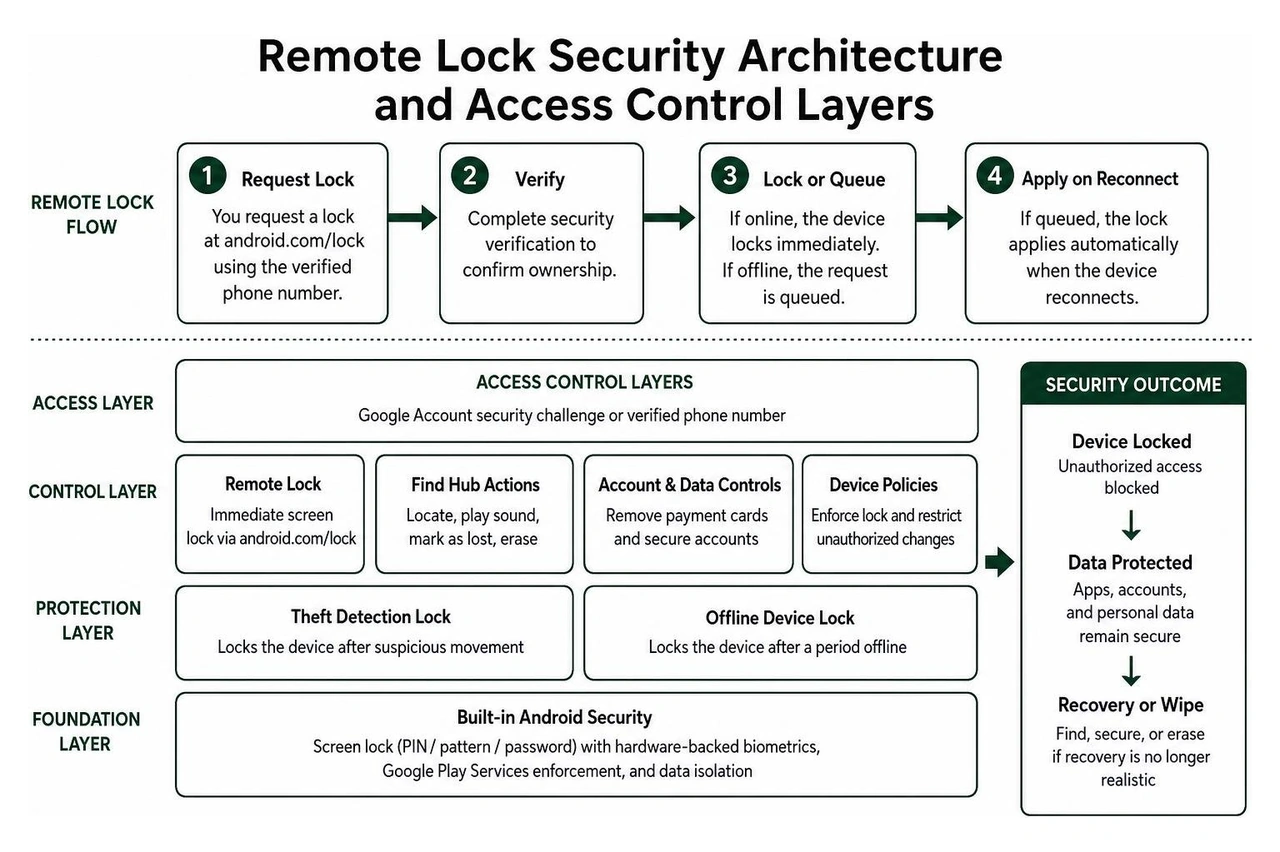
Remote Lock is one layer of Android theft protection. Find Hub can also help locate the device, play a sound, mark it as lost, remove payment cards, or erase it if recovery is no longer realistic. Android can add backup protection through Theft Detection Lock and Offline Device Lock, which may lock a device after suspicious movement or a period without connectivity.
As Director of Product at Synergy Labs, I focus on practical security measures that protect users and the data behind every mobile experience.
Understanding Android Theft Protection and Remote Locking
Android phones make up more than three-quarters of the global smartphone industry. Because these devices carry our banking credentials, business communications, and personal photos, mobile security cannot rely solely on standard passcode prompts. Google’s ecosystem incorporates a multi-layered defense model designed to protect personal data even when physical possession is lost.
Understanding how to secure mobile apps starts with knowing how Android enforces device-level boundaries. Built directly into Google Play Services, modern theft defenses link screen lock credentials (PIN, pattern, or password) with hardware-backed biometric verification. Modern Android Theft Protection Features isolate user storage, restrict unauthorized debugging, and guard system privileges the moment an anomaly or remote trigger occurs.
Remote Lock vs. Find Hub Secure Device
While both tools help secure a missing phone, they serve distinct operational needs:
- Remote Lock (
android.com/lock): Designed for high-stress emergencies where you cannot quickly log into your Google Account. By simply entering your verified phone number and solving a quick security challenge, you trigger an immediate screen lockout. It is essentially a digital kill-switch for immediate physical security. - Find Hub Secure Device (
android.com/find): A comprehensive management console. It requires a full Google Account sign-in. In addition to locking the screen with your existing credential, it signs the device out of your Google account, suspends payment cards stored in Google Wallet, and lets you display a persistent contact message and recovery number directly on the lock screen.
Using Remote Lock Android Phone workflows gives you seconds-fast protection, while Find Hub handles long-term containment.
The Evolution of Android 16 Secure Lock
Device security took a massive leap forward with the rollout of Android 16. In prior iterations, a standard remote lock still left certain surface areas exposed: Quick Settings toggles (like Airplane Mode), active lock screen widgets, and certain digital assistant prompts remained interactable.
According to an Android 16 Secure Lock Overview, Google introduced a dedicated MANAGE_SECURE_LOCK_DEVICE permission coupled with an upgraded AuthenticationPolicyManager API. When triggered, Android 16's Secure Lock places the device into a hardened, high-security state:
- Completely disables Quick Settings pull-downs, blocking a thief from disabling network connectivity.
- Conceals all interactive lock screen widgets, notification contents, and assistant queries.
- Enforces a dual-challenge requirement upon recovery: the user must provide both their screen lock credential and valid biometric authentication to regain access.
This deep system integration ensures that even if someone possesses your physical PIN through shoulder surfing, they cannot bypass the secondary biometric safeguard once Secure Lock is engaged.
Step-by-Step: Preparing Your Android Device for Theft Defense
Remote security tools only work if your device is prepared before an incident happens. Taking five minutes today to configure your settings ensures that your defenses respond instantly if your device ever leaves your side. Reviewing the Best Mobile Security Software Guide 2026 alongside native tools provides total coverage.
Prerequisites to Lock Android Device Remotely
Before you can execute a remote lockdown, your Android device must meet several essential requirements:
- Active Screen Lock: A secure PIN, complex pattern, or alphanumeric password must be active. Basic swipe or "None" configurations are ineligible.
- Active SIM Card: An operational physical SIM or eSIM linked to an active carrier network.
- Verified Mobile Number: The phone number associated with that SIM must be verified inside your Google settings.
- Google Account Integration: The device must be actively signed into a primary Google profile with Find Hub services enabled.
- Operating System Compatibility: The device must run Android 10 or newer with updated Google Play Services (note that Android Go editions, certain entry-level tablets, and wearable accessories do not support standalone Remote Lock).
Enabling Remote Lock and Custom Security Questions
To turn on Remote Lock on your Android device:
- Open your phone’s Settings app.
- Scroll down and tap Google (or Google Services), then select All services.
- Tap Personal & device safety, then select Theft protection.
- Locate Remote Lock and toggle the switch to On.
- Follow the on-screen prompt to confirm and verify your device’s active phone number.
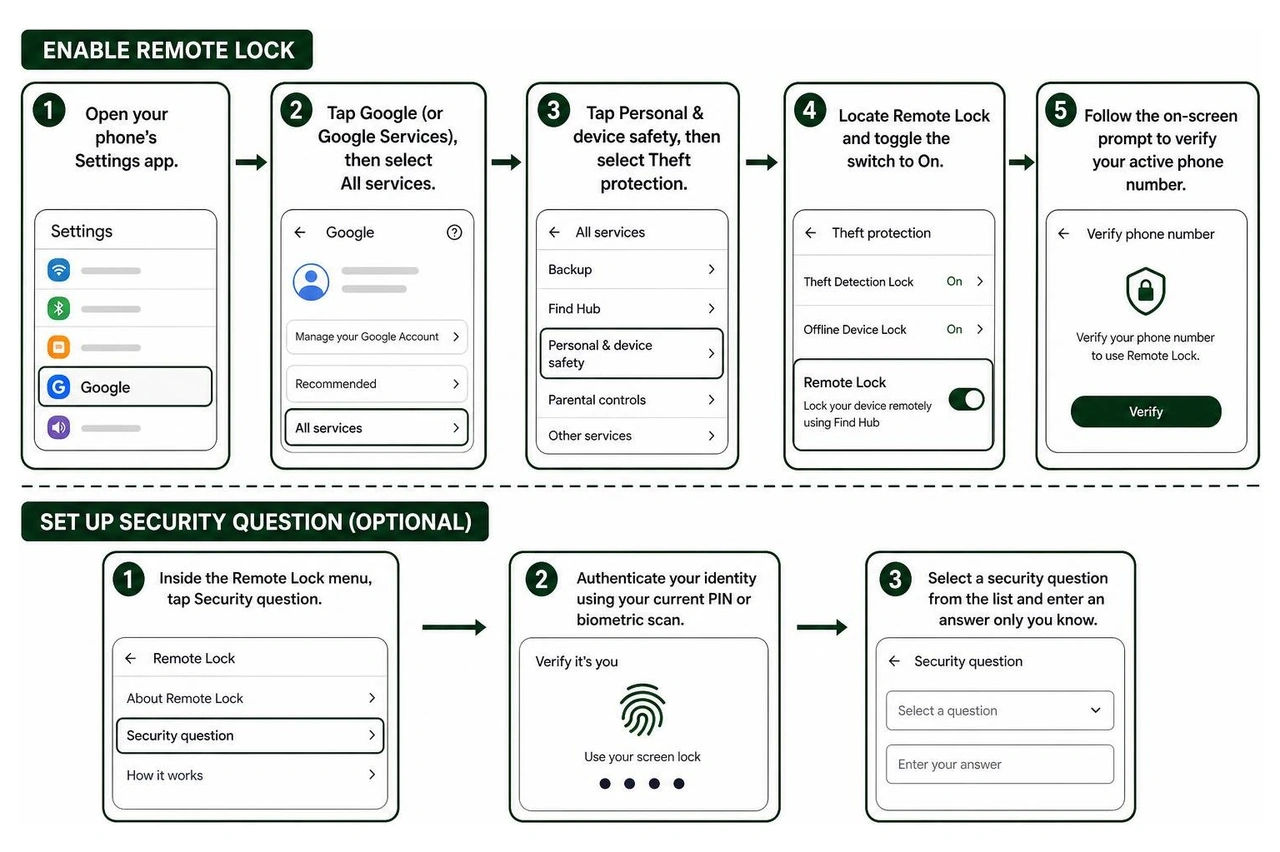
To prevent unauthorized individuals or pranksters from remotely locking your phone, configure an optional security challenge:
- Inside the Remote Lock menu, tap Security question.
- Authenticate your identity using your current PIN or biometric scan.
- Select a security question from the list and enter an answer only you know.
- Save your preferences. Future lock requests via
android.com/lock will now require this answer before sending the lockdown command.
Setting up your Android Remote Lock safeguards guarantees that no one can weaponize the lock portal against you.
How to Lock Android Device Remotely in an Emergency
When your phone goes missing in a taxi, coffee shop, or subway car, panic is your biggest enemy. Having a precise action plan lets you secure sensitive data before anyone can tamper with your device.

Fast Lockdown via android.com/lock
If you do not have immediate access to your Google password or two-factor authentication device, use Google’s streamlined emergency portal:
- Open any web browser on a laptop, tablet, or borrowed phone and navigate to the Remote Lock portal.
- Enter the verified phone number of your missing Android device.
- Complete the quick security CAPTCHA challenge.
- If configured, answer your custom security question.
- Tap Lock Device.
The moment the command registers, the screen locks instantly, requiring your system PIN or password to reopen. For additional device-level controls, see our walkthrough on how to Lock Phone settings.
How to Lock Android Device Remotely When Offline
A common tactic among opportunistic thieves is immediately placing a stolen phone into an RF-shielded bag or turning off mobile data. If your device is offline when you submit a request at android.com/lock, Google’s infrastructure queues the instruction. The millisecond the device reconnects to cellular data or Wi-Fi, the queued command executes and locks the screen immediately.
Keep the following operational limitations in mind:
- Daily Frequency Cap: The device's screen can be locked remotely twice in a 24-hour period via
android.com/lock. This constraint prevents service abuse and denial-of-service loops. - Internet Dependency: The physical device must establish an internet handshake to receive the command. If a device remains permanently offline, on-device automated sensors take over.
Automated Security: AI Theft Detection and Sensor Locks
Manual intervention is powerful, but modern Android devices also incorporate proactive, on-device intelligence. By leveraging internal accelerometers, gyroscopes, and network sensors, Android can automatically lock down without requiring a web command. This is a crucial element of modern mobile app security.
Theft Detection Lock and Sensor Recognition
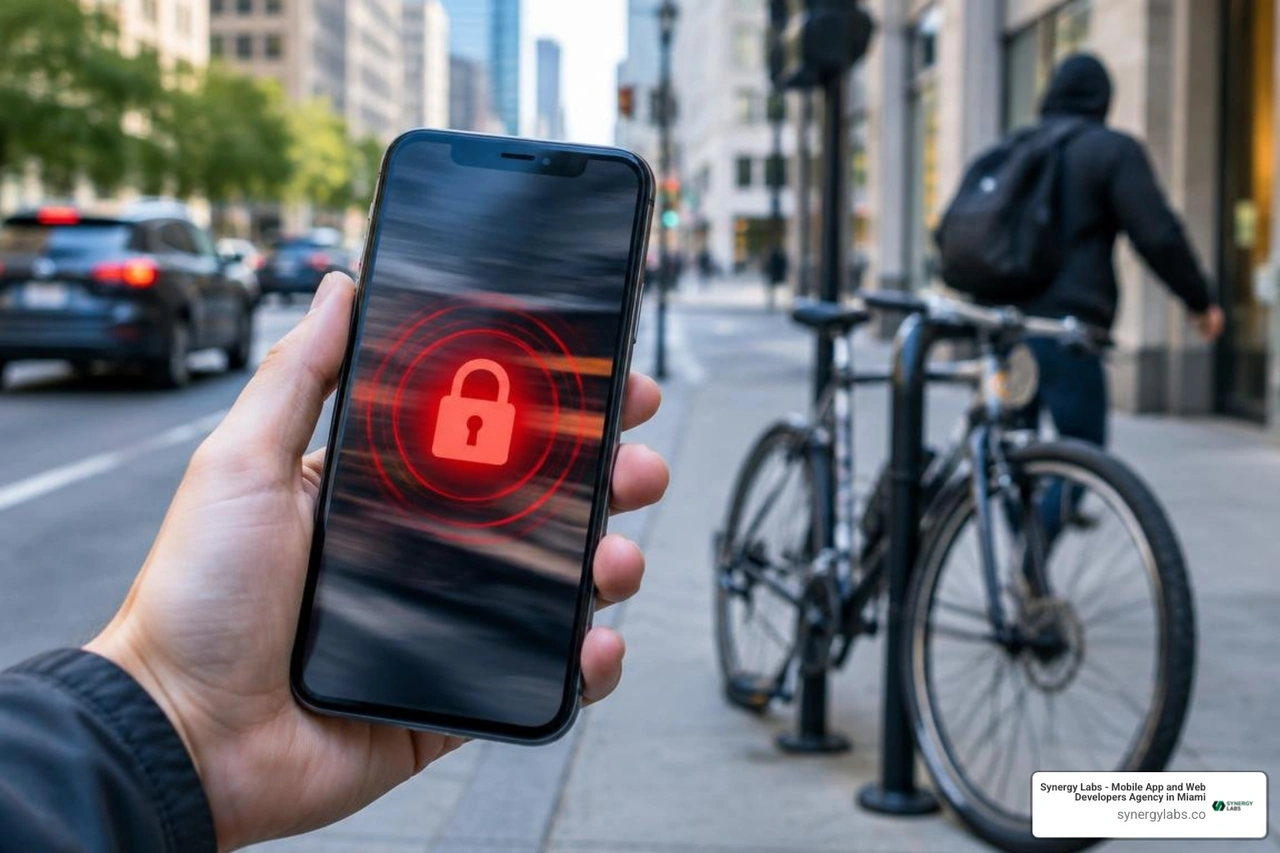
Theft Detection Lock uses on-device machine learning models to identify sudden, suspicious physical motions. If someone snatches your phone out of your hands while you are reading a text and sprints away, jumps onto a bicycle, or speeds off in a vehicle, the accelerometer registers the abrupt velocity spike.
When combined with immediate drops in trusted Wi-Fi or Bluetooth connections, the operating system instantly triggers an automated screen lock. Even if your phone was completely unlocked during active use, the screen snaps shut before the perpetrator can navigate to your banking applications or email inbox.
Offline Device Lock and Failed Authentication Lock
Android includes two supplementary automated security measures to prevent offline brute-force attempts:
- Offline Device Lock: If a thief disconnects your device from the internet to bypass tracking, Android monitors the offline duration. After a short period of being used offline, your device locks automatically via Offline Device Lock. Just like manual remote locks, the screen can be locked twice in a 24-hour period via Offline Device Lock.
- Failed Authentication Lock: If an unauthorized individual attempts to guess your PIN, pattern, or password, repeated failed attempts will trigger a hard lockout, demanding primary account authentication.
Pairing these automated triggers with the foundational strategies in our Best Free Android Security Tips 2026 provides comprehensive device resilience.
Critical Actions After You Lock a Lost Device
Locking the screen is your immediate triage step. Once the screen is secured, follow these post-incident measures to protect your identity and financial accounts.
Device Tracking and Remote Wipe Options
Consult the Google Find Hub Guide by visiting android.com/find to monitor your phone’s location. Find Hub utilizes a global crowdsourced network of Android devices with end-to-end encrypted location data, allowing you to track devices even if they are not actively connected to GPS.
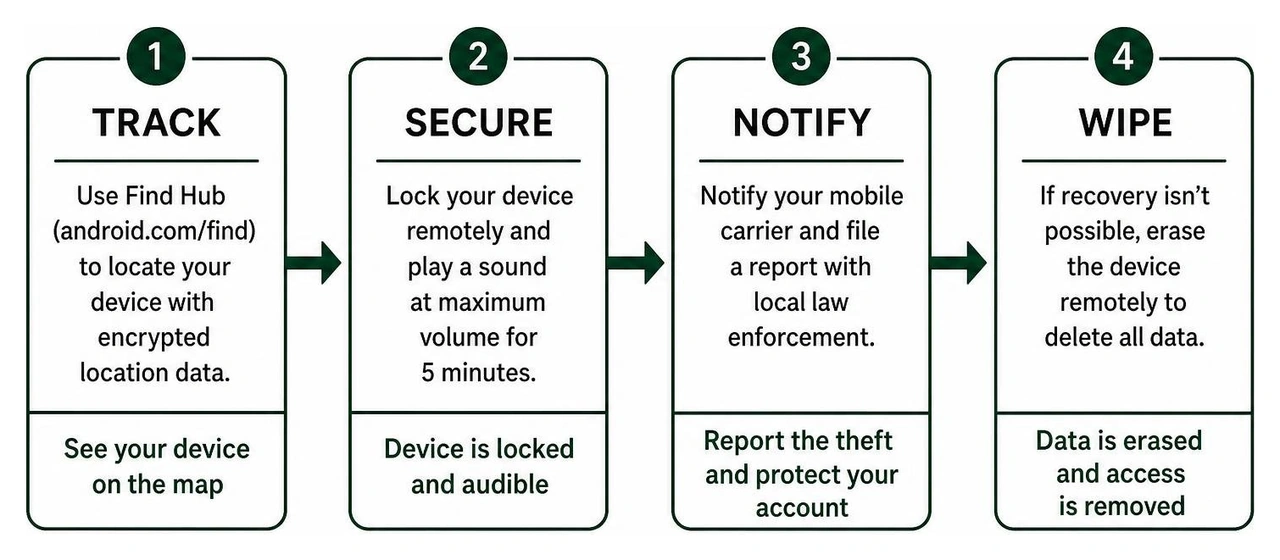
- Play Sound: If the map shows the phone is nearby (such as in your office or under a couch cushion), select Play Sound. The device will ring at maximum volume for five minutes, even if set to silent or vibrate.
- Erase Device (Remote Wipe): If recovery is impossible or the device was stolen in a high-risk area, issue a remote factory reset via Find Hub. This permanently deletes all local storage, accounts, and application data. External micro-SD cards may not be wiped, and once erased, Find Hub will no longer be able to track the device.
Network Carrier Notification and Law Enforcement Reporting
Once your data is locked down, secure the cellular line:
- Contact Your Mobile Carrier: Request an immediate SIM suspension to prevent unauthorized SMS verification codes from reaching the thief. Ask the carrier to blacklist the device’s unique IMEI number across national registries.
- File an Official Police Report: Provide law enforcement with the device make, model, serial number, and IMEI. Never attempt to confront a thief or retrieve a stolen device from an unfamiliar location yourself.
- Audit Connected Accounts: Review active sessions across your Google, banking, and social media accounts, revoking authorization tokens for the missing hardware.
Frequently Asked Questions About Android Remote Lock
Can I lock my Android device if it is turned off or has no internet connection?
If the device is powered off or lacks an active data connection, a manual remote lock request cannot reach the hardware immediately. However, the command remains queued on Google servers and executes the moment the phone powers on and establishes a network handshake. Additionally, if the device remains disconnected while unlocked, on-device Offline Device Lock will engage automatically.
How many times can I use Remote Lock within 24 hours?
Google caps manual web requests via android.com/lock to two successful lock commands per 24-hour window. Offline Device Lock also enforces a maximum of two automated lockouts in a 24-hour period. If you exhaust these attempts, you must log into the standard Find Hub dashboard (android.com/find) to manage the device.
Will locking my device remotely delete my personal files and photos?
No. Remote Lock simply turns off the display and enforces your existing screen lock credentials (PIN, pattern, password, or biometrics). Your local files, photos, application data, and downloads remain intact and encrypted on the storage drive. Only the separate "Erase Device" command performs a destructive factory reset.
Building Ironclad Mobile Experiences with Synergy Labs
Modern mobile security is no longer an afterthought—it is an architectural requirement. At Synergy Labs, we engineer custom mobile and web applications with zero-trust security principles baked directly into every codebase. Whether you are building an enterprise fintech platform or a scalable consumer product, safeguarding user data across distributed devices is paramount.
When you partner with Synergy Labs, you get direct access to our senior technical talent through our dedicated in-shore CTO model paired with elite offshore engineering teams. We eliminate budget uncertainty through fixed-budget pricing structures and milestone-based payments, ensuring your custom software is delivered on time, within budget, and built to the highest security standards.
Ready to build scalable, secure, and world-class digital applications? Explore how Synergy Labs builds secure mobile architectures and schedule a discovery call with our engineering leadership today.


.avif)

.avif)


