Locking your phone for security and locking it for focus are two completely different problems — here's the right approach for each, from cryptographic device locks to productivity blockers.
Why and How to Lock Phone Systems: Security vs Focus
To quickly lock phone hardware for security, press the physical power button, configure automated screen timeout timers, or trigger an instant remote lockdown via web portals like android.com/lock if your device is misplaced. If you are locked out, you can fast-unlock your smartphone using registered biometrics (fingerprint or facial scan), your master Google or Apple account recovery credentials, or by booting into Safe Mode to bypass unresponsive third-party locker apps.
Securing a device against physical theft requires a completely different architectural approach than temporarily locking down a display for digital detox. Modern mobile operating systems treat security locks as cryptographic boundaries, evicting encryption keys from volatile memory to shield sensitive databases, while focus locks operate at the interface layer to curb distractions. To secure an unattended or misplaced device from a distance, understanding how to configure a Remote Lock Android Phone workflow is essential.
How to Lock Phone Screens for Digital Detox and Productivity
Willpower is often no match for algorithmic social feeds designed to capture your attention. For many users, locking a device is an intentional choice to enforce focus sessions, improve sleep hygiene, or eliminate workplace distractions.
Productivity lockers like Lock My Phone (Zen Mode)—which boasts over 500,000 downloads and a 4.6-star rating across more than 13,300 reviews—take a strict approach. Unlike standard screen-time monitors that merely post polite notifications, these tools use Android's Device Administrator privileges to lock down the display programmatically. If you attempt to wake the phone during an active session, the app immediately forces the screen back into a sleep state.
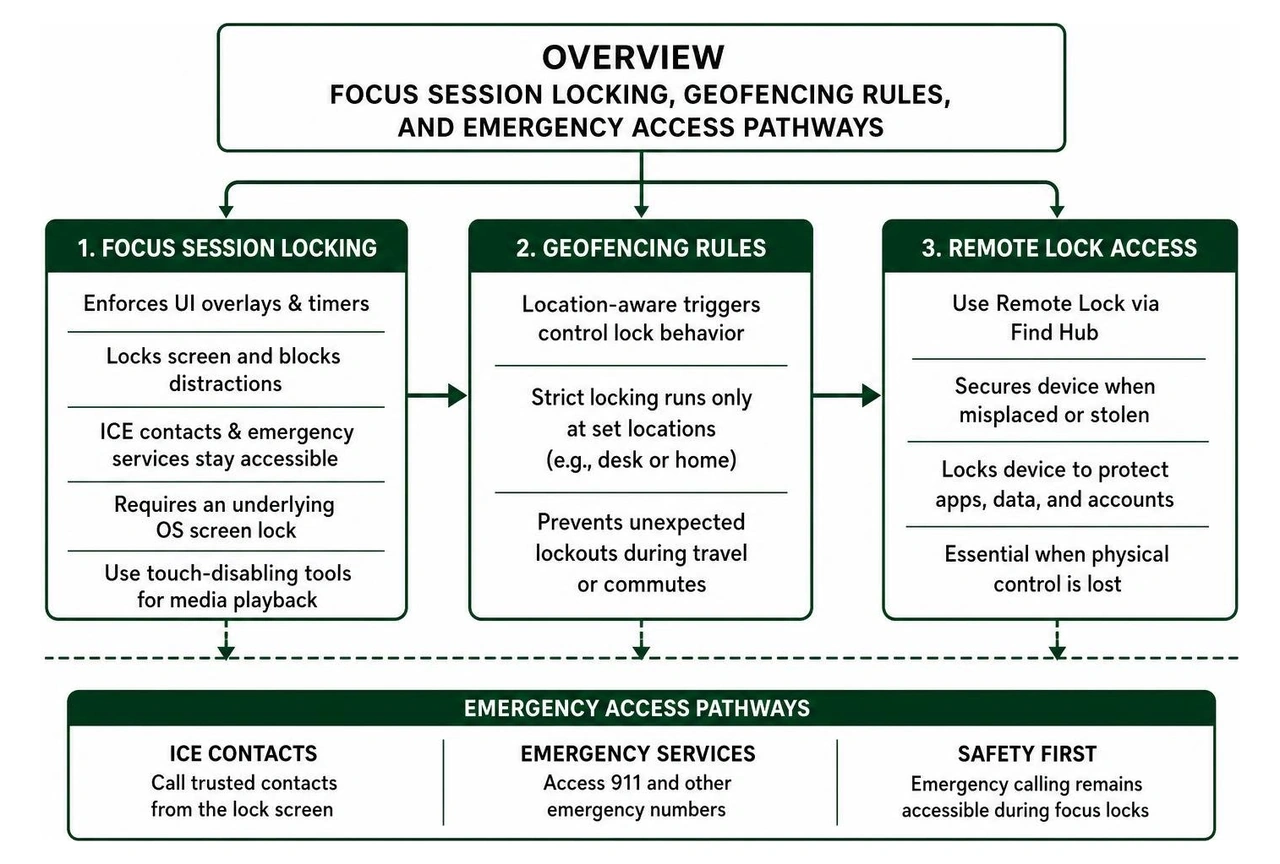
When setting up a focus-driven lock, balance productivity with personal safety:
Configure In Case of Emergency (ICE) Contacts: Always verify that your emergency contacts and emergency services (like 911) remain dialable from the lock screen.
Set Up Geofenced Rules: Use location-aware triggers (such as Geocheck) so that strict locking routines only run when you are at your desk or home, preventing unexpected lockouts during travel or commutes.
Maintain a Primary OS Screen Lock: Focus lockers rely on an underlying system PIN or pattern. Without one, rapid unlock-relock cycles can cause system interface glitches that may temporarily obstruct emergency dials.
Use Touch-Disabling Tools for Media Playback: Utilities like Touch Lock - screen lock (with over 1 million downloads) freeze touchscreen interactions while keeping media visible. This prevents toddlers from navigating away from educational videos, stops water droplets from disrupting recipes in the kitchen, and prevents accidental inputs when carrying an active phone in a gym bag.
Methods to Lock Phone Access Remotely When Misplaced or Stolen
Losing physical control of your smartphone is an immediate emergency. Modern smartphones serve as primary authentication hubs, storing session tokens for banking apps, corporate communications, private photo galleries, and password managers.
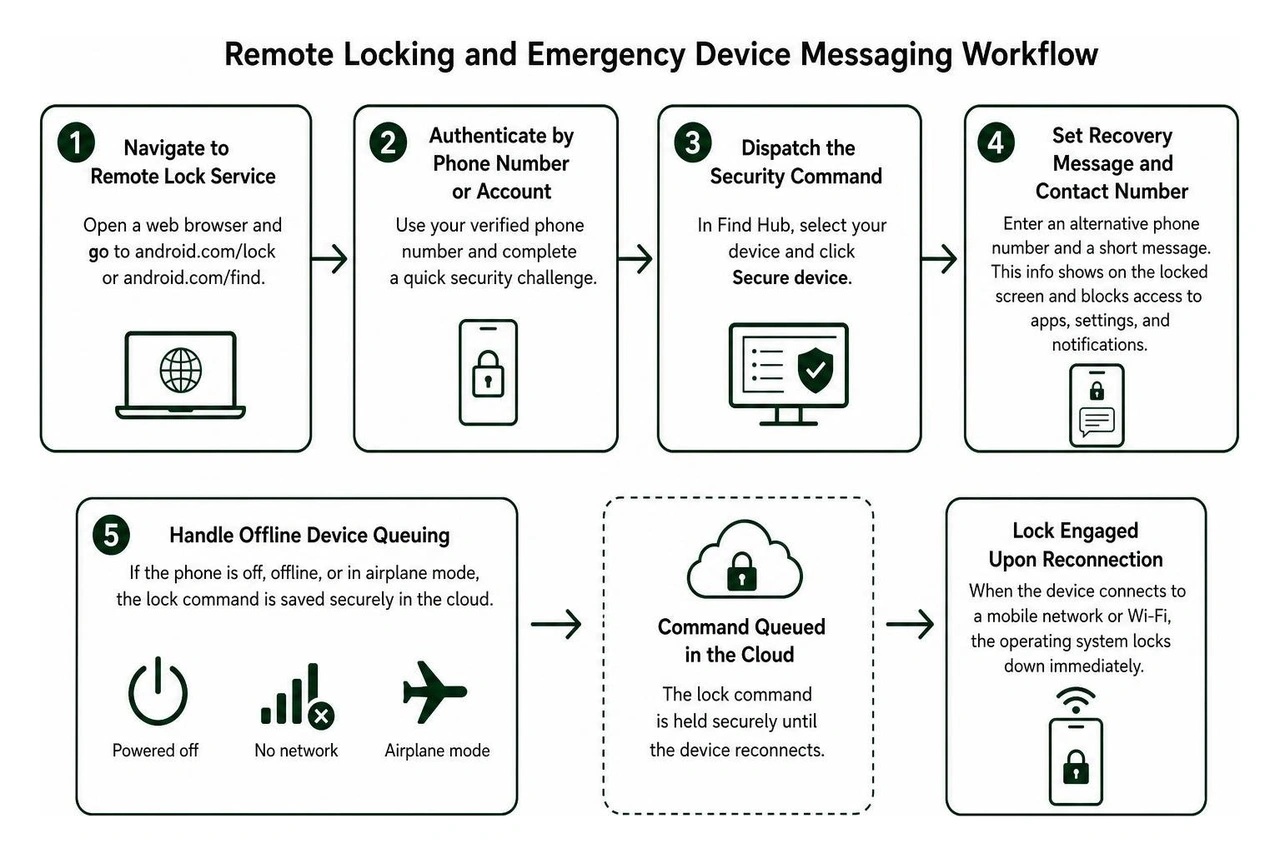
If your device goes missing, act quickly through Google's dedicated Remote Lock portal or the centralized Find Hub dashboard:
Navigate to the Remote Lock Service: Open any web browser and head directly to android.com/lock or android.com/find.
Authenticate by Phone Number or Account: The streamlined Remote Lock service allows you to initiate an immediate lockdown using just your verified phone number and a rapid security challenge, avoiding the delay of full multi-factor account navigation on an unfamiliar browser.
Dispatch the Security Command: If you manage the device via Find Hub, select your target phone from the registered hardware list and click Secure device.
Set a Custom Recovery Message and Contact Number: Enter an alternative phone number and a short message (e.g., "Lost phone. Please call 555-0199 for return"). This information displays prominently on the locked screen while blocking access to all underlying applications, settings, and notifications.
Handle Offline Device Queuing: If the smartphone is turned off, disconnected from cellular networks, or in airplane mode, the remote lock command queues in the cloud. The moment the phone establishes a handshake with a cell tower or Wi-Fi network, the operating system locks down immediately.
Native Anti-Theft Features and Automated Screen Locking Mechanisms
Modern mobile security extends beyond manual remote commands. Native operating systems now incorporate automated, real-time defenses that lock your hardware the moment suspicious physical behavior or network isolation is detected.
As detailed in the official guide to Protect your personal data against theft - Android Help, automated protections work across hardware, operating system, and cloud layers to safeguard personal data before you even realize your device is gone.
AI-Powered Theft Detection and Offline Device Lock
One common physical theft method is the grab-and-run, where a perpetrator snatches an unlocked phone directly from a user's hands while walking, cycling, or commuting.
Native theft protection features address this through sensor-driven triggers:
Theft Detection Lock: Using onboard accelerometers, gyroscopes, and machine learning models, the operating system detects motion signatures associated with a sudden grab followed by rapid acceleration (such as someone running away or speeding off on a scooter). The moment this movement pattern matches a theft profile, the screen locks instantly, cutting off access to open applications.
Offline Device Lock: Thieves frequently place stolen devices inside signal-blocking Faraday bags or toggle Airplane Mode to disrupt GPS tracking and remote wipe commands. The Offline Device Lock monitors network connectivity; if an unlocked device remains completely offline for an unusual period, it automatically forces a screen lock.
Failed Authentication Lock: If an unauthorized user attempts to guess your PIN, pattern, or biometric credentials repeatedly, the OS initiates an automated lockdown, disabling biometric shortcuts and requiring full master password authentication.
Note on frequency caps: To prevent denial-of-service edge cases or accidental lock loops, automated security triggers such as Remote Lock and Offline Device Lock can execute up to twice in a rolling 24-hour period per device.
Identity Check and Biometric Authentication Triggers
Even when a phone is unlocked, sensitive administrative actions require extra protection. If a thief watches you enter your PIN in a public space before snatching your phone, they might attempt to alter account recovery details, view saved credentials, or factory reset the device.
To prevent this exploit, modern operating systems use location-aware biometric safeguards:
Mandatory Biometrics Outside Trusted Places: With identity protection active, the system checks physical location via GPS and known Wi-Fi networks. When you are away from designated "Trusted Places" (like your home or office), administrative tasks—such as accessing stored passkeys, viewing payment methods, or modifying Google Account credentials—require biometric verification (fingerprint or facial scan).
Disabling PIN Fallback: In high-risk environments, the system disables the standard "fallback to PIN" option for critical security settings. Even if an attacker knows your unlock PIN, they cannot bypass biometric checks to hijack administrative controls.
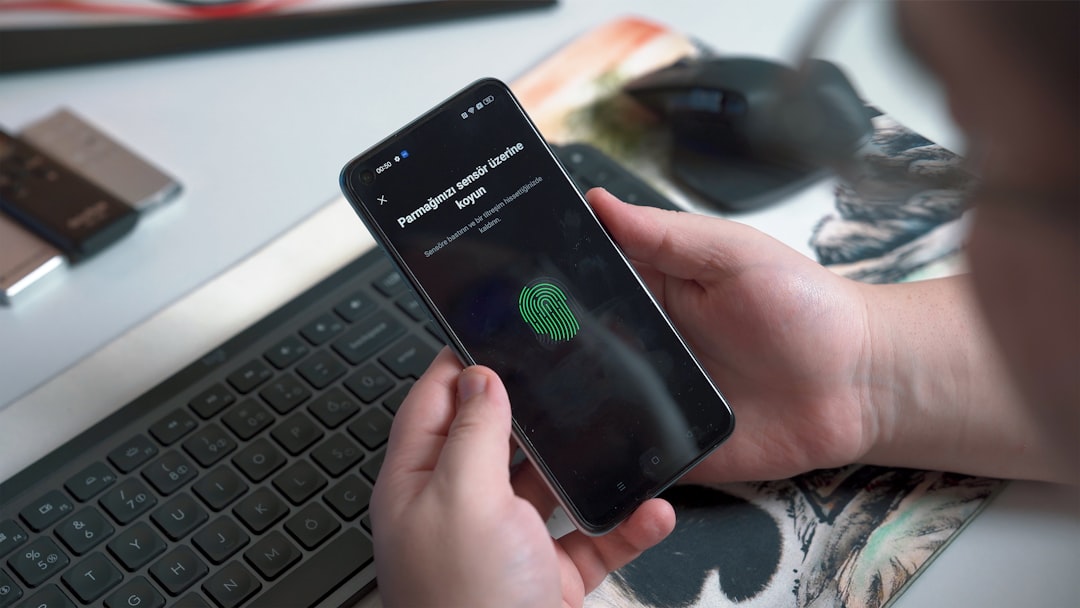
Enterprise-Grade Lock Control: At the system architecture layer, mobile platforms provide programmatic APIs like the Device Policy Manager. Lock Now Method. Enterprise management tools use these protocols to evict credential encryption keys from memory instantly during a compliance breach, ensuring enterprise data remains inaccessible until verified by a system administrator. If you rely on fingerprint authentication, review our guide on how to Lock Android Phone with Fingerprint.
Fast Tricks to Unlock and Recover Your Locked Smartphone
Lockouts happen. Whether you forgot a newly updated numeric passcode, inherited a device with legacy profile locks, or had a child repeatedly enter incorrect credentials, regaining access quickly without losing data requires following verified recovery pathways.
If you are managing an Apple ecosystem device, check our comprehensive walkthrough on How Do I Unlock My iPhone for iOS-specific recovery steps.
Regaining Access via Verified Google Account and Find Hub
When locked out of an Android smartphone, avoid untrusted third-party "unlock utility" downloads that promise one-click PIN removal. These programs often carry malware risks or force an unintended factory wipe that permanently deletes unbacked-up photos, messages, and local data.
Instead, use verified manufacturer and operating system recovery workflows:
Verify Cloud Backups First: Ensure your primary Google Account has an active backup by checking your account dashboard on a separate computer. Standard Android backups securely encrypt application data, contacts, call history, and device settings using your original screen lock credentials.
Leverage Find Hub Remote Reset (When Supported): On select enterprise-enrolled or legacy devices, administrators can dispatch a temporary credential reset through Google Find Hub, permitting access to update the primary PIN.
Use Account Recovery Challenges: If your phone is locked following multiple incorrect attempts, look for the Forgot Pattern/PIN prompt (available on specific OS configurations). Authenticate using your primary Google Account email and master password to clear the local lock without data loss.
Perform a Recovery Mode Factory Reset (Last Resort): If credentials cannot be recovered, power down the device, hold the Power + Volume Down (or device-specific hardware key combo) to enter Recovery Mode, and select Wipe data / Factory reset.
Clear Factory Reset Protection (FRP): After an intentional hardware wipe, Android's FRP system will require the original Google Account credentials previously linked to the phone before allowing initial setup. Have your master account password ready.
Unlocking Application Lockers and Touch-Free Overlays
Sometimes, the lockout isn't at the system level. A secondary app locker might crash, a touch-lock utility might fail to release its overlay, or an open-source tool like App Lock might encounter permission conflicts during background OS updates.
If your touchscreen or specific applications are trapped behind an unresponsive overlay:
Bypass the Application Overlay via Safe Mode: Power down your device. Press and hold the Power button until the manufacturer logo appears, then hold down the Volume Down button until the system completes its boot cycle. The device will boot into Safe Mode, temporarily disabling all third-party apps, overlays, and background services. From here, navigate to Settings > Apps, and safely clear the cache, revoke permissions, or uninstall the misbehaving locker.
Revoke Accessibility and Window Overlays: If an app locker prevents access to specific menus, enter Android Settings and search for Display over other apps and Accessibility Services. Toggling off permissions for third-party lockers disables their blocking mechanisms instantly without requiring a factory reset.
Clean Up System Memory and Background Tasks: Avoid relying on generic ad-supported screen lockers like Keypad Lock - Phone Secure (which holds over 10 million downloads and a 4.4-star rating across 42,500+ reviews). User testing indicates that many ad-supported screen overlays can be bypassed by pulling down the notification shade, clearing recent tasks, or restarting the device. For verified device hygiene, rely on our curated Best Free Virus Protection for Android Phone guide.
Best Practices to Harden Your Mobile Security Post-Recovery
Recovering from a lockout or securing a device post-incident is the ideal time to audit your security posture. A secure smartphone combines strong local encryption, robust authentication, and minimal lock screen data leakage.
Configuring 6-Digit PINs, Alphanumeric Passwords, and Biometrics
Your screen lock is more than an access barrier—it serves as the cryptographic seed that generates local encryption keys for all on-device databases and cloud backups.
Upgrade from 4-Digit to 6-Digit PINs (or Alphanumeric Passwords): A standard 4-digit PIN has only 10,000 possible permutations, making it vulnerable to brute-force attacks and shoulder-surfing. Upgrading to a 6-digit PIN expands the entropy space to 1,000,000 combinations. For maximum defense, use a complex alphanumeric password combining letters, numbers, and symbols.
Understand the Security Trade-Offs of "Auto-Confirm Unlock": Android provides an Auto-confirm unlock feature that automatically unlocks the device the moment the last correct digit is entered, without requiring you to tap the "Enter" checkmark. While convenient, enabling Auto-confirm slightly reduces security by confirming the expected PIN length to onlookers. For PINs longer than 6 digits, it hides the visual length indicator on screen to offset this risk.
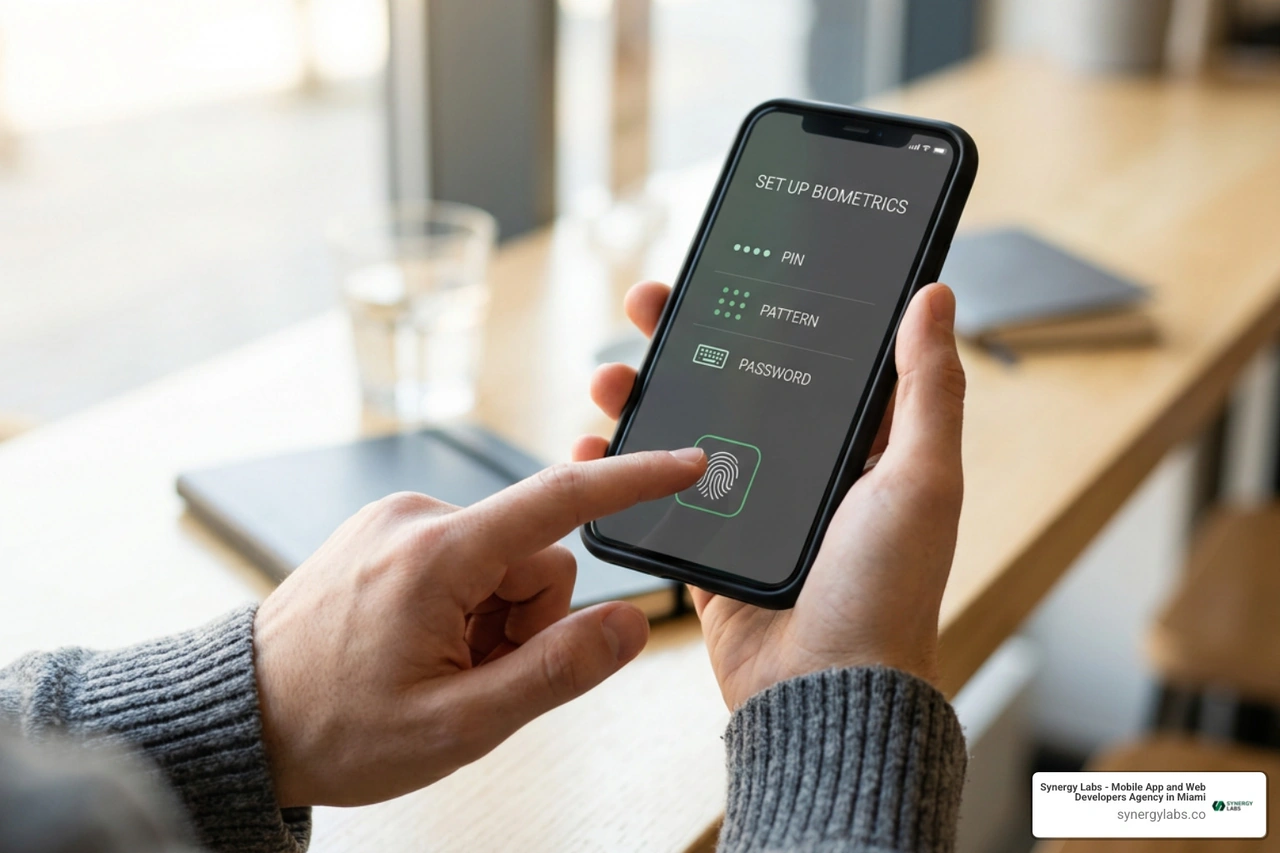
Prioritize Hardware Biometrics for Daily Access: Pair a complex master password with hardware-backed biometric authentication (fingerprint sensors or 3D structured-light facial recognition). Biometrics provide fast daily access without exposing your master alphanumeric passcode to shoulder-surfers in public spaces.
Implementing SIM PINs and Hiding Lock Screen Notifications
Securing the device screen alone is not enough if a bad actor can remove your physical SIM card, insert it into another phone, and intercept SMS-based two-factor authentication codes to hijack your email and banking accounts.
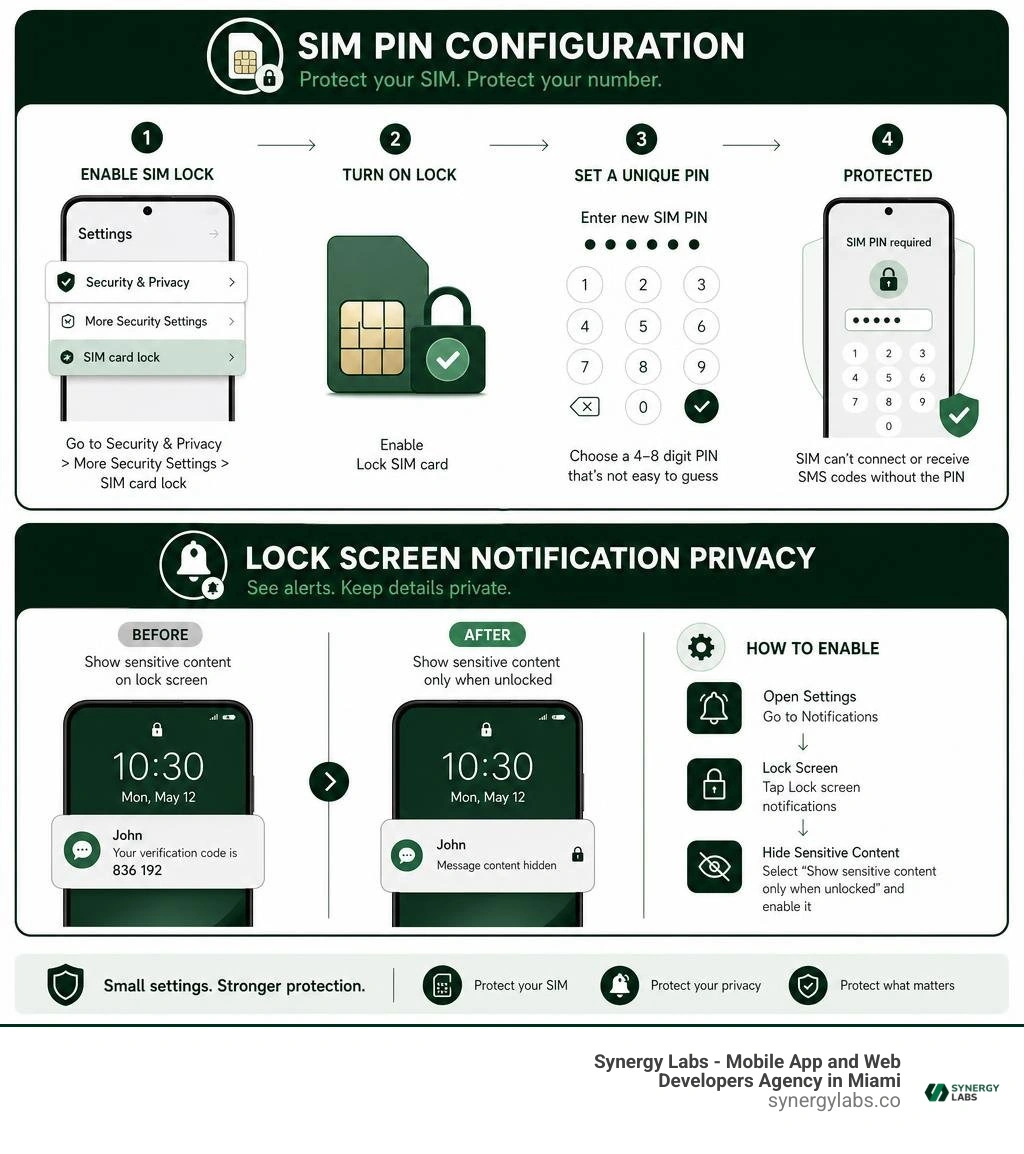
Set a Custom SIM PIN: Mobile carriers frequently ship physical SIM cards with default PIN codes (such as 1234 or 0000). Go to Settings > Security & Privacy > More Security Settings > SIM card lock, enable Lock SIM card, and set a unique 4- to 8-digit PIN. Once configured, the SIM card cannot connect to any cellular network or receive SMS verification codes after a reboot without entering the PIN.
Hide Sensitive Notification Content on the Lock Screen: Lock screen notifications that reveal full message previews can expose two-factor authentication codes, private chat excerpts, and calendar alerts to passersby. Navigate to your display or notification settings and select Show sensitive content only when unlocked. This keeps incoming alerts visible while masking their sensitive contents until you authenticate with your fingerprint or face.
Utilize Screen Pinning (App Pinning): When handing your phone to a friend or coworker to show a photo or make a call, activate Android's native App Pinning feature. This locks the device to that single application window, preventing the user from navigating to your home screen, reading messages, or viewing other apps until you enter your screen lock credential.
Frequently Asked Questions About Device Locking and Recovery
What should I do immediately if my phone is stolen?
Lock the Device Remotely: Open a web browser, go to android.com/lock, enter your phone number, and send an immediate lock command with an emergency recovery phone number.
Track via Find Hub: Open android.com/find to review the last reported GPS coordinates of the device. Never attempt to confront a thief directly; supply the location data to local law enforcement.
Contact Your Mobile Carrier: Request an immediate suspension of your cellular service and ask the carrier to blacklist the device's unique IMEI number, preventing the hardware from operating on cellular networks globally.
Change Account Passwords: From a secure computer, update master passwords for your Google or Apple accounts, email inboxes, financial institutions, and password managers. Revoke active session tokens for the lost device under your account security settings.
File a Police Report: Provide law enforcement with your device make, model, serial number, and IMEI. This documentation is required by device insurance providers to approve replacement claims.
How does remote lock differ from a complete factory data wipe?
A Remote Lock is a reversible security measure designed to protect personal data while leaving open the possibility of device recovery. It locks the display behind a PIN or password, presents your custom recovery message and contact number, and keeps GPS tracking and audible alarm capabilities active. Once the phone is back in your hands, entering your existing PIN or master password restores full access immediately with all local files intact.
A Remote Erase (Factory Wipe) is a permanent measure used when physical recovery is impossible. Triggering a remote wipe deletes all internal storage, downloaded applications, photos, local cryptographic keys, and offline files. Once a remote wipe executes, Find Hub can no longer track the device's real-time GPS coordinates, and the hardware resets to its factory state, protected only by Factory Reset Protection (FRP).
Can third-party lock screen apps be easily bypassed?
Yes. Third-party lock screen applications installed from app marketplaces operate at the user-space application layer rather than within the secure OS kernel or hardware security enclave.
Security audits reveal that many non-native screen lockers can be bypassed using simple techniques:
Notification Shade Pull-Down: Expanding the top system notification shade often allows users to tap a system setting or notification intent, bypassing the third-party lock overlay.
Task Manager Termination: Swiping the locker app away from the recent apps overview or clearing background memory can terminate the locking process entirely.
Safe Mode Booting: Booting the smartphone into Safe Mode suspends all third-party applications, rendering app-level lockers completely inactive.
For dependable data protection, always rely on the smartphone's built-in, native operating system screen lock.
Building Resilient Mobile Security with Synergy Labs
Mobile security requires a comprehensive approach. A properly protected smartphone uses strong local encryption, automated theft detection, and verified recovery procedures to ensure you never lose access to your digital life.
At Synergy Labs, we bring this same engineering rigor to product development. As a premier mobile and web development agency with a global footprint—spanning Miami, San Francisco, New York City, Austin, Chicago, Phoenix, Hartford, London, Dubai, Doha, and Riyadh—we design and build high-performance, secure digital applications tailored for modern enterprises and high-growth startups.
Whether you are building a consumer app with biometric security or deploying enterprise tools with strict policy management, our team provides senior technical guidance from day one. Our hybrid operational model pairs an in-shore CTO with an agile offshore engineering team, giving you direct access to executive talent while delivering development on a transparent, fixed-budget model with milestone-based payments.
Ready to build your next mobile application with enterprise-grade security and user-centered design? Connect with our engineering team at Synergy Labs to schedule a technical architecture discovery session.


.avif)

.avif)


