

Lock Your Android Phone With Voice, Without Sacrificing Security
You can lock an Android phone with voice by using a Google Assistant routine or Android accessibility controls that trigger a screen-lock action. For unlocking, modern Android devices do not support full Voice Match unlock as a secure native feature. Third-party voice-lock apps can add a spoken passphrase, but they usually work as an overlay and should never replace your phone's built-in PIN, password, fingerprint, or face unlock.
Use this simple rule:
- Use native Android tools to lock the screen hands-free where possible.
- Keep a strong PIN or biometric lock as your real device security.
- Treat third-party voice unlock as a convenience feature, not a security boundary.
Google removed full voice-based unlock from newer Pixel phones because recordings and similar-sounding voices could potentially bypass it. Voice commands remain useful on the lock screen for Assistant tasks, timers, smart-home control, and selected personal results, but Android keeps protected apps and sensitive data behind the normal lock screen.
I am the Director of Product at Synergy Labs, and the next sections break down the safest native and third-party ways to use voice controls without handing your phone's security to the nearest podcast recording.
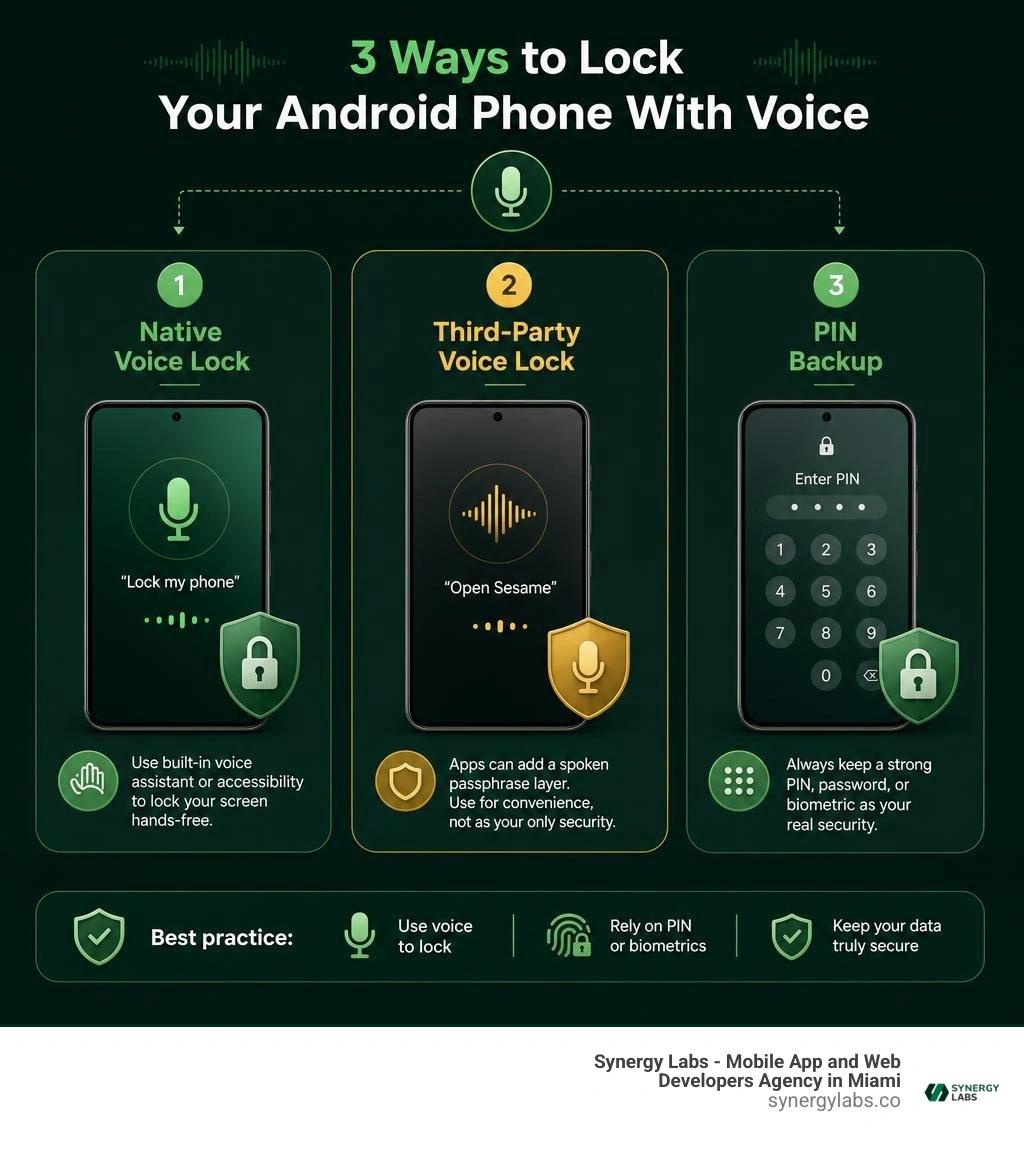
Simple guide to lock android phone with voice:
How Native Android Voice Controls and Assistants Function
Navigating modern Android devices hands-free has evolved from a futuristic concept into an everyday convenience. Native operating system architecture handles voice commands through core background services that continuously evaluate acoustic input while balancing battery consumption and data protection. When you want to lock phone screens or access digital assistants, the underlying framework evaluates your command through pre-trained neural speech models.
To interact with your device without physical touch, you can Access Google Assistant with your voice across smartphones running Android 5.0 and higher. The system uses low-power digital signal processors (DSPs) embedded within modern mobile chipsets. These processors listen exclusively for specific wake phrases—most commonly "Hey Google"—without waking the primary application processor, ensuring your battery does not drain rapidly throughout the day.
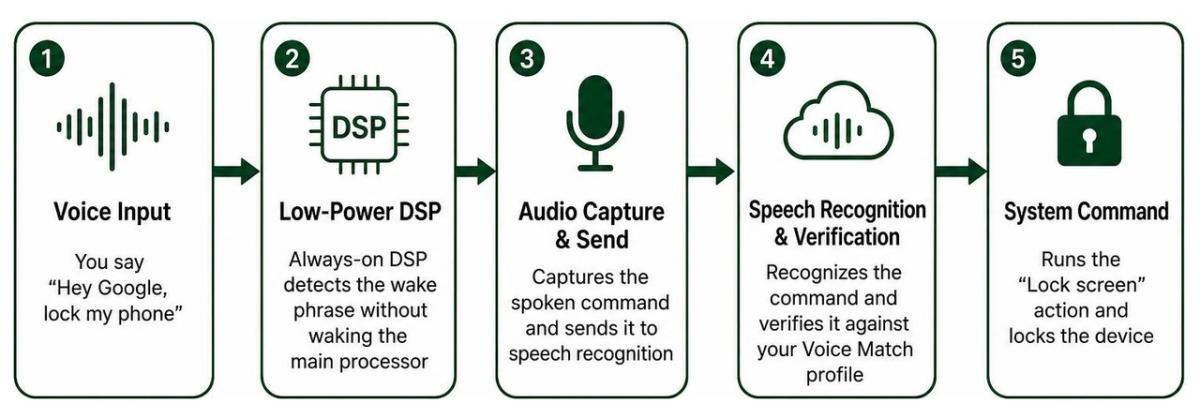
Once triggered, the audio snippet streams to system-level speech recognition services. Android verifies the speech pattern against your saved profile. If the acoustic signature matches, the system unlocks specific functional capabilities while strictly segregating sensitive hardware controls from unauthorized access. This architectural separation ensures that lock screen commands cannot bypass deeper system security checkpoints without explicit authentication.
Voice Match Configuration and Lock Screen Permissions
Configuring Voice Match allows Android to distinguish your unique vocal characteristics from background noise or other individuals in the room. Setting up this profile requires training the speech model by reciting specific sample phrases within the Google Home or Google Assistant settings interface.
When you Get Google Assistant on your Android lock screen, you open up practical hands-free operations while your device remains secured:
- Smart Home Automation: Adjust lighting, regulate connected thermostats, or trigger smart security cameras without unlocking the handset.
- Personal Communications: Send short messages, review reminders, or manage calendar events hands-free when personal results are toggled on.
- Ambient Display Utility: View commute estimates, local weather forecasts, and active media playback when your phone charges on a nightstand or desk.
- Protected System Boundaries: Sensitive actions, including launching third-party payment apps or opening private image galleries, remain strictly guarded until you enter your primary authentication credential.
Teaching Google Assistant to recognize your voice creates a mathematical acoustic model based on your pitch, cadence, and vocal tract resonance. If the system fails to recognize your voice during ambient noise or when you have a cold, you can retrain the model under Settings > Google Assistant > Voice Match > Retrain Voice Model to restore recognition precision.
Why Google Removed Voice Match Full Unlock on Modern Devices
In earlier generations of Android, Voice Match included an option that allowed users to completely bypass the lock screen using only their voice. However, starting with the release of the Pixel 3, Google systematically removed the ability to perform a full system unlock using spoken commands. The technical reasons behind this architectural deprecation reflect critical hardware-level security trade-offs.
As reported when The Pixel 3 removes the ability to unlock your phone with your voice, voice biometric authentication proved inherently vulnerable to spoofing. Unlike ultrasonic fingerprint sensors or structured 3D facial recognition hardware, standard microphones cannot easily distinguish between a live human speaker, a high-fidelity digital audio recording, or a sibling with a similar vocal pitch.
Modern mobile operating systems demand strict hardware-backed biometric classification. To achieve high security ratings, biometric modalities must demonstrate exceptionally low Spoof Acceptance Rates (SAR). Voice recognition models struggled against acoustic replay attacks and emerging AI voice synthesis technologies. As a result, modern Android implementations intentionally restrict voice interactions on locked screens to non-destructive tasks and locked-state personal results.
How to Lock Android Phone with Voice Commands and Native Tools
While native Android software intentionally prevents complete biometric unlocking via voice, locking your screen using spoken commands is entirely feasible. You can execute screen-locking routines using native accessibility components or automated digital assistant shortcuts without installing unvetted utilities.
Hands-free locking provides immense utility when cooking, working with tools, or stepping away from your workspace when your hands are full. By coupling built-in automation routines with system accessibility services, you maintain absolute control over device security without exposing operating system kernels to untrusted software.
Step-by-Step Guide: Lock Android Phone with Voice Using Google Assistant Routines
Creating a dedicated voice routine lets you assign a natural spoken phrase to turn off and secure your screen instantly. Because native assistant routines interact directly with Android's system services, this approach delivers maximum reliability without display lag.
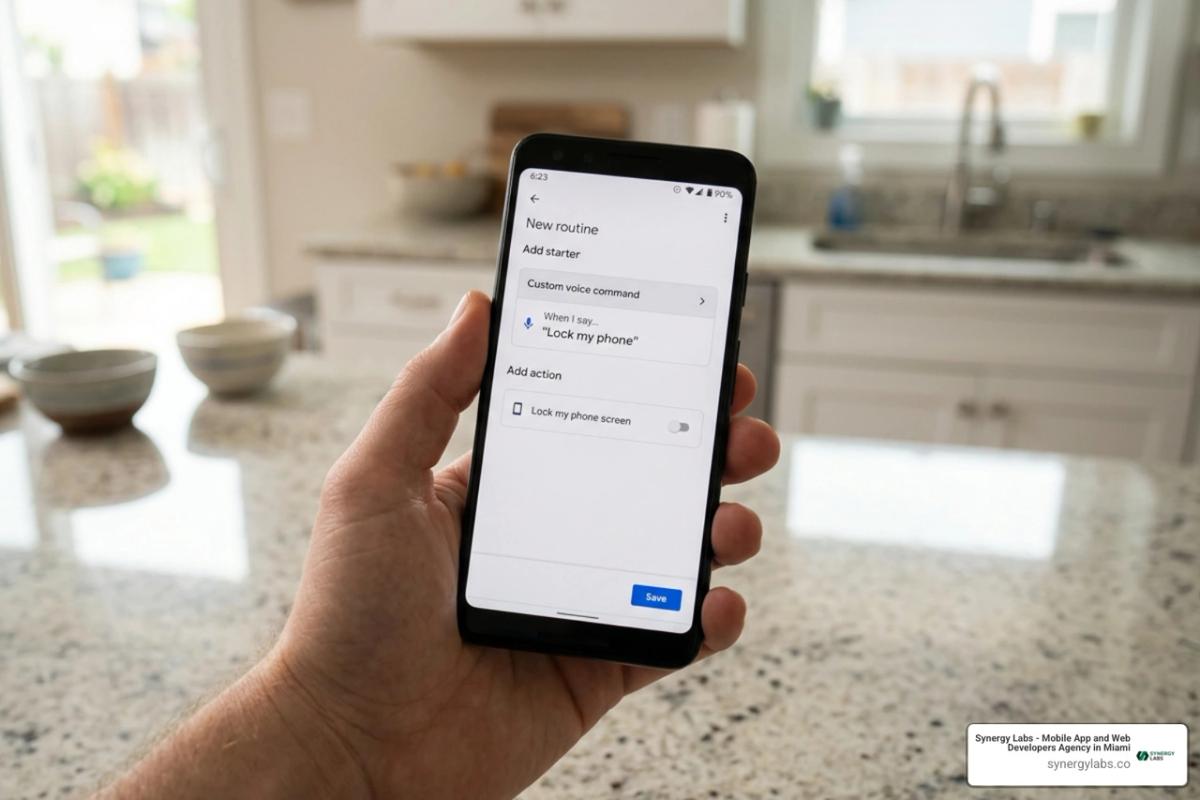
Follow these precise steps to set up your custom voice-locking routine:
- Launch Settings: Open the Google app or Google Home app on your Android smartphone.
- Access Routines: Tap your profile icon, select Settings, navigate to Google Assistant, and select Routines.
- Create New Routine: Tap the + (New) button to construct a custom automation flow.
- Define the Starter Phrase: Tap Add Starter, select Voice Command, and input your preferred activation phrase, such as "Lock my screen" or "Secure phone."
- Assign the Action: Tap Add Action, choose Custom Action, and type an accessibility screen lock command or assign a sleep shortcut (e.g., "Turn off screen" or "Lock device").
- Save and Test: Tap Save. Activate your assistant by saying your starter phrase aloud to verify that your display immediately dims and locks.
Using Android Voice Access and Accessibility Commands
For comprehensive hands-free device management, Android provides the Voice Access suite. Part of the Android Accessibility framework, Voice Access enables complete navigation of system controls through spoken commands, specifically designed for users with limited mobility or situations requiring zero physical contact.
To lock your device using the Voice Access suite:
- Install and Enable: Download Voice Access from Google Play if it is not pre-installed, then navigate to Settings > Accessibility > Voice Access and toggle the service to On.
- Configure Activation: Set Voice Access to start automatically upon screen activation or listen continuously when the device is unlocked.
- Issue the Lock Command: Speak the exact system instruction: "Lock screen" or "Turn off screen."
- System Execution: The Accessibility Service intercepts the command and triggers the global hardware lock action (
GLOBAL_ACTION_LOCK_SCREEN), instantly putting the device into its secure standby state.
Using Accessibility commands guarantees that your hardware returns to its encrypted, protected state. Once locked via system accessibility actions, the phone demands your secure primary credential—such as your PIN, pattern, or biometric hardware key—before unlocking again.
Third-Party Voice Lock Screen Apps: Features, Risks, and Fallbacks
A quick search on app marketplaces reveals numerous third-party utilities boasting millions of downloads that offer custom voice-activated lock screens.
While these tools offer novel visual themes and customized speech-to-text matching, they operate under substantial structural constraints. Understanding the difference between native operating system authentication and third-party lock screens is essential for maintaining sound mobile app security.
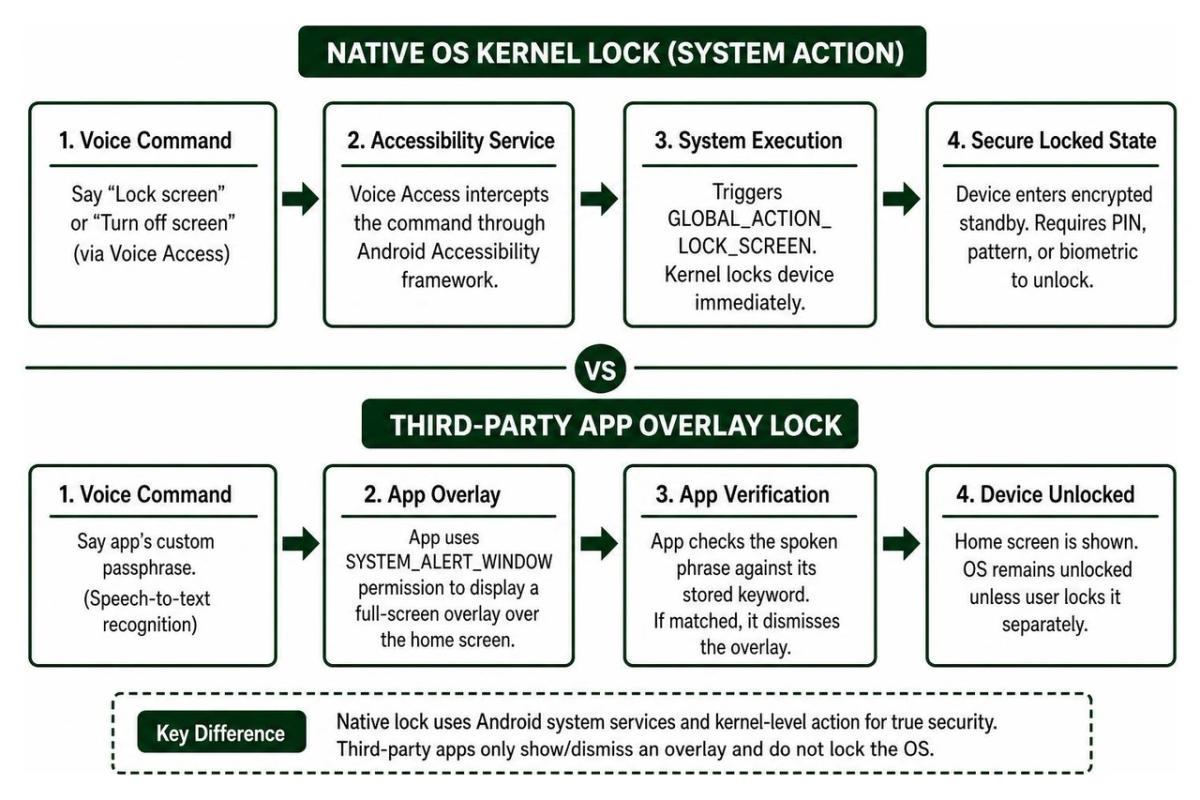
Third-party voice lock tools do not replace Android's native cryptographic lock screen. Instead, they rely on the SYSTEM_ALERT_WINDOW permission ("Display over other apps") and persistent foreground services to project a full-screen interactive overlay over your home launcher. When you speak your chosen passphrase, the app simply recognizes the keyword and dismisses its own graphical overlay.
Dynamic Time Locks, PINs, and Pattern Backups
Because spoken phrase recognition can easily fail in noisy environments, reputable third-party lock utilities incorporate alternative authentication fallbacks. Understanding these fallback modes ensures you never find yourself locked out of your device during daily activities.
- Dynamic Current Time Locks: An inventive security mechanism where the device's real-time system clock acts as a rolling unlock PIN. For example, if the current time is 09:42 AM, the unlock passcode is
0942. The moment the clock rolls to 09:43 AM, the passcode dynamically updates to0943. This prevents onlookers from memorizing your code through shoulder-surfing. - Standard Keypad PINs: A static numeric backup entered on a virtual keypad if the microphone fails to capture audio properly.
- Pattern Security Overrides: A traditional 3x3 grid connecting nodes to form a geometric shape as a manual override.
- Security Recovery Questions: Prompt-based recovery answers established during initial configuration to bypass the lock screen if all speech inputs fail.
Privacy Concerns, Adware, and Overlay Vulnerabilities
Despite their entertainment value, third-party screen locking utilities introduce genuine software risks. Our team regularly conducts technical evaluations across consumer software, and these utilities frequently exhibit architectural weaknesses highlighted in our best mobile security software guide 2026.
Because these applications function merely as screen overlays rather than secure OS boundaries, force-restarting the device in Android Safe Mode or terminating the process via ADB immediately removes the lock interface. Furthermore, many third-party utilities request dozens of sensitive permissions—including constant background microphone access, persistent device identifiers, and notification scraping. Consistent app security patch maintenance and code vetting remain critical to preventing data leaks on consumer devices.
Security Analysis: Voice Biometrics vs Traditional Screen Security
Evaluating authentication mechanisms requires balancing convenience against overall security rigor. In mobile computing, voice authentication occupies an unusual middle ground: highly accessible and natural to use, yet mathematically more susceptible to spoofing and environmental interference than hardware-backed biometrics.
To understand where voice security fits into your defensive strategy, consider how it compares against traditional authentication layers:
- Hardware Fingerprint Sensors: Capacitive and ultrasonic sensors analyze microscopic dermal ridges beneath the skin. They execute inside a dedicated Trusted Execution Environment (TEE), making physical spoofing extraordinarily difficult.
- Alphanumeric Passwords & Strong PINs: High-entropy text strings offer maximum resistance against remote attacks, provided they are not shared or observed by onlookers.
- Voice Passphrases (Speech-to-Text): Third-party apps checking whether a specific word is spoken. Highly vulnerable because anyone speaking the identical word can trigger an unlock.
- Biometric Voice Match: Mathematical acoustic modeling analyzing pitch and harmonics. Resistant to random strangers, but vulnerable to high-fidelity audio recordings and modern AI voice cloning tools.
If an attacker gains physical possession of a phone that relies purely on an unvetted voice lock, bypassing it requires little technical skill. For robust protection against theft or loss, utilizing Android's built-in remote lock android phone features and reviewing the best free android security tips 2026 will provide substantially greater security than relying on novelty voice overlays.
Best Practices to Lock Android Phone with Voice Safely
If you enjoy the speed of voice commands for locking and interacting with your smartphone, implementing a defense-in-depth approach ensures your sensitive personal files remain safe.
Follow these core security practices to maximize convenience without introducing dangerous vulnerabilities:
- Retain Hardware Locks as Primary Defense: Always configure a secure 6-digit PIN, complex passphrase, or biometric fingerprint lock at the Android system level (
Settings > Security > Screen Lock). Never disable your primary OS lock screen. - Use Native Tools for Voice Actions: Rely on Google Assistant routines or Android Accessibility Voice Access to lock your display rather than granting intrusive screen-drawing permissions to third-party ad-heavy apps.
- Establish Quiet Verification Fallbacks: Ensure a strong fallback PIN is always established so you never have to shout your private voice passphrase across crowded public spaces.
- Restrict Lock Screen Personal Results: Under Google Assistant settings, disable personal results on the lock screen if you frequently leave your phone unattended in public workspaces.
- Audit Background Permissions Regularly: Periodically inspect apps holding microphone, overlay (
SYSTEM_ALERT_WINDOW), and accessibility permissions under your device's Permission Manager.
Frequently Asked Questions About Android Voice Locking
Can I lock my Android screen simply by saying "Hey Google, lock my phone"?
Yes, but it generally requires configuring a Google Assistant routine or enabling Android Accessibility Voice Access. By default, saying "Hey Google, lock my phone" on some device builds may prompt Google Assistant to tell you that it cannot manage hardware locks natively without an assigned routine or accessibility shortcut. Once configured via Assistant Routines, speaking the command immediately turns off the display and engages the secure system lock.
Are third-party voice screen lock apps safe to use in 2026?
Third-party voice screen lock apps available on app marketplaces are generally safe from active malware if verified by Play Protect, but they should be treated as novelty personalization tools rather than genuine security barriers. Because they operate as window overlays rather than cryptographic operating system locks, they can often be bypassed by rebooting into Safe Mode or dismissing the application task. Furthermore, many contain aggressive ad frameworks and lack an integrated emergency dialer.
What should I do if my voice lock fails to recognize my speech?
If ambient background noise, poor cellular connection, or vocal fatigue prevents the microphone from recognizing your voice command, immediately use your configured secondary fallback method. Tap the screen to switch to manual keypad entry, input your pre-configured backup PIN, draw your unlock pattern, or enter the dynamic current time code (e.g., entering 1425 if the current clock time is 2:25 PM).
Building Better Mobile Security Architectures
Voice commands provide incredible accessibility and hands-free convenience, transforming how we interact with mobile devices throughout our daily routines. However, as mobile software environments grow more complex, maintaining a strict distinction between convenient interface shortcuts and verified biometric security boundaries is essential. Native Android tools like Assistant Routines and Voice Access allow you to effortlessly lock your display without compromising the underlying cryptographic integrity of your device.
At Synergy Labs, we understand that world-class mobile experiences require a seamless balance between user-centered design and impenetrable software architecture. Whether your organization is modernizing an existing enterprise platform or building high-performance cross-platform mobile solutions from the ground up, our engineering team brings senior technical expertise directly to your project.
We provide transparent, high-impact software development powered by our proven fixed-budget model, direct access to dedicated in-shore CTO leadership, and milestone-based payments that ensure your digital initiatives launch rapidly, securely, and within budget. Explore how our team can elevate your next mobile breakthrough by discovering our custom mobile application security architecture and bespoke development services today.