Lock a Lost Android Phone Before Anyone Can Get In

If your Android phone is lost or stolen, use Android Remote Lock at android.com/lock to lock its screen from another device. Enter the verified phone number linked to the phone, complete the CAPTCHA, and submit the request. If the phone is online, it should lock promptly. If it is offline, the request can apply when it reconnects.
This is a fast first move when your phone disappears. It helps keep apps, accounts, photos, and work data behind your existing PIN, pattern, or password while you decide whether to locate or erase the device through Google's Find Hub.
Remote Lock works best when you prepare before anything goes wrong. Your phone needs a screen lock, an active SIM with a verified number, Find Hub enabled, and internet access for the command to reach it. Google also limits Remote Lock requests to two within a 24-hour period, so treat it as an emergency control, not a button to test repeatedly.
Android also offers other theft protections. Theft Detection Lock can use movement and connection signals to lock a phone after a suspected snatch, while Find Hub can help locate, secure, or erase a device. Together, these tools create useful layers of defense - because recovering a phone is great, but protecting its data matters first.
As Director of Product at Synergy Labs, I help teams build mobile experiences where strong security stays practical for real users.
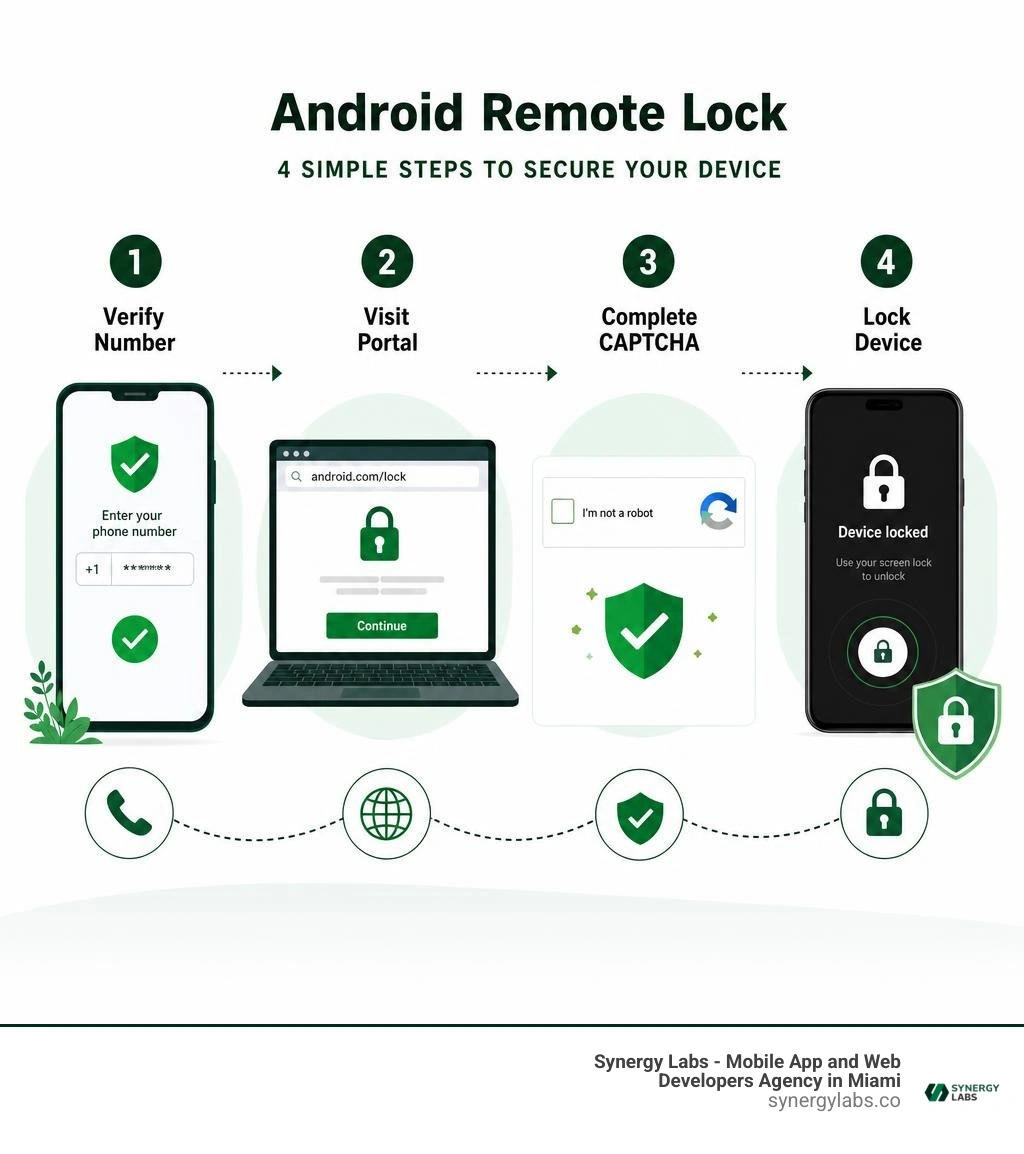
Simple guide to android remote lock:
Understanding Android Remote Lock and Theft Protection Layers
Modern mobile security is built on layers. When a device leaves your possession, relying on a single defense mechanism is risky. Google’s ecosystem combines machine-learning motion detection, network-based tracking, and cloud-initiated actions to guard your sensitive data. Understanding how these features interact ensures that you use the right tool at the right time.
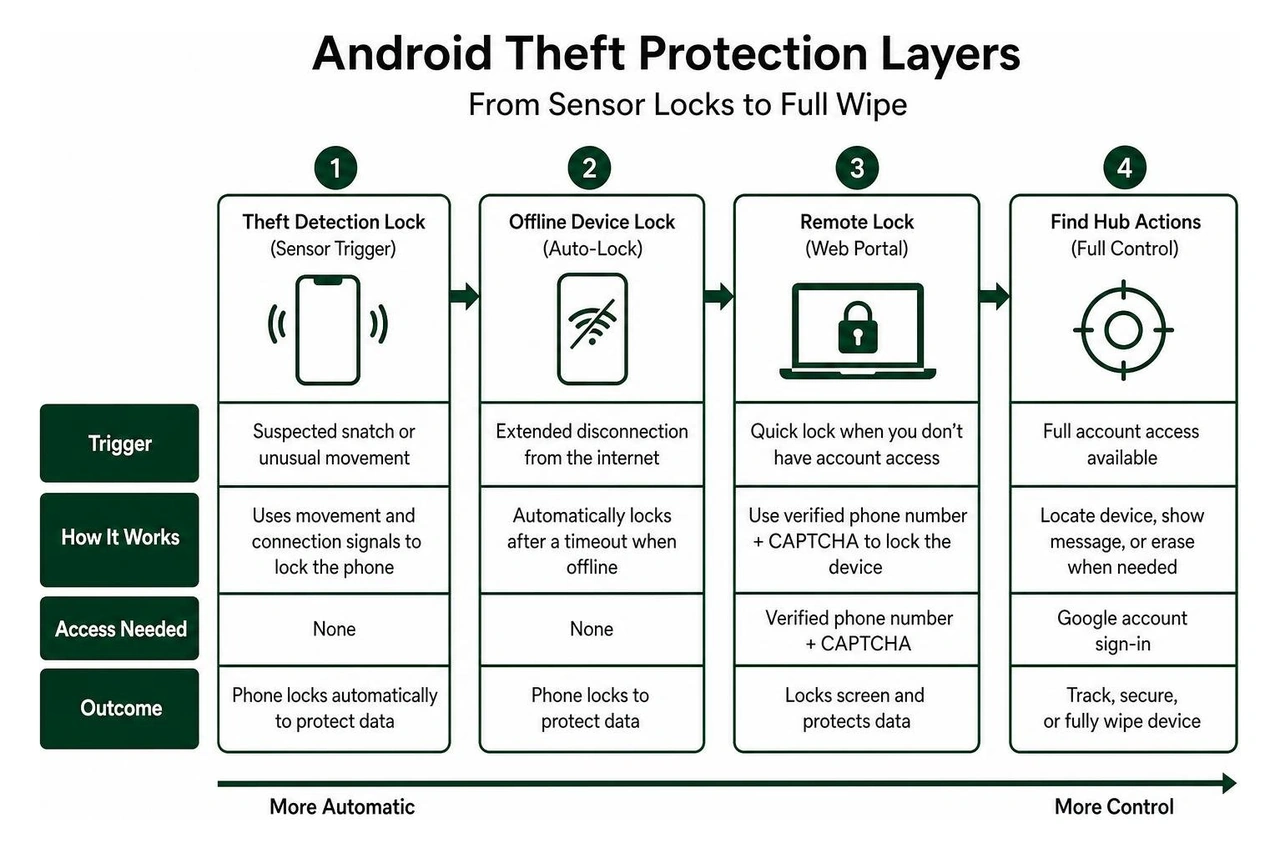
The Role of Remote Lock
Android Remote Lock serves a specific emergency purpose: fast, low-friction locking when you do not have immediate access to your Google account credentials. In a crisis, logging into a full Google account on a borrowed device or public computer can be difficult. You might face two-factor authentication prompts sent directly to the phone that was just taken. Remote Lock bypasses this hurdle by allowing you to trigger a lockdown using only your verified phone number and a quick security verification.
This feature locks the display immediately, pushing all active applications into the background and requiring your existing device credential to open it.
Theft Detection Lock vs. Remote Lock
While Remote Lock is triggered manually by the user over the web, Theft Detection Lock is proactive and automated. According to Google's theft protection documentation, Theft Detection Lock relies on built-in device sensors, artificial intelligence algorithms, and network connection states (such as sudden drops in Wi-Fi or Bluetooth pairing) to identify physical theft in real time.
If someone snatches your phone out of your hand while you are walking down the street and sprints away, the accelerometer and gyroscope detect the rapid, atypical motion signature. The operating system immediately locks the display before the thief can interact with unlocked banking applications, communication tools, or account settings.
Integration with Google Find Hub
Google Find Hub (formerly Find My Device) represents the comprehensive management layer of this ecosystem. While Remote Lock focuses strictly on dropping the digital security curtain over your screen, Find Hub provides broader administrative powers:
- Real-time geolocation tracking using crowdsourced network pings
- Playing an audible sound at maximum volume, even if the handset is muted
- Displaying a custom recovery message and alternate contact number on the lock screen
- Executing a cryptographic factory reset that permanently deletes all onboard personal data
For complete protection, you can execute a quick screen lockdown via a remote lock Android phone setup, followed by tracking or wiping through the Find Hub console once you are in a secure environment.
How to Set Up and Use Remote Device Locking
To use Remote Lock in an emergency, you must enable and configure the underlying services beforehand. If the feature is disabled when an incident occurs, you will have to rely solely on standard Find Hub controls.
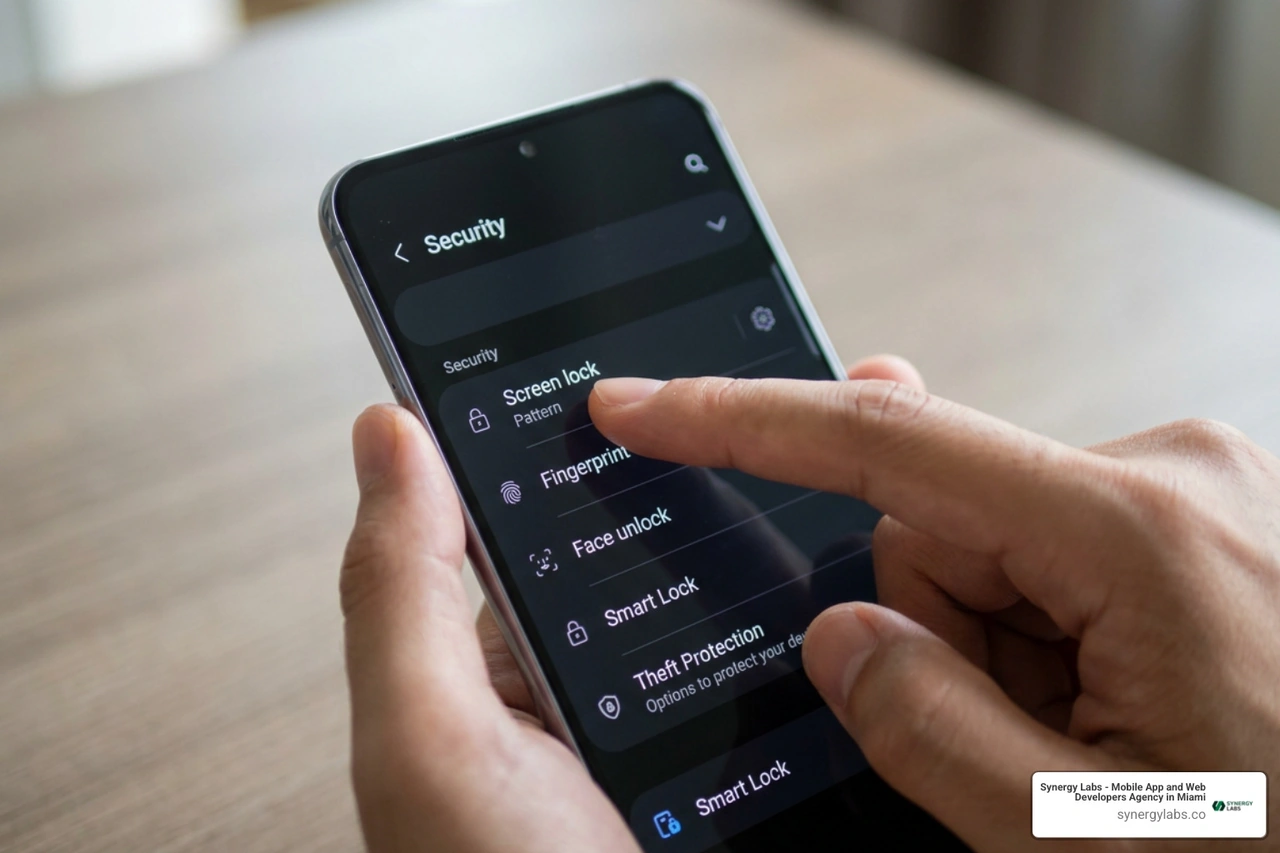
Essential Prerequisites
Before enabling the feature, verify that your hardware and software meet the operating criteria:
- Operating System: Android 10 or newer (with the latest Google Play Services installed).
- Active SIM Card: A functioning physical SIM or eSIM assigned to the device.
- Verified Phone Number: The active number must be registered and validated within your Google account settings.
- Screen Lock: A secure PIN, complex alphanumeric password, or cryptographic pattern must be active. (Biometric authentication methods like fingerprints or facial recognition work on top of these credentials).
- Find Hub Enabled: The core device locator service must remain active in system settings.
How to Set Up Android Remote Lock on Your Phone
Setting up the feature takes less than two minutes. Follow these steps on your device:
- Open the primary Settings menu on your Android device.
- Scroll down and select Google (or Google Services depending on your manufacturer's interface).
- Navigate to the All services tab.
- Tap on Theft protection.
- Locate the Remote Lock toggle and switch it to the On position.
- When prompted, select and verify the active phone number tied to your device.
- (Optional but recommended) Set an additional security challenge question. This adds a verification layer that prevents unauthorized individuals from locking your phone as a prank or denial-of-service attempt.
Once enabled, your phone is armed to receive remote lock dispatches through Google's signaling servers.
How to Trigger an Android Remote Lock from Any Web Browser
If your device is misplaced or stolen, follow this step-by-step workflow from any modern internet browser (desktop, tablet, or another smartphone):
- Navigate directly to the official Remote Lock portal.
- Enter the exact verified phone number associated with the lost Android device (including country code).
- Complete the visual security CAPTCHA challenge to confirm you are human.
- If you configured an optional security question during setup, enter your exact answer.
- Click Lock Device.
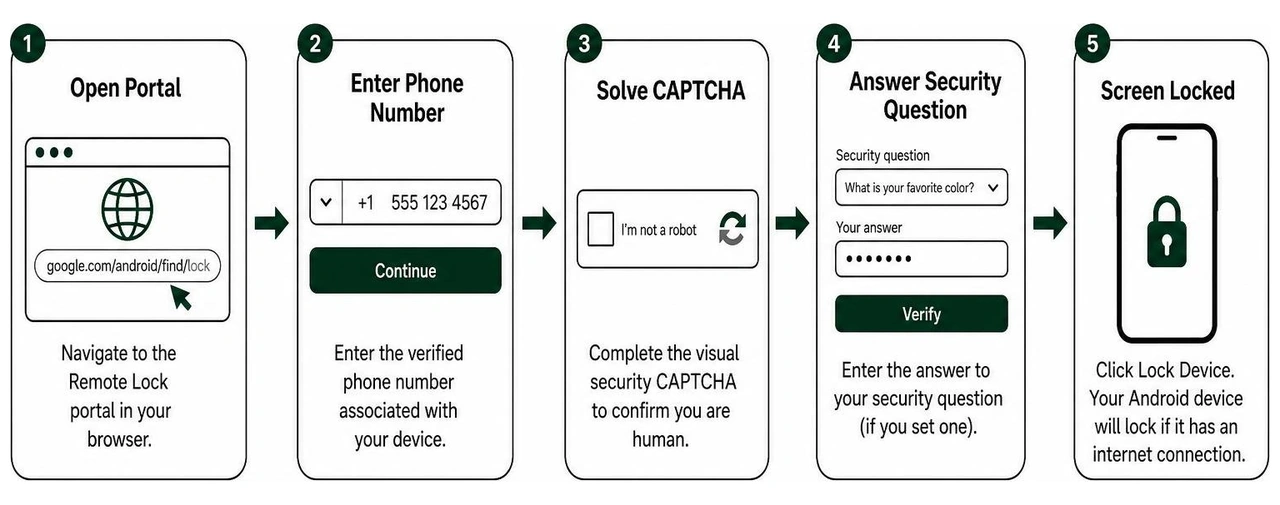
If the lost device has an active internet connection (cellular data or Wi-Fi), it will immediately lock the screen. If you are exploring broader device-securing strategies, reviewing the various ways to lock phone interfaces will help you protect devices across multiple form factors.
Enhancing Security with Android 16 Secure Lock and Biometrics
Android 16 introduces foundational architecture improvements that significantly elevate the strength of remote locks. As detailed by Android Authority's analysis of Android 16's security framework, Google has integrated the MANAGE_SECURE_LOCK_DEVICE system permission alongside the updated AuthenticationPolicyManager API.
In earlier operating system versions, triggering a remote lock simply returned the device to its standard lock screen. However, a thief holding an active device might still view incoming notification banners, read one-time SMS verification codes, or swipe down the Quick Settings tray to enable Airplane Mode.
Android 16 addresses these potential exploits:
- Notification Shielding: All lock screen notification previews, ongoing call tickers, and lock screen widgets are completely suppressed.
- Quick Settings Lockdown: The pull-down control center is disabled, preventing bad actors from turning off Wi-Fi, cellular radios, or Bluetooth beaconing.
- Digital Assistant Isolation: Voice assistants and AI screen reading features cannot be invoked from the secure state.
- Multi-Factor Device Authentication: Unlocking a device that has been placed into Secure Lock requires both your primary screen credential (PIN, pattern, or password) and a verified biometric factor (such as a hardware-backed fingerprint). Even if an attacker shoulder-surfed your PIN before snatching your phone, they cannot unlock the device without your physical biometrics.
Key Limitations, Offline Behavior, and Security Verification
While Remote Lock is an effective emergency measure, understanding its technical boundaries helps prevent false assumptions about your data's safety.
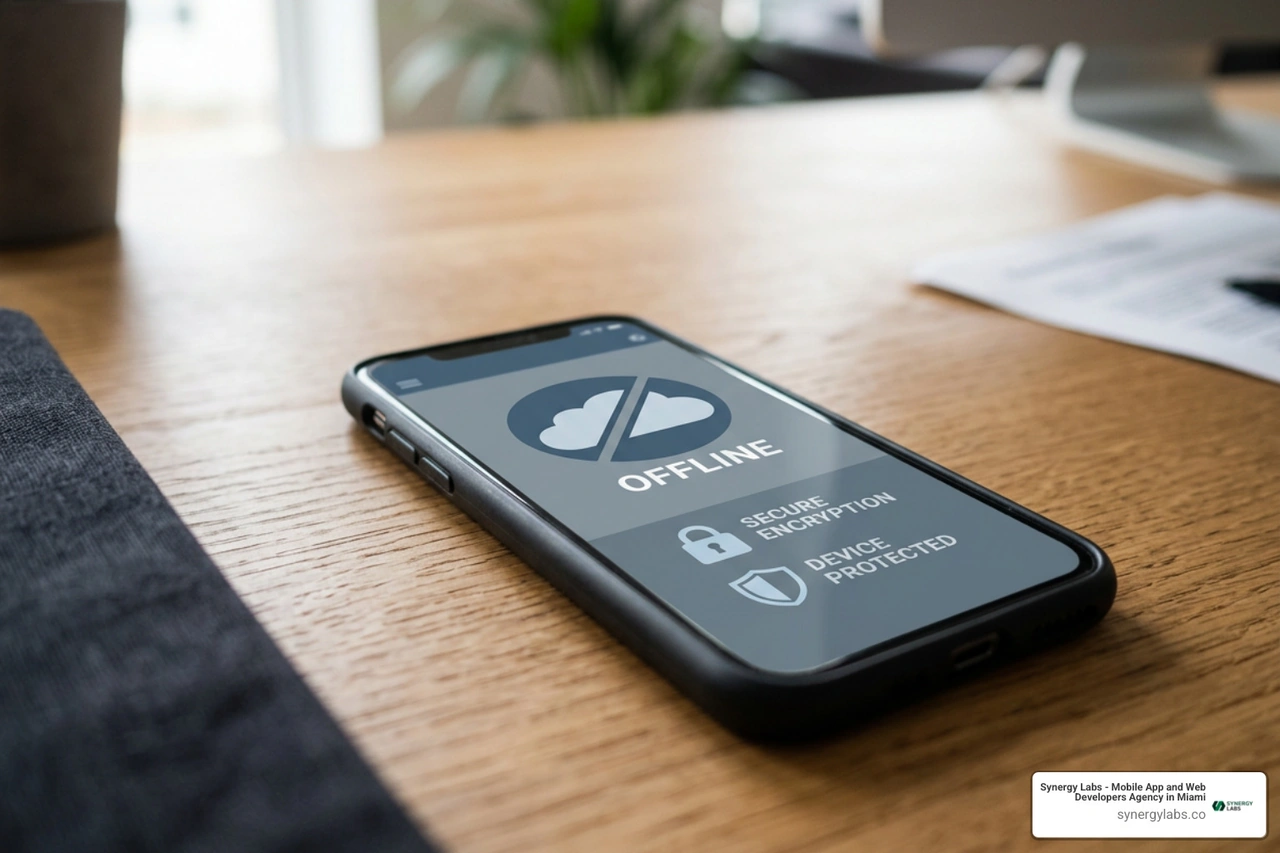
Handling Offline Devices and Request Queuing
A common tactic among smartphone thieves is placing stolen devices into signal-blocking Faraday bags or removing the physical SIM card to sever internet connectivity.
When you issue a lock command through the web portal to an offline device:
- The command does not fail immediately; it enters a queued state within Google's cloud messaging infrastructure.
- The instant the device regains connectivity—whether via cellular networks, an open Wi-Fi network, or captive handshakes—the pending command executes and locks the screen.
To protect against extended offline periods, Android includes Offline Device Lock. If an unlocked device remains completely disconnected from all networks for a specific threshold while in active use, the operating system triggers a local screen lock automatically, without needing an incoming signal from Google servers. Implementing the best free Android security tips in 2026 ensures your local and cloud defense configurations work together seamlessly.
Rate Limits and CAPTCHA Safeguards
To prevent malicious actors from abusing the web portal to harass users through continuous lockouts, Google enforces strict throttling parameters:
- 24-Hour Rate Cap: Remote Lock can only be triggered a maximum of two times within any rolling 24-hour window per verified telephone number.
- Automated Bot Prevention: High-entropy visual CAPTCHAs prevent automated scripts from conducting brute-force attacks against target numbers.
- Identity Challenge Questions: The optional security question prevents adversaries who know your phone number from locking your screen remotely.
When building consumer-facing products, implementing defensive engineering principles—similar to those covered in our guide on mobile app security best practices—protects both user privacy and backend platform reliability.
Consumer vs. Enterprise Remote Device Management
The standard Android Remote Lock is designed for consumer convenience and individual device protection. However, managing enterprise fleets across distributed corporate environments requires a different administrative approach.
For corporate-owned or Bring-Your-Own-Device (BYOD) deployments, organizations rely on dedicated Mobile Device Management (MDM) platforms. As documented in Microsoft Intune's remote lock management technical guide, enterprise administrators can execute non-destructive remote locks across managed fleets via Microsoft Graph APIs and centralized admin consoles.
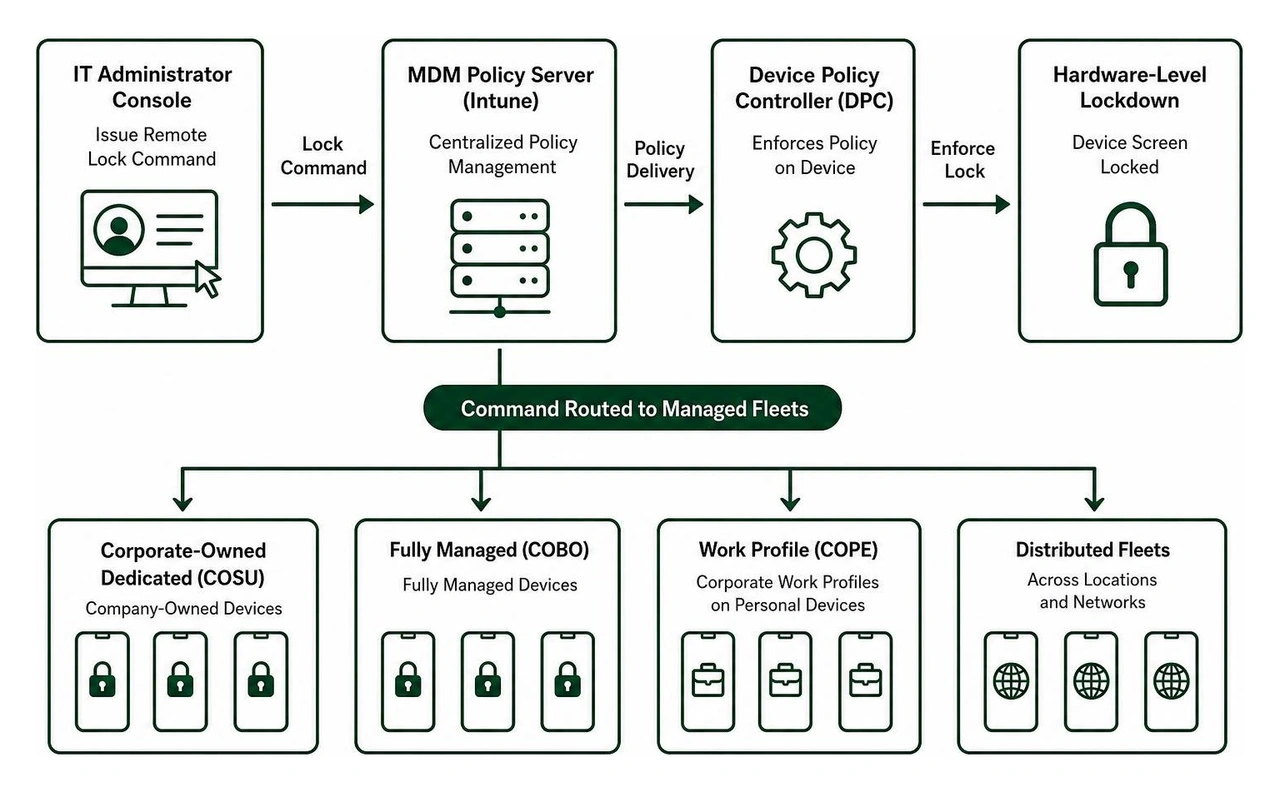
Key distinctions between consumer Remote Lock and enterprise MDM capabilities include:
- Role-Based Access Control (RBAC): Enterprise commands are executed by verified administrative roles (such as Help Desk Operators or Endpoint Security Managers), rather than relying on phone-number-based web portals.
- Ownership Model Enforcement: MDM systems apply distinct policy levels across Corporate-Owned Dedicated (COSU), Fully Managed (COBO), and Work Profile (COPE) architectures.
- Targeted Work Profile Erasure: In enterprise setups, administrators can wipe corporate data partitions, proprietary applications, and managed tokens without affecting the user's personal photos, private apps, or personal accounts.
- Mandatory Passcode Profiles: Enterprise enrollment policies enforce hardware-backed passcode complexity, ensuring that remote lock actions always secure the device behind an enterprise-grade credential.
Frequently Asked Questions About Remote Locking
Can I lock my device if it has no internet connection?
If your device is disconnected from mobile data and Wi-Fi, a remote lock request sent from the web portal will remain queued in the cloud until the device reconnects. However, if you enabled Offline Device Lock, the phone will lock its screen locally after a brief period of offline activity, preventing unauthorized access even without a live data connection.
How many times can I remotely lock my phone in a single day?
Google limits Remote Lock requests to two submissions per 24-hour period per verified phone number. This limit prevents service abuse and denial-of-service lockouts. If you hit this rate limit, you must log in to the full Google Find Hub dashboard using your account credentials to issue further security commands, such as tracking or remote wiping.
Remote Lock relies entirely on your existing screen security (PIN, password, or pattern). If your device has no screen lock configured, issuing a remote lock command will simply turn off the display. Anyone who picks up the device can swipe to wake it and access your data. Setting a strong, hardware-backed screen lock is an absolute requirement for remote security tools to work effectively.
Securing your personal or enterprise devices requires a proactive mindset. By taking a few moments to configure Android Remote Lock, set a security question, and verify your screen credentials today, you ensure that a lost or stolen device does not lead to compromised accounts, stolen identity, or leaked business data.
At Synergy Labs, we understand that building resilient digital ecosystems requires end-to-end security engineering. Whether you need custom mobile security software solutions or an enterprise-grade mobile platform, we build robust software that protects user data at every layer.
Our client-first engagement model gives you direct access to senior talent:
- Fixed-Budget Model: Clear, predictable pricing without scope creep or hidden billing surprises.
- In-Shore CTO with an Offshore Dev Team: High-level architectural leadership and strategic direction paired with efficient development execution.
- Milestone-Based Payments: You only pay as tangible development milestones are completed and approved.
Ready to build your next secure mobile or web application? Connect with our engineering experts at Synergy Labs today to turn your product vision into reality.


.avif)

.avif)


