

How to Lock Your Android Phone With a Password
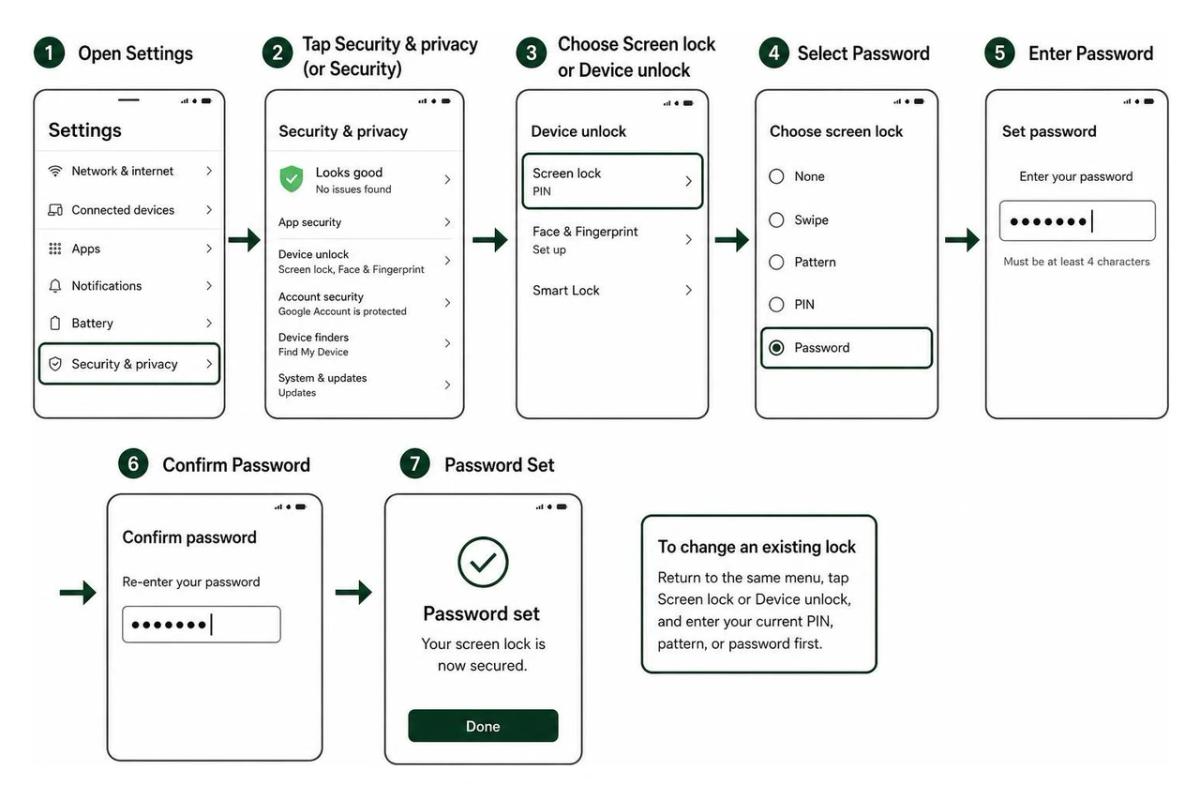
Open Settings, tap Security & privacy (or Security), then choose Screen lock or Device unlock. Select Password, enter a password you can remember, and confirm it. To change an existing lock, return to the same menu and enter your current PIN, pattern, or password first.
A strong screen lock helps protect your photos, messages, and apps if your phone is lost. As director of product at Synergy Labs, I recommend starting with the built-in lock before adding other security features. If you are wondering how to lock my phone with a password, the process takes only a few minutes and gives you immediate protection against casual snooping and data theft.
Know your how to lock my phone with password terms:
Step-by-Step Guide: How to Lock My Phone with Password on Android
Our smartphones hold virtually everything that defines our modern lives: private conversations, banking credentials, two-factor authentication tokens, confidential business emails, and thousands of personal photographs. Leaving your device unlocked is essentially leaving your front door wide open with a neon sign inviting strangers inside.
To establish your first line of defense, Google builds native security mechanisms directly into the Android operating system. When you decide to set screen lock on an Android device, you bind your user credentials directly to hardware-backed encryption keys. Whether you are setting up a brand-new device or hardening an existing daily driver, understanding how native authentication works ensures you never compromise security for convenience.
Understanding Android Screen Lock Types: PIN, Pattern, Password, and Biometrics
Android provides several distinct screen lock mechanisms, each presenting a different trade-off between user friction and cryptographic resilience:
- Alphanumeric Password: The gold standard of native screen locks. An alphanumeric password incorporates uppercase letters, lowercase letters, numbers, and special symbols. Because it draws from a character pool of over 90 distinct symbols, it delivers the highest entropy and makes brute-force attacks mathematically unfeasible.
- 6-Digit PIN: A numeric code consisting solely of numbers. While older Android versions allowed 4-digit codes, a 6-digit PIN is significantly more secure because it expands the potential combinations from 10,000 to 1,000,000. Some builds allow enabling "Auto-confirm unlock" for PINs of six digits or more, which unlocks the device immediately without requiring you to tap Enter. However, keep in mind that auto-confirm slightly reduces security by giving visual confirmation of the exact digit length.
- Pattern Lock: A visual grid where you connect at least four dots across a 3x3 matrix. While easy to remember, pattern locks represent the weakest authentication method. They are exceptionally vulnerable to "smudge attacks" where oil residue left on the glass reveals your exact gesture, as well as over-the-shoulder snooping in public spaces.
- Biometrics (Fingerprint and Facial Recognition): Hardware-based authentication that scans physical traits to unlock your device in milliseconds. Biometrics offer outstanding speed, but Android always requires a robust underlying phone lock password or PIN as a cryptographic fallback upon device restarts.
- Swipe or None: Options that offer zero security or data encryption. Selecting these leaves your file system accessible to anyone who handles your handset.
Detailed Steps on How to Lock My Phone with Password or PIN
Creating an uncrackable screen lock does not require a degree in cybersecurity. Follow these practical steps to configure your primary device passcode:
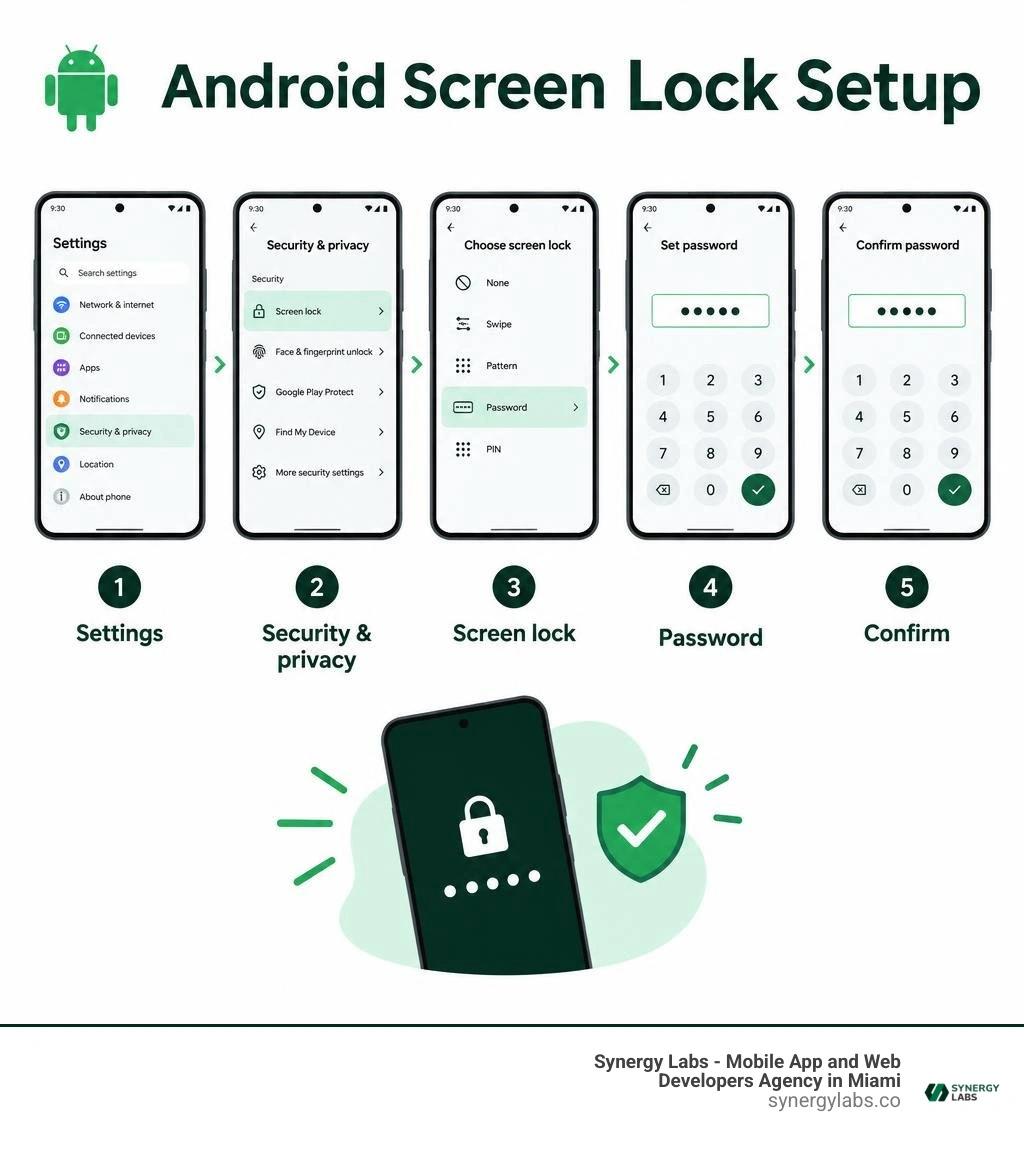
- Open your device's primary Settings application.
- Scroll down and tap Security & privacy (labeled simply as Security or Lock screen on some manufacturer skins).
- Tap Device unlock, then select Screen lock.
- If you already have a passcode configured, enter your existing credentials to access the setup menu.
- Select Password (or PIN if you prefer a numeric code).
- Input a robust, memorable phrase of at least six characters containing letters, numbers, and punctuation.
- Tap Next, re-enter your new password precisely to verify it, and tap Confirm.
- Choose your lock screen notification preferences: we recommend selecting Hide sensitive content or Don't show notifications at all to prevent one-time verification codes from displaying while the phone is locked.
When creating your authentication code, avoid common traps like sequential numbers (123456), repetitive digits (000000), birth years, or street addresses. If you choose an alphanumeric password, construct a passphrase using several unrelated words punctuated by special characters (for example, Solar#Penguin!92). This creates immense cryptographic entropy while remaining easy for your brain to recall without writing it down on a sticky note.
How to Disable or Remove a Screen Lock Safely
There are rare situations where you might need to temporarily disable your screen lock—such as preparing your device for an authorized trade-in, performing hardware maintenance, or transitioning to a dedicated corporate profile.
To remove your lock:
- Navigate to Settings > Security & privacy > Screen lock.
- Provide your current password or PIN when prompted to prove authorized ownership.
- Select None or Swipe.
- Acknowledge the system warning.
Critical Warning: Removing your screen lock strips away hardware-backed file encryption keys from memory, wipes stored biometric profiles, and deletes any digital credit cards saved inside Google Wallet. Before removing your credentials, always verify that your device has completed a full cloud backup so your data remains intact if something goes wrong.
Advanced Protection: Biometrics, Auto-Lock, and Anti-Theft Tools
A secure password forms the foundation of your device's defenses, but real-world defense-in-depth requires multiple security layers. Modern Android operating systems combine dedicated hardware security chips with automated behavioral monitoring to defend against both physical theft and remote cyber threats.
Biometrics vs. Passwords: Balancing Speed and Security
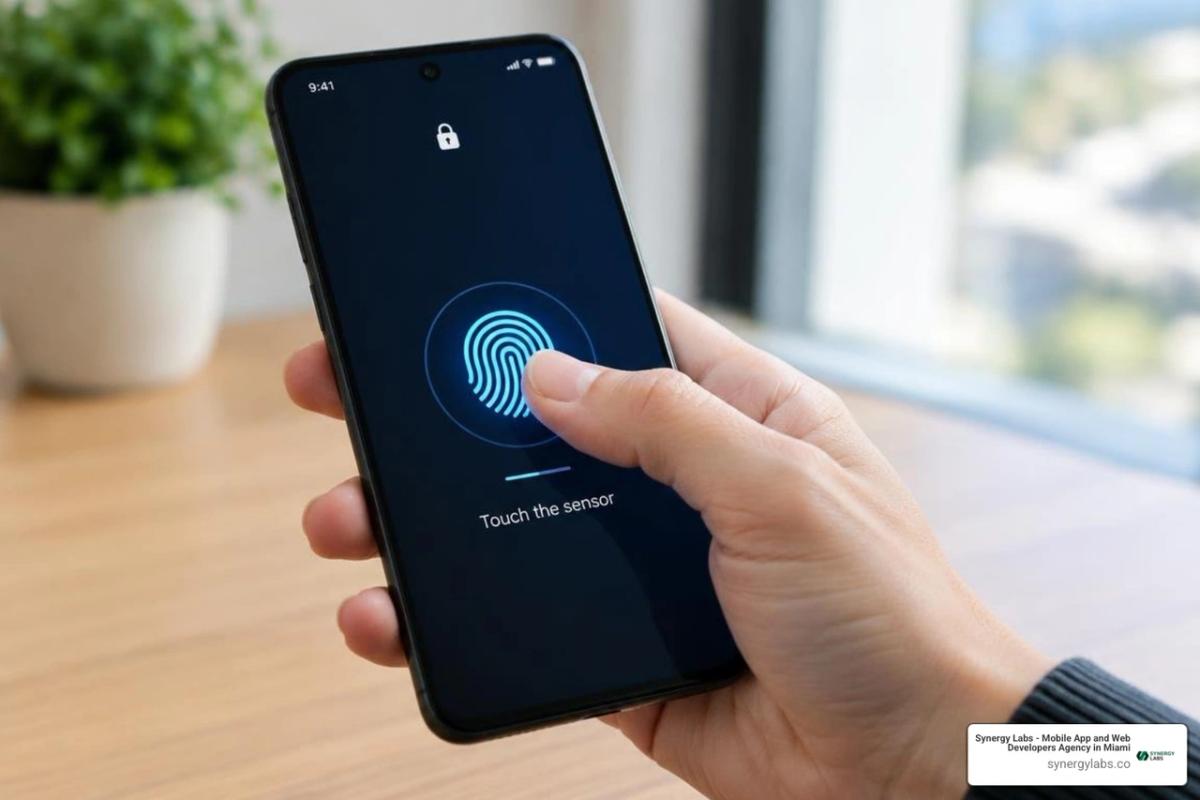
Modern smartphones incorporate sophisticated biometric sensors, such as ultrasonic in-display fingerprint scanners and 3D facial recognition systems. When you configure your device to lock Android phone with fingerprint authentication, your biometric data never leaves the handset. Instead, it is processed inside an isolated secure enclave using Android's native BiometricPrompt API.
While biometrics offer incredible day-to-day convenience, it is vital to understand the fundamental difference between physical traits and secret knowledge:
- Convenience & Anti-Shoulder Surfing: Fingerprints eliminate the risk of someone watching you type your secret PIN on a crowded subway or busy cafe.
- Legal & Coercive Protections: In many legal jurisdictions, biometric data can be compelled more readily than passwords stored purely in your memory. Passwords and passphrases enjoy stronger constitutional privacy protections.
- Hardware Fallback: Fingerprint readers can fail if your fingers are wet, dirty, or injured. Android enforces mandatory password entry after 72 hours of idle time, upon device reboot, or after multiple failed biometric attempts.
For the ideal security posture, combine biometrics for rapid daily unlocking with a complex alphanumeric master password as your hardware root of trust.
Configuring Auto-Lock Timeouts and Anti-Theft Protections
Setting up a master passcode does little good if your screen stays illuminated and unlocked on a table for twenty minutes after you walk away. Configuring aggressive auto-lock timers ensures that your device seals itself the moment you set it down.
According to enterprise and institutional device security standards, such as those outlined by IT@Cornell, handheld electronics holding sensitive credentials must lock automatically within short inactivity windows. For high-security environments, setting your screen timeout to 30 seconds or 1 minute is best practice; the maximum acceptable window for devices accessing confidential records should never exceed 15 minutes of idle time.
To adjust your display sleep and auto-lock timings:
- Open Settings > Display > Screen timeout and select 30 seconds or 1 minute.
- Return to Settings > Security & privacy > More security settings > Lock instantly with power button and toggle this setting on.
With the anti-theft upgrades available in modern Android versions, Google introduced behavioral protection features:
- Theft Detection Lock: Employs onboard machine learning and accelerometer sensors to detect the physical movement of someone snatching your phone from your hand and fleeing on foot or bike, instantly locking the display.
- Offline Device Lock: If a bad actor steals your handset and immediately toggles Airplane Mode or cuts your cellular connection to prevent tracking, the device detects the prolonged offline state and locks down automatically.
- Failed Authentication Lock: Locks the screen completely if an unauthorized individual repeatedly fails biometric or PIN challenges.
To activate these protections, navigate to Settings > Google > All services > Theft protection and enable both Theft Detection Lock and Offline Device Lock. As government cybersecurity authorities emphasize when showing how to secure your mobile phone, enabling automatic hardware-level defenses neutralizes theft before an intruder can browse your unencrypted files.
Handling Stolen Devices, App Privacy, and Forgotten Credentials
Even with careful habits, mobile devices can be misplaced, left behind in rideshares, or stolen. Preparing your device in advance gives you the power to respond swiftly and keep your personal data out of unauthorized hands.
Remote Security: How to Lock My Phone with Password If It Gets Lost
If your phone goes missing, you do not have to wait until you physically recover it to secure your files. Google's integrated Find My Device network allows you to track, ring, lock, or erase your device from any web browser or secondary Android tablet.
If you find yourself asking how to secure your handset from afar, you can easily lock Android device remotely:
- Open any web browser on a computer or secondary device and navigate to Google's official Find your phone portal.
- Log in using the identical Google Account registered on your lost handset.
- Select your missing phone from the list of active hardware.
- Choose Secure Device.
- Enter a new, strong lock screen password or PIN. This command overrides any existing swipe lock and instantly secures the screen.
- Optionally, type a recovery message (e.g., "Please call if found") and provide an alternate phone number to display directly on the locked interface.
- Click Secure Device to broadcast the command.
As soon as your phone connects to cellular data, Wi-Fi, or the crowdsourced Find My Device Bluetooth network, the device locks down immediately and displays your recovery message. If you determine the phone cannot be recovered, you can select Erase Device to trigger a remote factory reset, permanently wiping all locally stored personal records.
Locking Individual Apps, Secure Folders, and Vaults
A secure lock screen protects your handset while it sits idle, but what happens when you hand your unlocked phone to a coworker to show them a photo or let a friend place a quick phone call? Implementing app-level isolation adds an essential second layer of privacy.
- Samsung Secure Folder: Available on Samsung Galaxy hardware, Secure Folder leverages hardware-backed Knox security to create an isolated, encrypted sandbox. Apps placed inside Secure Folder run as completely separate instances with their own data storage, protected by an independent PIN or fingerprint.
- Google Photos Locked Folder: A native feature within the Google Photos ecosystem that lets you store sensitive images and videos behind your device passcode. Media saved inside this directory does not appear in your main photo grid, search results, or cloud backups.
- Third-Party App Lockers: Standalone utilities from Google Play that overlay an authentication prompt over designated apps (such as WhatsApp, banking portals, or messaging apps). When deploying app lockers, look for trusted software that requests minimal permissions and avoids heavy background battery drain.
Engineering strong internal defenses is central to modern mobile app security, ensuring that even if a device is unlocked, critical business and personal accounts remain isolated behind secondary authentication checkpoints.
What to Do If You Forget Your Screen Lock Credentials
Because modern Android devices enforce hardware-backed file-based encryption (FBE), your screen lock password acts as the direct cryptographic seed used to decrypt internal storage. If you genuinely forget your credentials, bypassing the lock without losing data is virtually impossible on modern operating systems.
Here is what you need to know about your options:
- The 72-Hour Samsung Grace Period: If you use a modern Samsung Galaxy device running One UI 6.1 or newer and recently modified your lock screen PIN, the system allows you to unlock the device using your previous PIN for up to 72 hours after the change.
- The State of the Device (AFU vs. BFU): If your phone is in the "After First Unlock" (AFU) state—meaning it was turned on and unlocked at least once before—biometrics may grant brief access to back up cloud data. If the phone reboots and enters the "Before First Unlock" (BFU) state, encryption keys remain fully sealed in hardware memory until the correct password is typed.
- Historical Bypass Methods No Longer Work: Google Account password resets for lock screens were permanently deprecated in Android 5.0. Similarly, remote PIN resets via carrier portals and unauthorized ADB shell exploits have been patched in modern Android releases.
- The Last Resort: Factory Data Reset: If you cannot recall your code, your only path forward is booting into hardware recovery mode (holding Power + Volume Down) and selecting Wipe data / factory reset. Once the wipe finishes, you will be required to log in with your original Google Account (Factory Reset Protection) and restore your latest cloud backup.
Frequently Asked Questions About Android Screen Locks
Can I unlock my Android phone if I forget my password without a factory reset?
On modern Android devices running current software releases, you cannot unlock your phone without your password, PIN, or pattern unless you own a Samsung Galaxy device that is within its 72-hour PIN change grace period. Because Android utilizes strong local encryption, the cryptographic keys needed to read your file system are directly derived from your screen lock. If those credentials are lost, performing a factory data reset through hardware recovery mode or Google's Find My Device portal is the only way to make the hardware usable again.
Are third-party lock screen apps safer than Android's built-in lock screen?
No, third-party lock screen apps downloaded from the Play Store are generally less secure than Android's built-in system lock. Native lock screens operate at the operating system and kernel level, directly interfacing with the device's hardware security chip to encrypt your physical storage. Third-party lock apps merely run as software overlays on top of the OS. An attacker can often bypass these overlays by booting your phone into Safe Mode, force-closing the app, or uninstalling it via connected development utilities. Always rely on Android's native screen lock settings for your primary hardware defense.
What is the ideal auto-lock timeout for maximum security?
The ideal auto-lock timeout balances security with everyday usability. For general consumer use, setting your display sleep timeout between 30 seconds and 1 minute provides excellent protection against opportunistic physical theft. For enterprise devices that handle confidential client records, corporate communications, or regulatory data, security standards require that the inactive window never exceed 15 minutes, with immediate locking enforced whenever the physical power button is pressed.
Build Uncompromising Mobile Security with Synergy Labs
Protecting your mobile device is a crucial first step in securing your digital life. Simple measures like using strong passwords, enabling biometrics, and activating anti-theft tools create a layered defense that keeps personal data safe from bad actors.
At Synergy Labs, we bring this same uncompromising approach to software development. As a premier mobile app and web development agency, we engineer high-performance, cross-platform mobile applications designed with enterprise-grade security from day one. Whether you are building fintech platforms, healthcare applications, or scalable consumer software, our unique delivery model provides:
- In-Shore Technical Leadership with Global Engineering: Gain direct access to a dedicated, senior in-shore CTO who manages your technical roadmap, paired with a world-class offshore development team to maximize efficiency.
- Predictable Fixed-Budget Model: Eliminate runaway development costs with clearly scoped projects that respect your bottom line.
- Milestone-Based Payments: Maintain complete control over your project with milestone deliverables that ensure high code quality, security compliance, and on-time launches.
Ready to turn your mobile app vision into a secure, scalable reality? Explore our mobile security software insights, review our track record of digital innovation, and contact Synergy Labs today to build your next breakthrough product.