Why Application Lock in iPhone Is the Privacy Feature You Didn't Know You Needed
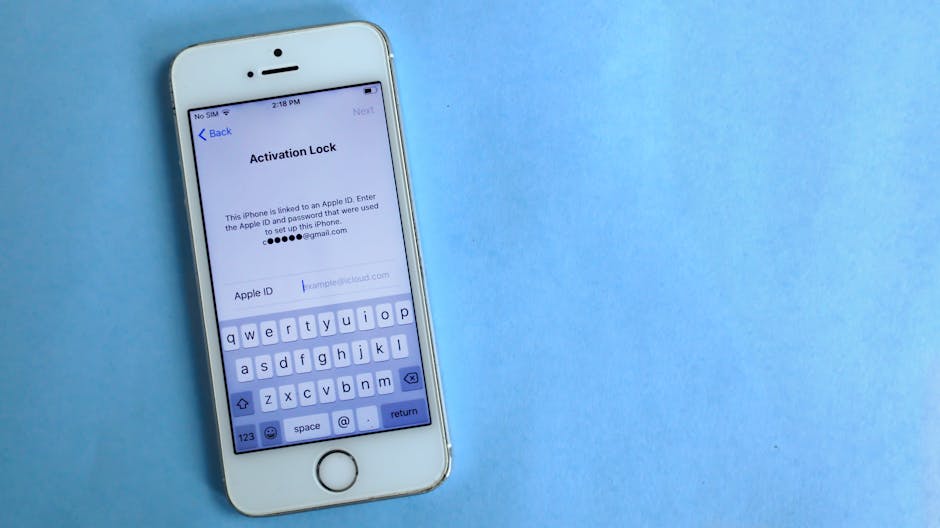
Application lock in iPhone is a built-in iOS feature that lets you require Face ID, Touch ID, or a passcode before anyone can open a specific app — here's how to do it fast:
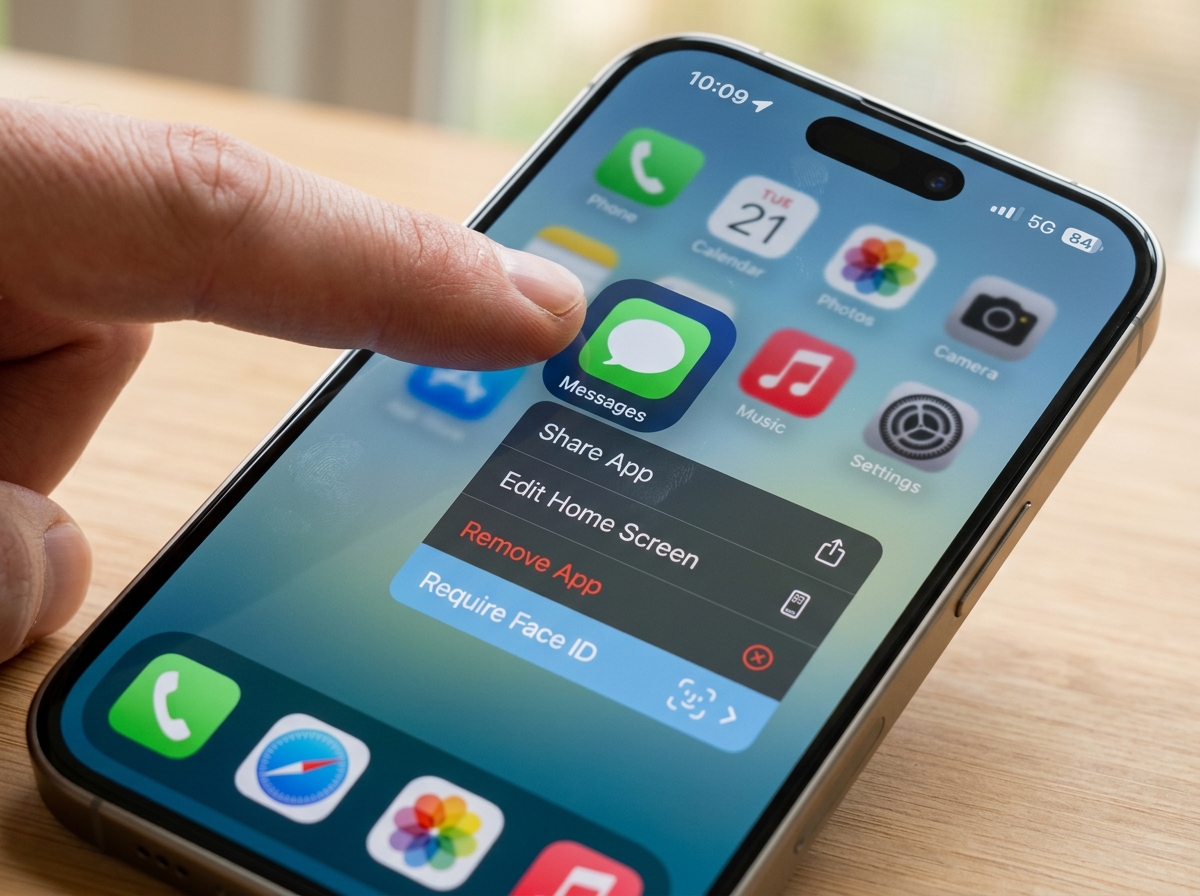
- Touch and hold any downloaded app icon on your Home Screen
- Tap Require Face ID (or Touch ID or Passcode)
- Authenticate to confirm — that's it, the app is now locked
Available on iOS 18 and later. Note: pre-installed apps like Calculator, Camera, and Settings cannot be locked.
Think about the last time you handed your phone to a friend to show them a photo — and felt that small wave of panic. Your banking app, your messages, your private notes... all one tap away.
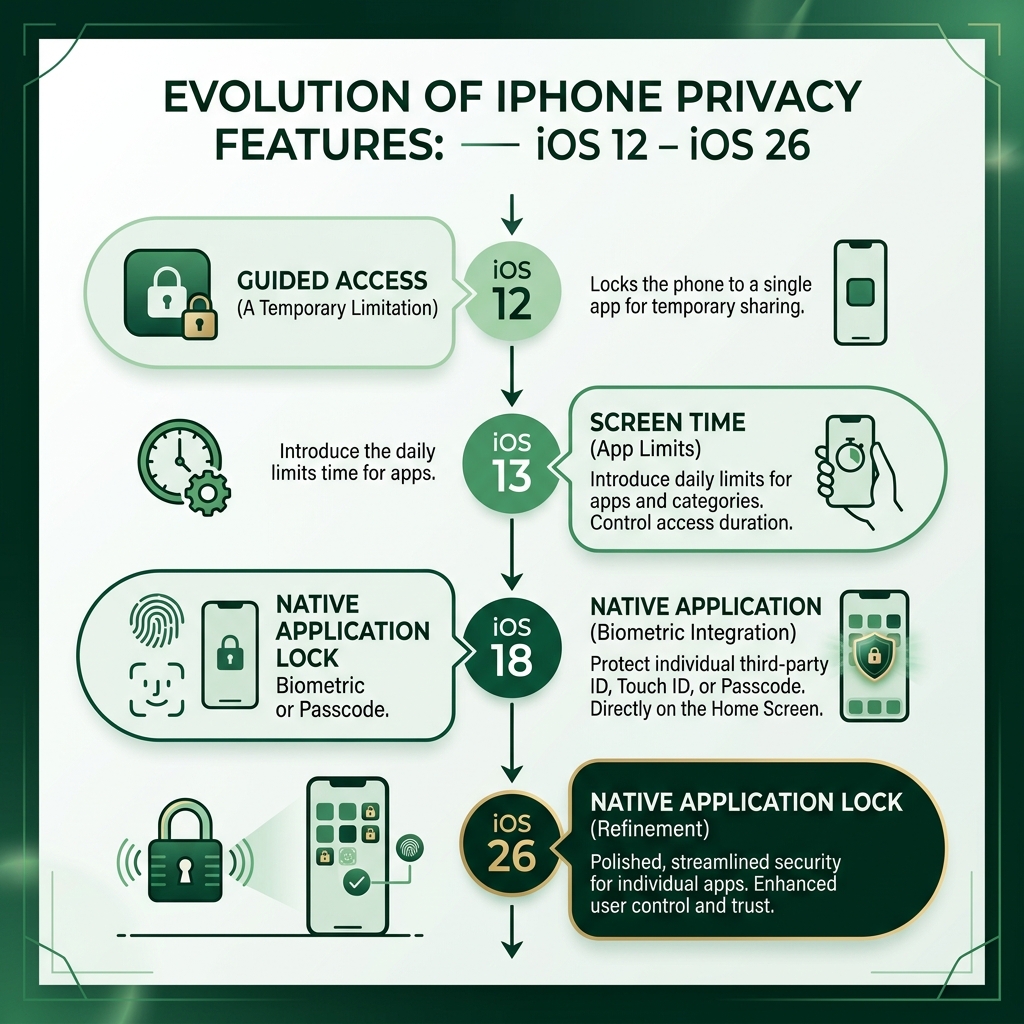
That feeling is exactly why Apple introduced native app locking in iOS 18. Before that, iPhone users had to rely on workarounds like Screen Time limits or the Guided Access accessibility feature just to keep prying eyes out of sensitive apps.
Now, with iOS 26, the feature is more polished than ever — and most iPhone users still don't know it exists.
This guide walks you through every method available, from the native lock feature to Guided Access, Screen Time tricks, and what the limitations actually are.
At Synergy Labs, a Miami-based mobile app and web development agency, our team works hands-on with iOS security features — including application lock in iphone — to build privacy-first mobile experiences for startups and growing businesses. We've seen how these features shape user trust and app design decisions.
How to Use the Native Application Lock in iPhone (iOS 18 and iOS 26)
For years, the developer community and users alike clamored for a way to secure individual apps without locking the entire device. With the release of iOS 18, and its subsequent refinement in iOS 26, Apple finally delivered a robust, native solution. This feature allows you to wrap any third-party app in a layer of biometric security.
The beauty of the native application lock in iphone is its simplicity. It doesn't require you to dive deep into the Settings app every time you want to protect a new download. Instead, it’s baked directly into the Home Screen interaction model.
To get started, ensure your device is updated to at least iOS 18. This feature utilizes the same secure enclave that protects your Apple Pay and device passcode, ensuring that your biometric data never leaves the device. For a deeper look at how this fits into the broader landscape of digital protection, you can explore our insights on mobile-security-software.
Locking Individual Apps with Biometrics
The workflow for locking an app is designed to be frictionless. When you long-press an app icon, a context menu appears. Among the standard options like "Remove App" or "Edit Home Screen," you will see "Require Face ID" (or Touch ID, depending on your hardware).
Once you select this, the iPhone will perform a quick scan to authenticate that you are indeed the owner. From that moment on, every time someone taps that app icon, the screen will blur or show a lock symbol until a successful biometric scan is performed. If Face ID fails, the user is prompted for the device passcode.
This level of security is a game-changer for the-importance-of-user-experience-ux-in-mobile-app-design. It allows users to feel a sense of ownership and safety, knowing that even if their phone is unlocked and handed to someone else, their most sensitive data—like banking apps or private journals—remains behind a secondary wall.
Hiding Apps from the Home Screen
Sometimes, locking an app isn't enough; you might want it gone from sight entirely. iOS 26 allows you to hide apps, moving them into a specialized "Hidden" folder within the App Library.
When you choose to hide an app, it disappears from your Home Screen, search results, and notification previews. To access it, you must:
- Swipe to the very last page of your Home Screen to open the App Library.
- Scroll to the bottom to find the Hidden folder.
- Tap the folder and authenticate with Face ID or Touch ID.
This is particularly useful for apps you use rarely but contain sensitive info, or simply to declutter your digital space. This trend toward "invisible" security is one of the 6-top-ios-app-development-trends-to-watch-in-2026. It reflects a shift toward user-centric privacy where the user has total control over what is visible to the casual observer.
Restricting Access with Guided Access and Screen Time
While the native application lock in iphone is great for protecting specific apps, there are times when you want to lock the entire phone into a single app. This is where Guided Access comes in. Originally designed as an accessibility tool, it has become the "parental control" gold standard.
Setting Up a Guided Access Session
Guided Access limits your device to a single app and lets you control which features are available. It’s perfect for when you let a child play a game or hand your phone to a stranger to use the Maps app.
To enable it:
- Go to Settings > Accessibility > Guided Access.
- Toggle Guided Access to ON.
- Tap Passcode Settings to set a specific passcode for your sessions (this can be different from your main phone passcode).
To start a session, open the app you want to use and triple-click the side button (or Home button on older models). You can even circle areas of the screen you want to make unresponsive—like the "Buy" button in a game—and set time limits. To end the session, triple-click again and enter your Guided Access passcode. For more official details, check the Apple Support guide on Guided Access.
Using Screen Time as an Application Lock in iPhone Workaround
If you are on a legacy version of iOS (older than iOS 18), you can use a clever "Screen Time" trick as a makeshift application lock in iphone. This method uses the "App Limits" feature to effectively password-protect an app.
- Go to Settings > Screen Time.
- Set a Screen Time Passcode.
- Go to App Limits > Add Limit.
- Select the app you want to lock and set the limit to 1 minute.
- Once that minute is used up for the day, the app will lock. To get back in, you'll need to tap "Ask for More Time" and enter your Screen Time passcode.
While this is a bit of a "hack," it’s a reliable way to add a password layer to apps on older devices. You can read more about this Screen Time workaround here.
Understanding the Limitations of iPhone App Locking
As powerful as these features are, they aren't magic. There are specific boundaries Apple has set to ensure the phone remains functional and manageable.
System Apps and Restrictions
One of the most frequent questions we get is: "Can I lock the Settings app?" The answer, unfortunately, is no. Apple prevents users from locking or hiding core system apps like Settings, Calculator, Camera, Clock, and Find My. This is a safety measure; if you could lock Settings and then forgot your passcode or Face ID failed, you could effectively brick your own device's management capabilities.
Furthermore, if you are a parent using Family Sharing, note that children under the age of 13 cannot lock or hide apps. For teenagers (13-17), parents can still monitor app usage and restrictions through the Screen Time dashboard, even if the teen has locked the app locally.
Another critical limitation is that application lock in iphone does not sync via iCloud. If you lock Instagram on your iPhone, it will still be wide open on your iPad unless you manually lock it there as well. Security is device-specific.
Where Hidden Content Still Appears
Hiding an app makes it "disappear," but it doesn't erase its footprint. If you are trying to be truly stealthy, be aware that hidden apps still appear in:
- Settings > Apps: The full list of installed software is always here.
- Battery Usage: If an app is draining your battery, it will show up in the battery logs.
- App Store History: Your "Purchased" list will still show the app.
- Screen Time: Usage stats will still be recorded.
Privacy Features that Complement the Application Lock in iPhone
To get the most out of your privacy setup, we recommend pairing app locks with other essential-tools-for-mobile-app-development features:
- Safety Check: Allows you to quickly review and revoke access you've granted to others.
- Lockdown Mode: An extreme security level for people who might be personally targeted by sophisticated cyberattacks.
- Notification Settings: Even if an app isn't locked, you should turn off "Show Previews" so private messages don't pop up on your lock screen for everyone to see.
Are Third-Party App Lockers Safe for iOS?
If you search the App Store for "App Lock," you will find dozens of third-party utilities. While some are legitimate screen-time managers, we generally advise caution.
Because of iOS's "sandboxing" security model, a third-party app cannot actually reach inside another app (like WhatsApp) and lock it. Most of these apps work by using clever workarounds, such as creating a "vault" where you store photos, or using local VPNs to block access.
The biggest risk comes from apps that require you to "jailbreak" your phone. Jailbreaking removes the core security layers of iOS, making your device vulnerable to malware and data theft. This is one of the common-mobile-app-development-mistakes-and-how-to-avoid-them—sacrificing system-wide integrity for a single feature. Stick to Apple's native tools; they are integrated into the hardware and are far more secure.
Frequently Asked Questions about iPhone App Security
Can I lock the Settings or Camera apps?
No. Apple deems these "essential services." You can, however, use Screen Time "Content & Privacy Restrictions" to disable the Camera entirely or restrict changes to your account settings.
Do locked apps sync across my iPad and Mac?
No. The application lock in iphone is tied to the local hardware's Secure Enclave. You must set up locks on each device individually.
How do I find the Hidden folder in the App Library?
Swipe left past all your Home Screen pages until you reach the App Library. Scroll to the very bottom, and you will see a folder labeled "Hidden" with a lock icon. Tap it and use Face ID to see what's inside.
Securing Your Digital Future with Synergy Labs
Navigating the complexities of mobile security can be daunting, whether you're a casual user or a business owner looking to build the next big app. At Synergy Labs, we specialize in taking these complex technical requirements and turning them into seamless user experiences.
As a premier mobile app development agency with a major hub in Miami, FL, we pride ourselves on our fixed-budget model. We know that "surprise costs" are the enemy of innovation, so we provide clear, upfront pricing. Our unique structure features an in-shore CTO—giving you a direct line to senior leadership right here in the States—paired with a world-class offshore development team to ensure cost-effectiveness.
We operate on milestone-based payments, meaning you only pay when we deliver. Whether you're in New York City, San Francisco, or London, our senior talent is ready to help you launch rapidly and securely.
Ready to build something secure? Explore our App Development Services and let's turn your vision into a reality. From application lock in iphone integrations to custom enterprise solutions, we have the expertise to make it happen.


.avif)

.avif)


