

Set a Strong Phone Lock Password on Android

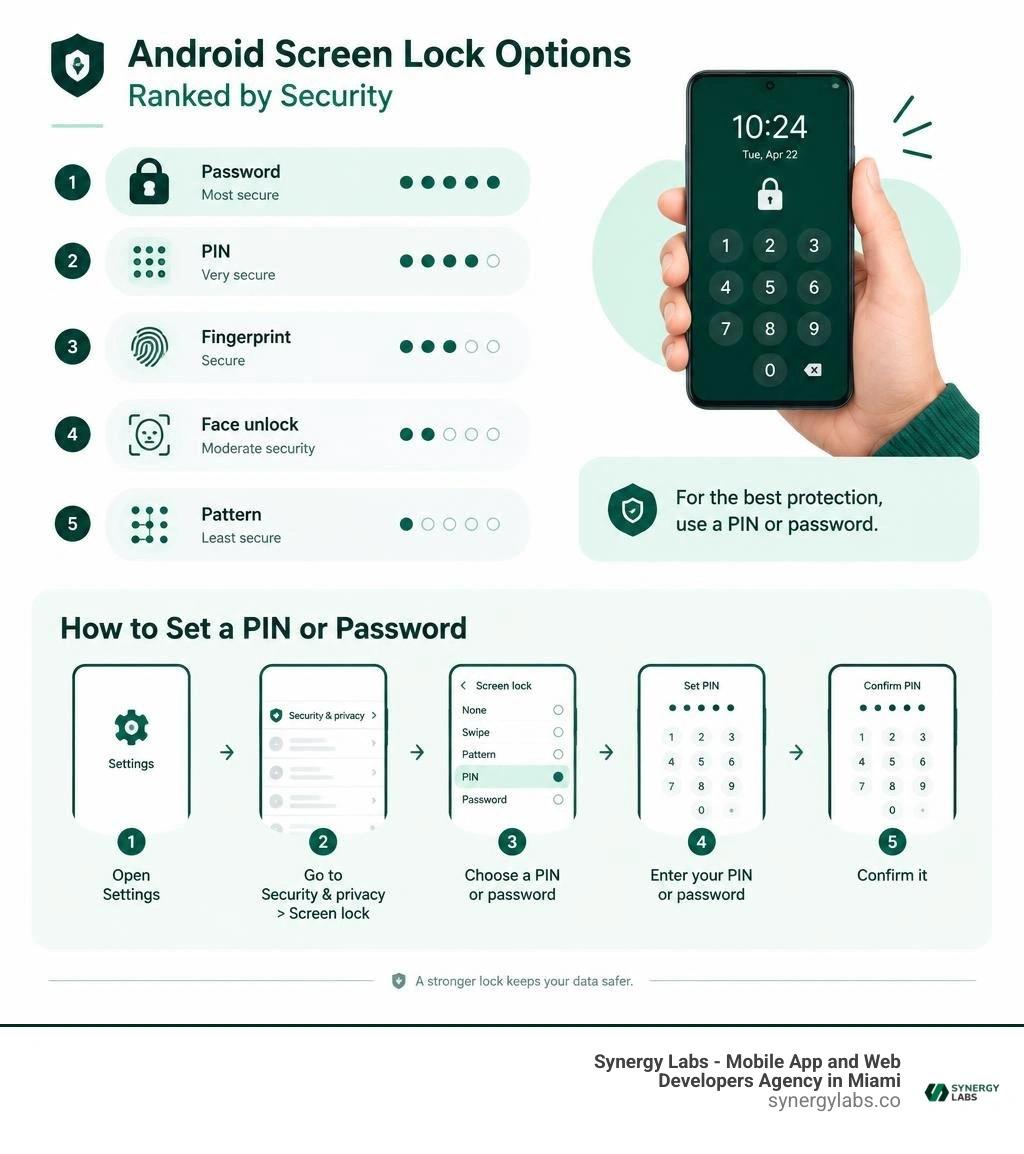
To set a phone lock password on Android, open Settings, go to Security & privacy > Screen lock, and choose a PIN or password. Follow the prompts to enter and confirm it. Menu names may vary by phone.
Start with at least a 6-digit PIN, or use a longer password if you want stronger protection. A pattern is quick to draw but easier for someone nearby to watch. Fingerprint and face unlock can make daily use faster, but they do not replace your PIN or password.
I’m the director of product at Synergy Labs, and I’ll walk you through the choices that keep your phone secure without making it a chore to unlock.
Phone lock password terms made easy:
How to Set and Change Your Phone Lock Password on Android
Your mobile device holds the keys to your digital identity, from banking credentials and personal messages to corporate email accounts. Setting an effective screen lock is the primary line of defense against physical intrusion. Whether you are setting up a brand-new handset or updating your credential hygiene, the process requires navigating your operating system's dedicated security controls.
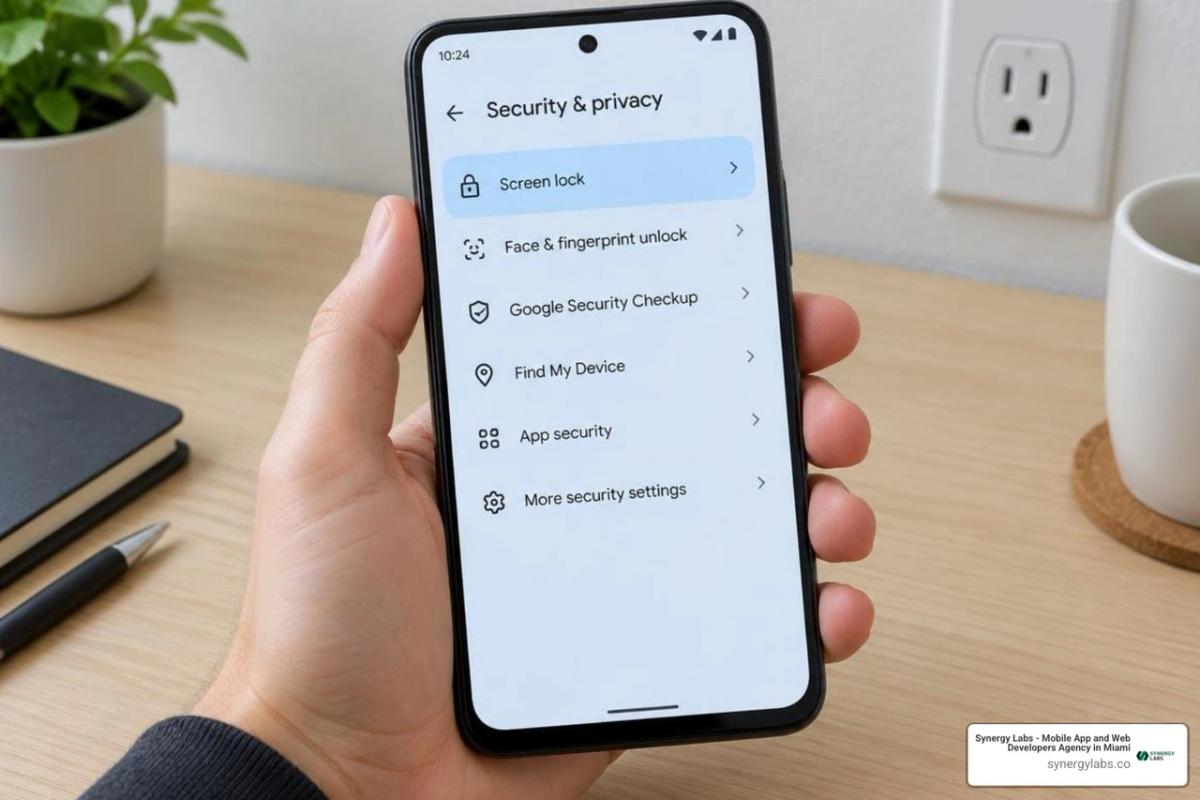
To get started, access the central system settings on your device. Following the official Google Android setup guide, open the Settings application, scroll to the Security & privacy (or Security) section, and select Screen lock. This dashboard gives you direct control over how your device authenticates your identity.
Taking a moment to properly configure your device helps you lock phone features securely so unauthorized parties cannot view notifications, access files, or exploit sensitive corporate applications.
Step-by-Step Android Screen Lock Configuration
Configuring your lock credential takes less than two minutes. Here is the standard sequence:
- Open your device's Settings menu.
- Tap Security & privacy (on stock Android and Pixel devices) or Lock screen (on various OEM interfaces).
- Tap on Screen lock. If you already have an active security method, enter your current credential to proceed.
- Select your preferred lock mechanism: PIN or Password.
- Input your chosen secret. Android system frameworks, handled internally by
LockPatternUtils, enforce a minimum password size of 4 characters, though we strongly advise using at least 8 to 12 alphanumeric characters or a 6-digit PIN. - Tap Next, re-enter your credential to confirm accuracy, and tap Confirm.
- Choose your lock screen notification preferences (e.g., show all notification content, hide sensitive content, or show no notifications at all), then select Done.
For stock Android and Pixel users, you can also review the Pixel phone screen lock setup guide for hardware-specific security options like enhanced display timeouts and lock screen display messages.
Configuring Passcodes on iPhone for Cross-Platform Users
If you manage a mixed fleet of devices or carry an iOS handset alongside your Android hardware, managing your iOS credentials follows a similar logic. On Apple devices, navigate to Settings, tap Face ID & Passcode (or Touch ID & Passcode), and tap Turn Passcode On or Change Passcode.
Refer to the official Apple passcode configuration guide for granular details. By default, iOS prompts for a 6-digit numeric code. However, tapping Passcode Options unlocks choices such as a 4-Digit Numeric Code, Custom Numeric Code, or Custom Alphanumeric Code.
Setting any passcode on an iPhone immediately turns on Apple's Data Protection layer. This mechanism encrypts your hardware storage partitions using robust 256-bit AES encryption linked directly to your passcode and the hardware Secure Enclave.
Comparing Screen Lock Types: Usability and Security Strength
Not all lock screen mechanisms provide equal protection. Operating systems offer several choices ranging from zero security to enterprise-grade cryptographic barriers.
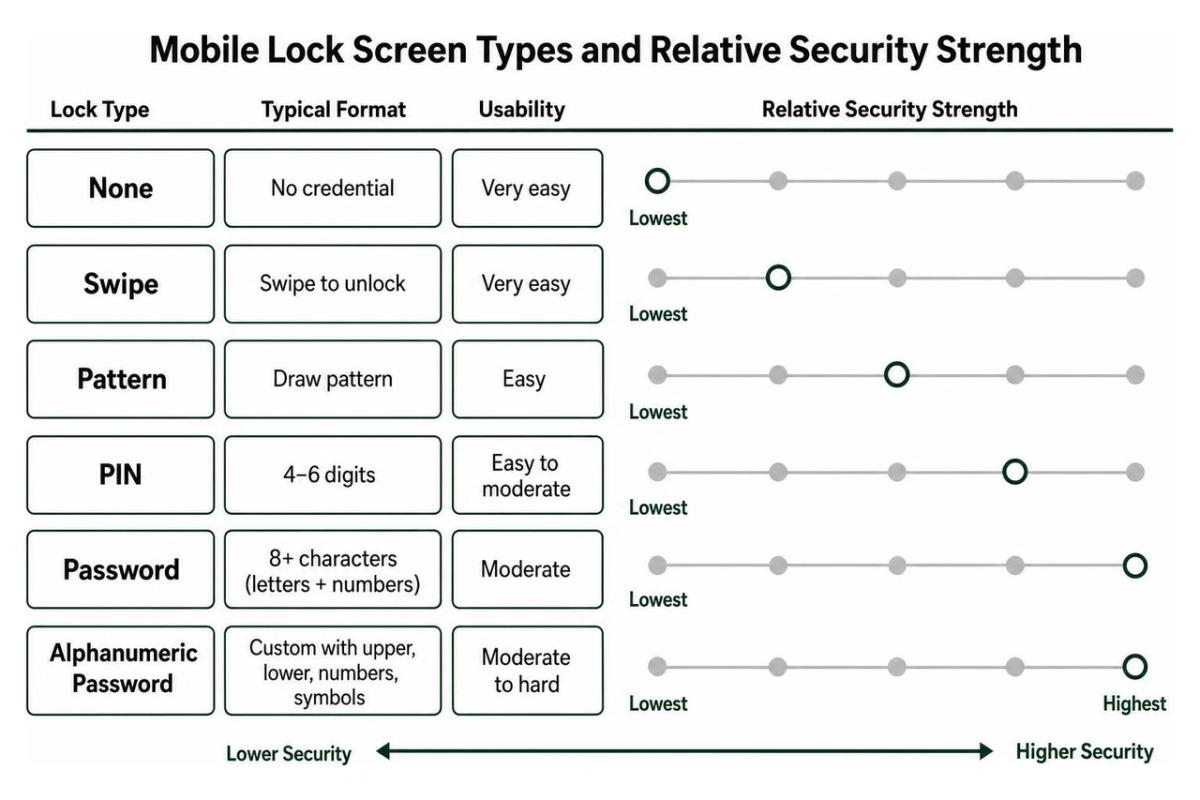
The primary trade-off revolves around authentication entropy (the mathematical unpredictability of your secret) versus everyday convenience. Low-entropy credentials expose your data to shoulder surfing, smudge attacks, and automated brute-force attempts if hardware limits are bypassed.
Choosing the Strongest Phone Lock Password Type
When evaluating security strength, a custom alphanumeric password is the undisputed champion. By combining uppercase letters, lowercase letters, numbers, and special symbols, you exponentially expand the keyspace that an attacker would need to guess.
A 4-digit PIN offers only 10,000 possible combinations ($10^4$). A 6-digit PIN expands this search space to 1,000,000 possibilities ($10^6$). In contrast, an 8-character alphanumeric password drawing from 94 printable ASCII characters creates a staggering keyspace of over 6 quadrillion combinations ($94^8 \approx 6.09 \times 10^{15}$).
Longer alphanumeric passwords provide unmatched resistance against dictionary attacks and make visual observation (shoulder surfing) significantly harder for someone standing nearby in a crowded room.
Pattern Lock vs PIN vs Alphanumeric Password
Understanding the strengths and weaknesses of each common lock type helps you make an informed choice:
- None / Swipe: Provides zero security. Your device remains completely unencrypted in an accessible state, leaving personal information open to anyone who picks up the hardware.
- Pattern Lock: Requires connecting a grid of dots. The Android framework mandates a minimum of 4 dots. While visually intuitive, patterns suffer from severe vulnerabilities: oily screen smudges easily reveal the shape, and human psychology leads most people to start in the top-left corner and draw predictable letters like "Z", "L", or "C".
- Numeric PIN: Balances speed and security. A 6-digit PIN provides reliable protection against casual attacks while remaining quick to type. Avoid obvious sequences like "123456", "000000", or birth years.
- Alphanumeric Password: The most resilient option available. It eliminates pattern-guessing heuristics and provides the highest level of cryptographic entropy.
Biometric Integration: Fingerprint and Face Unlock Fallbacks
Modern mobile operating systems combine software credentials with hardware-backed biometrics. You can lock Android phone with fingerprint authentication to achieve seamless daily unlocking without compromising core cryptographic safety.
Biometric modalities like fingerprint sensors and 3D facial recognition act as physical shortcuts rather than true password replacements. The cryptographic master keys that decrypt your file systems remain sealed behind your Lockscreen Knowledge Factor (LSKF).
Your primary PIN or password is still strictly required under several conditions:
- Immediately after a device reboot or initial power-on.
- When the device has remained locked continuously for more than 48 to 72 hours.
- Following multiple unsuccessful biometric recognition attempts.
- When triggering an intentional lockdown mode from the power menu.
- Prior to modifying critical system settings or cryptographic credentials.
Advanced Lock Screen Mechanics: Encryption and Rate-Limiting
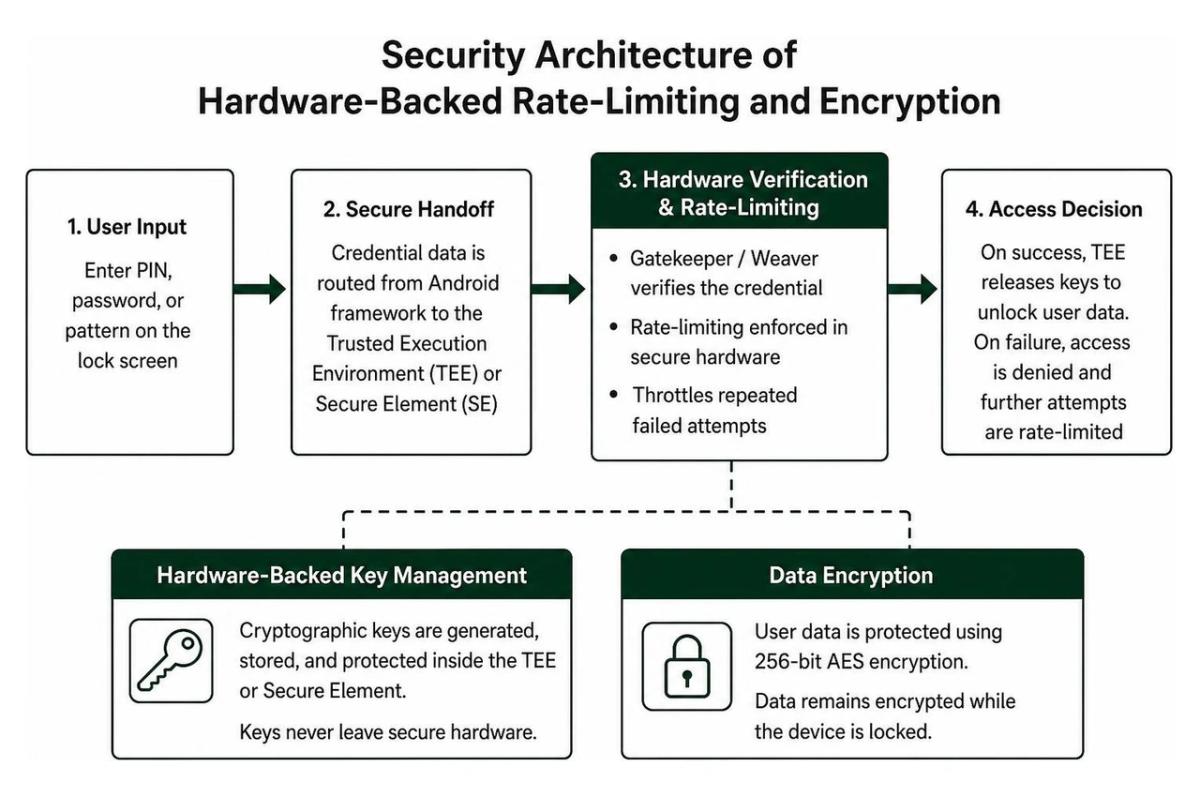
Behind the glass, your lock screen functions as an interface for enterprise-grade cryptographic subsystems. Android systems protect user credentials using a combination of hardware isolation and kernel-level enforcement.
When you configure an LSKF, Android derives a cryptographic key that secures user-space storage using 256-bit AES encryption. The verification of your PIN or password does not happen within the standard Android application layer. Instead, it is routed to a secure hardware subsystem known as the Trusted Execution Environment (TEE) or a dedicated Secure Element (SE) running Gatekeeper or Weaver hardware abstraction layers.
Why Auto-Confirm Impacts Your Phone Lock Password Security
Stock Android and Pixel software include an optional convenience feature known as Auto-confirm unlock. When enabled on a PIN of 6 digits or more, the operating system unlocks the device the instant you type the correct final digit, without requiring you to tap the "Enter" or checkmark button.
While this saves a fraction of a second during each unlock event, it introduces distinct security trade-offs:
- Visual Length Confirmation: An onlooker watching your screen instantly learns the exact length of your PIN the moment the device springs open.
- Elimination of Length Ambiguity: Without Auto-confirm, an attacker attempting to guess your credential does not know whether your PIN is 6, 7, 8, or 10 digits long, significantly increasing the guessing complexity.
- Accidental Guess Registration: The moment the correct sequence is hit during random input, the phone unlocks immediately without user validation.
For maximum protection against shoulder surfing in public spaces, we recommend leaving Auto-confirm disabled so that an explicit confirmation tap is always required.
Failed Attempt Thresholds and Progressive Lockouts
To prevent high-speed automated brute-force attacks, the Android Open Source Project enforces strict rate-limiting security policies. These policies combine hardware-enforced throttling with a software-level rate limiter (SoftwareRateLimiter).
Under standard rate-limiting mechanics, failed authentication attempts trigger progressive exponential backoff timeouts:
- Attempts 1–4: Zero lockout delay; immediate retry permitted.
- Attempt 5: 30-second to 1-minute lockout timer initiated; warning issued.
- Attempts 6–9: Escalating timeout penalties (5 minutes, 15 minutes, 30 minutes).
- Attempts 10–19: Multi-hour lockout intervals enforced by the secure hardware module.
- Attempt 20: Maximum lockout threshold reached, disabling further software entry and requiring alternative verification or hardware reset.
Modern Android builds also feature duplicate guess detection. If a user accidentally enters the exact same incorrect PIN twice consecutively, the secondary software limiter prevents penalizing the user with an extra failure count, ensuring fair usability while keeping brute-force vectors closed.
Lockout Recovery, Remote Management, and Disabling Screen Locks
Getting locked out of your device can disrupt your workday. Understanding how recovery pipelines operate ensures you are never permanently separated from essential data.
What Happens When You Forget Your Lock Screen Password
If you completely forget your primary screen lock credential, modern operating system security makes bypassing the lock screen without credentials mathematically infeasible. This design ensures that a thief cannot extract your private files.
For users dealing with an inaccessible handset, our unlock locked phone complete guide 2026 outlines the complete recovery landscape. If standard recovery shortlinks on the lock screen fail:
- Factory Reset Protection (FRP): You can perform a hardware factory reset via recovery mode. However, upon booting, FRP requires you to authenticate with the primary Google account previously linked to the handset before granting access.
- Cloud Backup Restoration: Once authenticated via your cloud profile, your apps, settings, and media restore automatically from your latest encrypted cloud backup.
- Remote Lock and Wipe: If your device is misplaced, you can use Google Find My Device to perform a remote lock on your Android phone or trigger a secure cryptographic wipe of all on-board storage.
If you manage iOS hardware alongside your Android devices, review our guides on how to unlock an iPhone and resolving issues outlined in our disabled iPhone unlock guide 2026.
How to Disable Screen Locks and Associated Risks
You can disable your screen lock at any time by navigating to Settings > Security & privacy > Screen lock and selecting None or Swipe. However, doing so carries severe security consequences:
- Decryption of Stored Data: Your device credentials no longer protect the hardware cryptographic keys, leaving on-device files exposed to direct extraction.
- Biometric Erasure: Disabling the master credential automatically unenrolls all registered fingerprints and facial profiles.
- Wallet and Payment Deactivation: Digital payment wallets (such as Google Wallet) immediately disable all stored debit and credit cards for fraud prevention.
- Loss of Enterprise Compliance: Corporate email clients and Mobile Device Management (MDM) profiles will flag the hardware as non-compliant and revoke access to business infrastructure.
Frequently Asked Questions About Phone Lock Passwords
What is the safest type of phone lock password for Android?
The most secure screen lock option on Android is a custom alphanumeric password containing at least 8 to 12 characters, including uppercase letters, lowercase letters, numbers, and symbols. Alphanumeric passwords provide the highest entropy, making them virtually impervious to offline dictionary attacks and significantly harder for nearby observers to memorize compared to 4-digit PINs or visual patterns.
How many failed password attempts are allowed before Android locks down?
Android devices typically allow up to 4 consecutive incorrect attempts without penalty. On the 5th failed attempt, the system enforces a 30- to 60-second timeout. Subsequent incorrect guesses trigger escalating lockout periods (5 minutes, 15 minutes, 30 minutes). After 20 consecutive failed attempts, the operating system locks down standard entry entirely, requiring hardware-level account verification or a factory reset.
Does enabling biometrics eliminate the need for a phone lock password?
No. Biometric systems like fingerprint scanners and facial recognition serve as convenient secondary authenticators. They depend directly on your underlying PIN or password to generate cryptographic decryption keys. Your device will still require manual password entry following a reboot, after extended idle periods (48–72 hours), after multiple failed biometric scans, or when entering critical security settings.
Securing Your Mobile Ecosystem with Synergy Labs
Maintaining robust credential habits is the cornerstone of modern device defense. By replacing short numeric PINs and predictable pattern swipes with strong, high-entropy passwords, you protect your personal files, financial data, and enterprise communications against unauthorized physical access.
At Synergy Labs, we engineer custom, highly scalable, and cross-platform mobile solutions that place end-to-end security at the forefront. Whether you need an enterprise application built with zero-trust architecture or a consumer app featuring seamless biometric integration, our team delivers world-class software tailored to your vision.
We operate under a transparent, fixed-budget model powered by milestone-based payments, ensuring your projects are delivered on time, within scope, and without unexpected cost overruns. Our delivery model pairs an in-shore CTO directly with an elite offshore development team, giving you direct access to senior technical leadership and rapid development cycles.
Explore our enterprise-grade mobile security software solutions, or connect with our engineering team today across our offices in Miami, San Francisco, New York City, Austin, Chicago, Phoenix, London, Dubai, Doha, and Riyadh to build your next secure mobile project.