

Android Enterprise App Development That Works Across Corporate Fleets

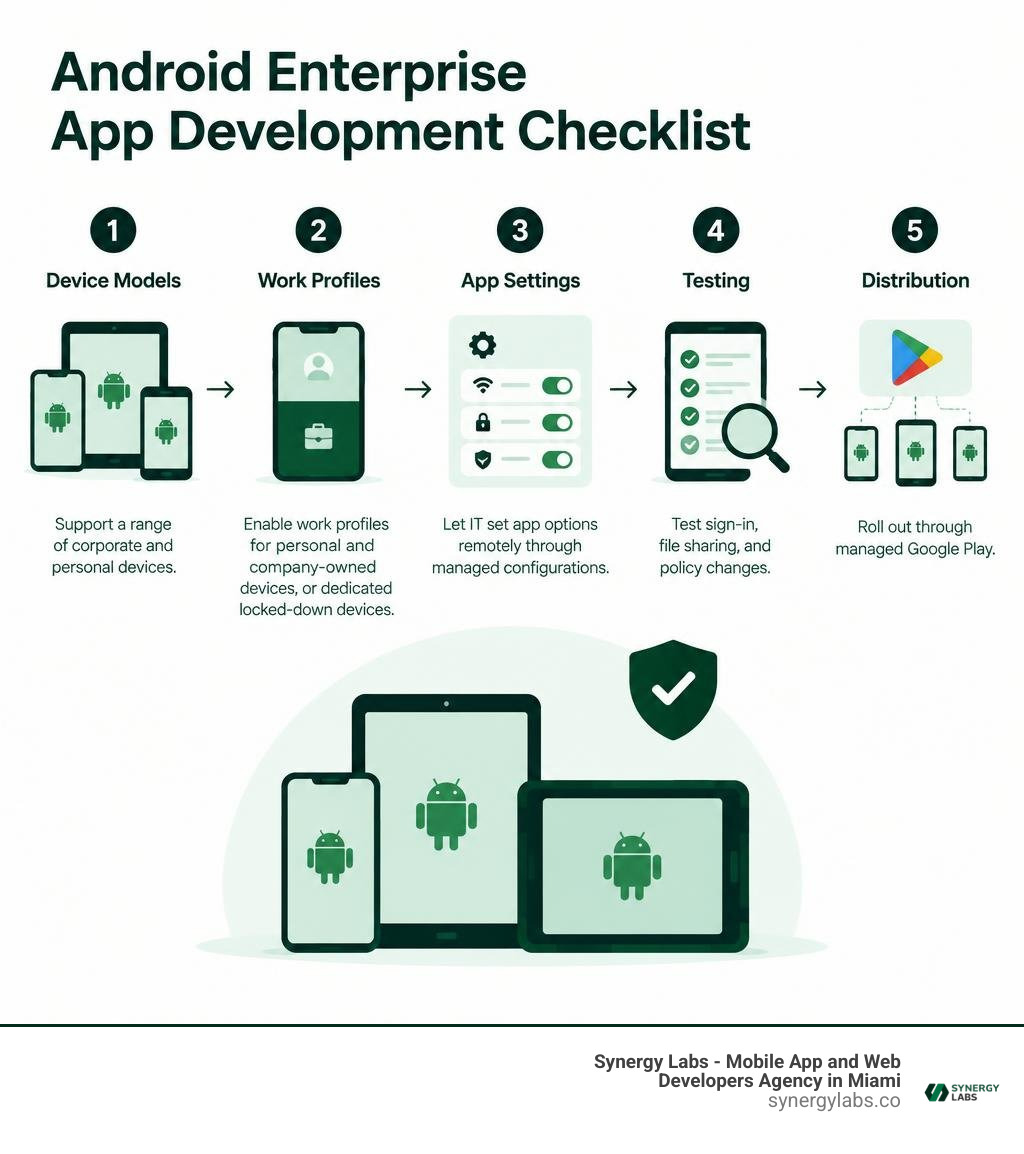
Android Enterprise app development starts with the device setup. Build for work profiles on personal and company-owned phones, or for locked-down dedicated devices. Let IT set app options remotely through managed configurations. Then test sign-in, file sharing, and policy changes before rolling out through managed Google Play. Those steps help keep corporate data separate and apps working across a fleet.
Android Enterprise gives IT teams more than 80 management settings, but an app still needs to behave well within those rules. A work app, for example, should not assume it can open a personal app or read a file from the personal profile.
As director of product at Synergy Labs, I’ll walk through the development choices that help teams build secure apps and keep deployments running smoothly.
Common android enterprise app development vocab:
- Enterprise Mobile App Development: Scaling Solutions for Large Organizations
- The Ultimate Guide to Choosing an Enterprise Mobile App Development Company in 2026
- The Complete Guide to App Development for Enterprise Solutions in 2026
Core Architecture: Work Profiles and Containerization in Android Enterprise App Development
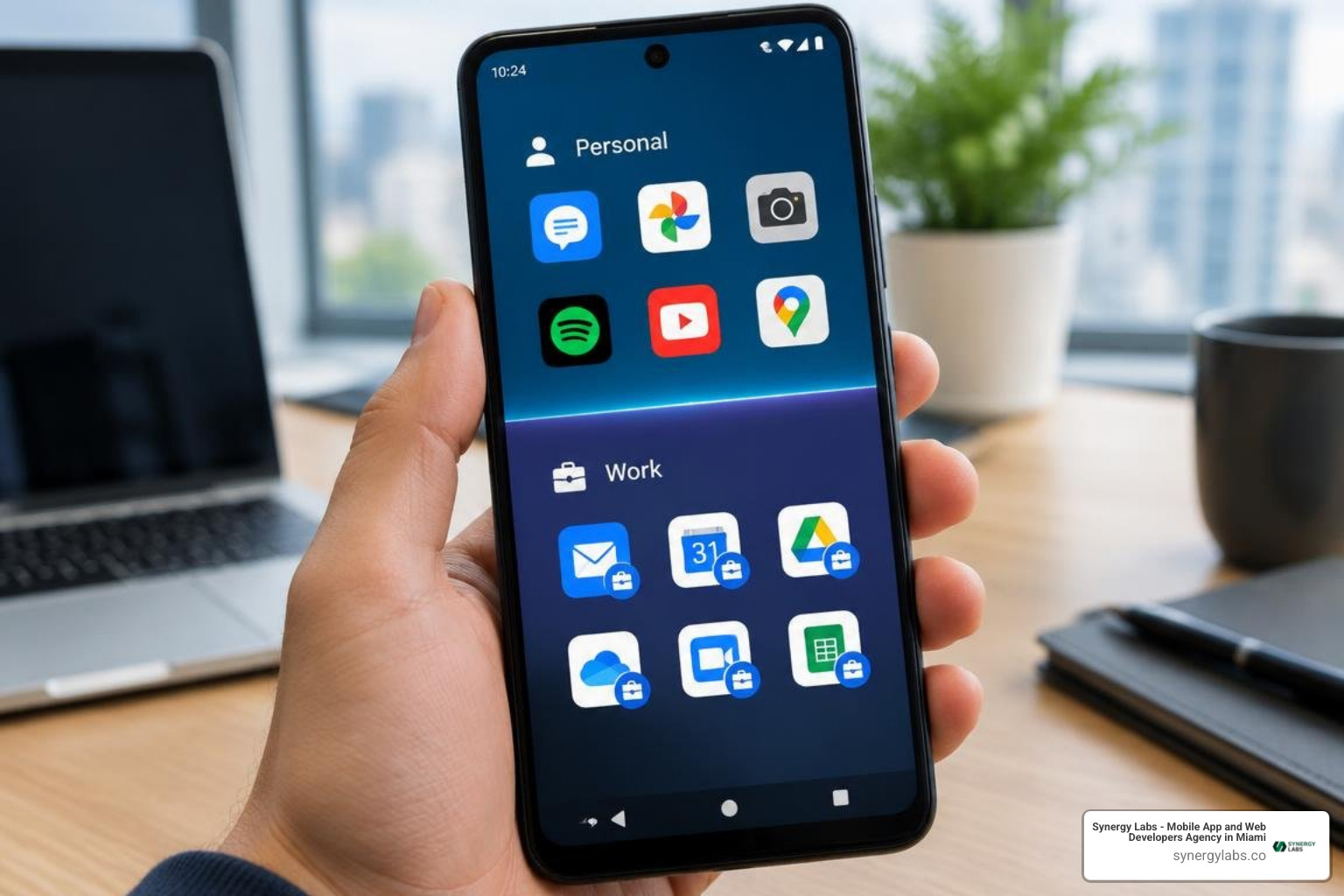
Modern mobile device management relies heavily on platform-level isolation. When building for enterprise ecosystems, understanding containerization is the foundation of protecting corporate data without trampling on personal user privacy. In modern Android operating systems, enterprise features stem from native isolation primitives built into the Linux kernel and platform userspace. Whether an enterprise deploys a Bring Your Own Device (BYOD) framework or supplies Company-Owned, Personally-Enabled (COPE) hardware, the work profile functions as an isolated user space on the local file system.
Corporate apps installed inside this boundary display a distinctive briefcase badge overlay on their launcher icons. This visual indicator reflects an underlying hardware-backed isolation model. Corporate cryptography keys, app sandbox directories, SQLite databases, and inter-process communication channels are completely isolated from the personal profile running concurrently on the same hardware.
Architecting for this setup requires a zero-trust mindset. Teams building solutions that handle scaling enterprise mobility solutions for large organizations must construct their apps knowing that common assumptions about local storage paths, background tasks, and component interaction no longer hold true when restricted by a Device Policy Controller (DPC).
For teams consulting the official Developer guide for Android Enterprise, the baseline rule is simple: enterprise applications must treat the work container as a secure, sandboxed enclave that never leaks sensitive memory or disk state to unauthorized external applications.
Preventing Intent Failures and Cross-Profile Data Leaks in Android Enterprise App Development
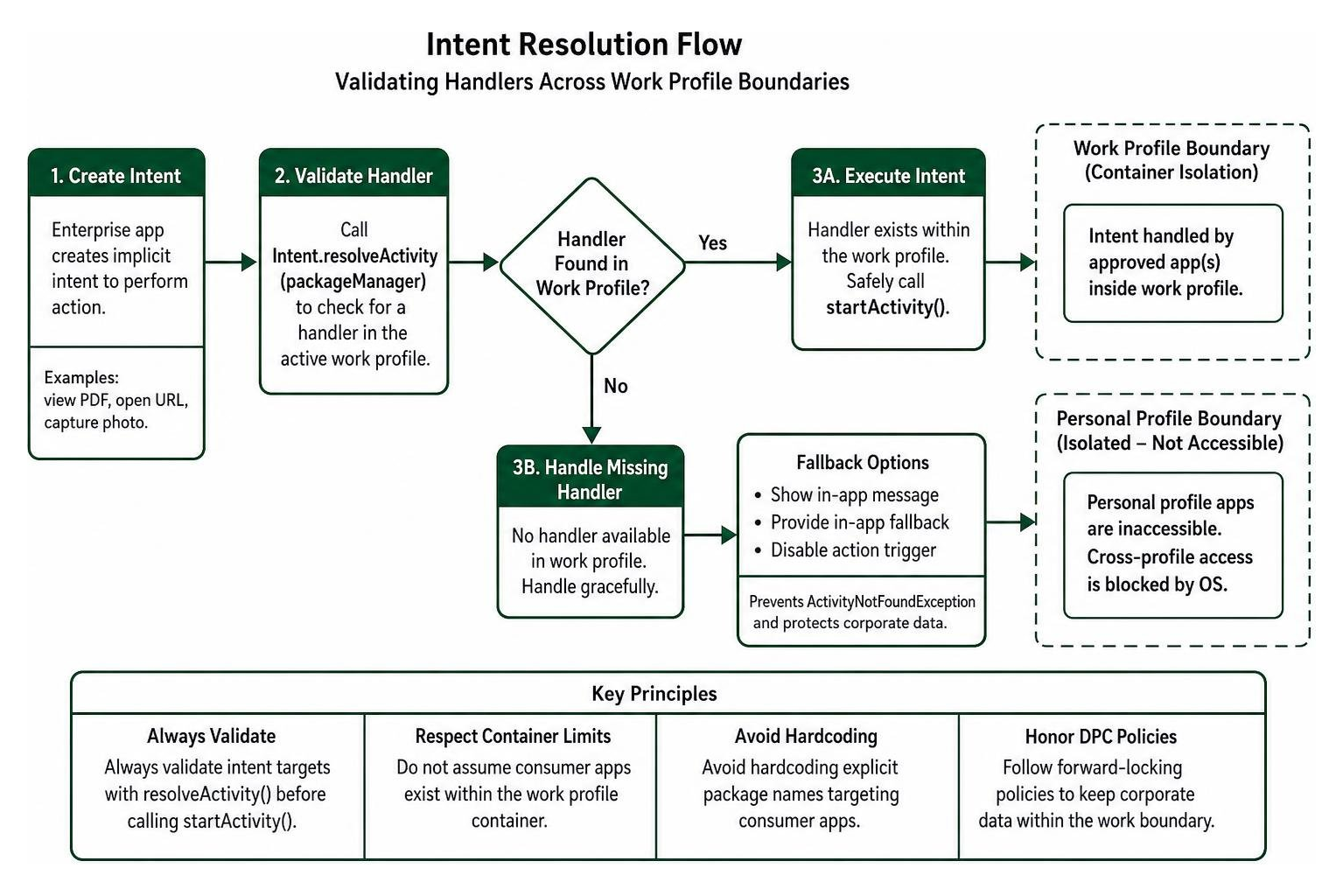
One of the most frequent sources of runtime crashes in enterprise deployments occurs when an application attempts to fire an implicit intent across profile boundaries without prior validation. In a standard consumer environment, dispatching an implicit intent to view a PDF, open a web URL, or snap a camera photo assumes that the device has an associated default application registered to handle the action.
Inside a work profile, the operating system limits intent resolution by default to prevent corporate data from spilling into personal apps (like unmanaged messaging platforms or unapproved cloud storage drives). If an enterprise app attempts to execute startActivity() with an intent that has no registered handler within the work profile, Android will throw an ActivityNotFoundException, abruptly crashing the app for the end user.
To prevent intent failures and data leakage, developers must follow strict resolution hygiene:
- Always validate intent targets before execution by invoking Intent.resolveActivity(packageManager).
- Handle null return values gracefully by providing in-app fallbacks, alerting the user, or disabling the trigger button entirely when no handler is available within the active container.
- Avoid hardcoding explicit package names targeting consumer applications, because those specific package binaries might exist solely on the personal profile side of the device where the work app cannot reach them.
- Construct intent filters that respect forward-locking policies enforced by the corporate DPC, preventing corporate documents from accidentally opening within consumer cloud storage apps.
Secure File Sharing Across Profile Boundaries Using Content URIs
Historical Android storage practices relied on raw file system paths (such as file:// URIs) passed via intent extras. In an enterprise environment, raw file paths completely break down. The personal user storage space (User 0) and the work profile storage space (typically User 10 or higher) live on isolated virtual mount points. Passing a string-based file path between profiles points to an inaccessible or non-existent inode on the recipient's file system, causing permission denial crashes.
To share documents, captured images, or attachments securely across boundaries, applications must use Content URIs generated via Android's native FileProvider component:
- Replace all legacy file path references with Content URIs formatted as content://com.example.enterpriseapp.fileprovider/work_docs/invoice.pdf.
- Configure secure XML storage mappings within your application's file provider paths resource file, ensuring that only designated subdirectories are exposed.
- Grant temporary, granular read or write permissions dynamically to the target intent using Intent.FLAGGRANTREADURIPERMISSION or Intent.FLAGGRANTWRITEURIPERMISSION.
- Never rely on Context.grantUriPermission() when passing references across profile boundaries, as explicit context-based permission grants do not cross user container boundaries reliably. Instead, package the permission directly into the transient Intent payload dispatched to the recipient activity.
This approach guarantees that even when an employee sends an enterprise report to an authorized cross-profile utility, the underlying storage remains encrypted, scoped, and protected against unauthorized data mining.
Implementing Dynamic Managed Configurations for Remote IT Admin Control
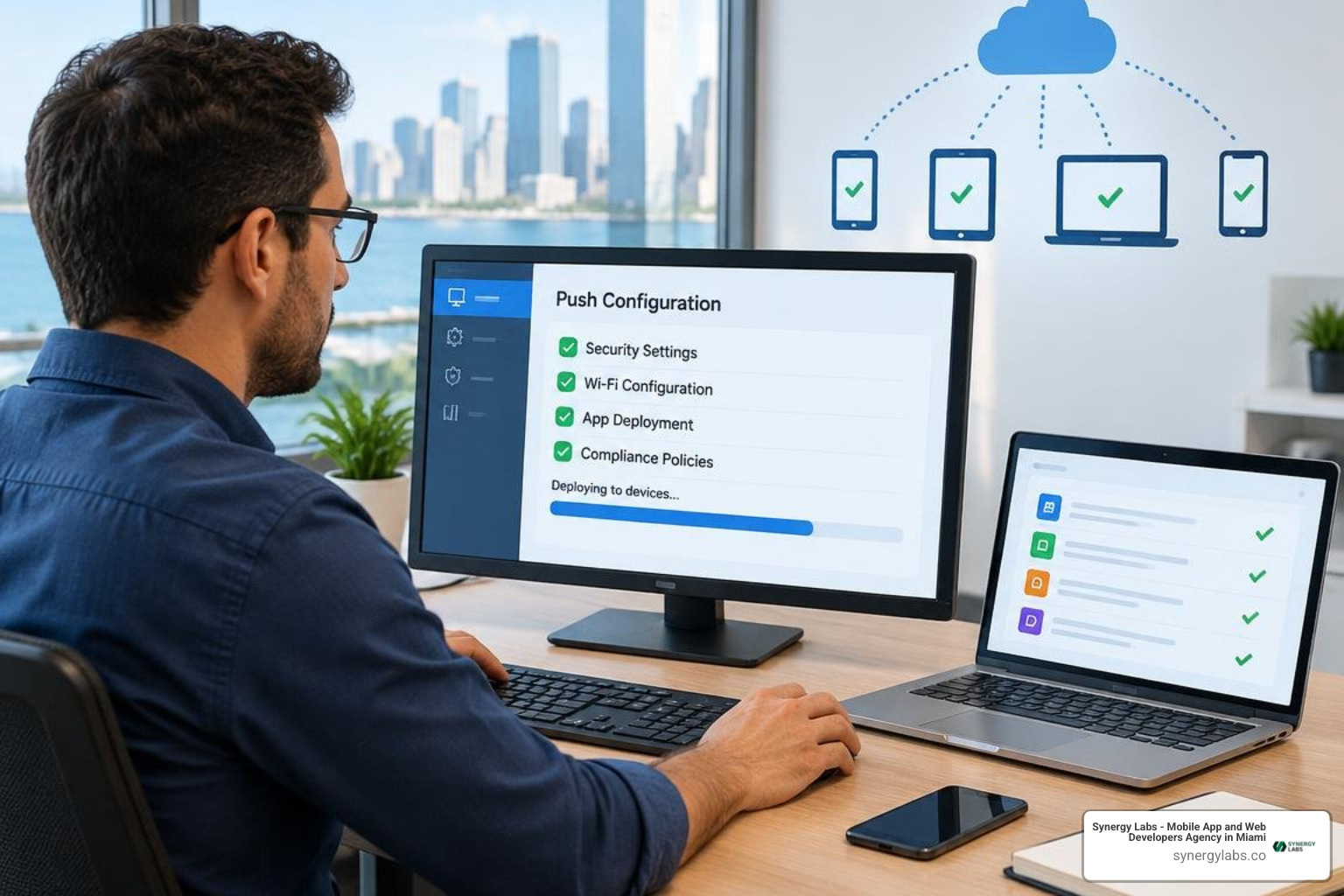
Hardcoding backend API endpoints, feature flags, or timeout thresholds into production binaries is a nightmare for enterprise IT departments. A multinational logistics firm might require an app to communicate with a European data center in Berlin, while its North American branch routes telemetry to Chicago. Managed configurations—historically known as application restrictions—allow IT administrators to remotely inject structured settings into enterprise apps via Enterprise Mobility Management (EMM) consoles without touching the source code or recompiling binaries.
Exposing configurable attributes transforms a static mobile application into a dynamic, manageable enterprise asset. Modern cloud-based enterprise apps rely on these parameters to automate device provisioning, establish zero-touch onboarding, and enforce real-time compliance rules.
Declaring App Restrictions and Schema Definitions
To make an app's settings visible within an EMM administrative console, developers declare an XML schema definition file registered directly in the Android Manifest. The EMM console parses this schema and automatically generates a clean administrative user interface where IT personnel can toggle booleans, input string endpoints, or configure complex nested bundles.
First, create an XML resource located at res/xml/app_restrictions.xml. Inside this file, structure your configurable enterprise properties using supported data types:
- Boolean restrictions for toggling features (e.g., allowofflinecaching or disablecrashtelemetry).
- String and choice restrictions for selecting corporate server environments, tenant IDs, or default region codes.
- Integer restrictions for controlling connection timeouts, retry counts, or maximum local storage allocations.
- Bundle and bundle_array restrictions for defining complex, multi-variable data structures such as customized proxy route mappings or department-level access lists.
Next, link this resource within your AndroidManifest.xml inside the application tag using a meta-data element with the name android.content.APP_RESTRICTIONS pointing to your XML schema resource. Once uploaded to Managed Google Play, IT administrators can immediately begin configuring these properties for target device fleets.
Listening for Runtime Policy Changes and Application Restrictions
Declaring the schema is only half the battle. Your application must actively read these values on startup and listen for dynamic modifications pushed by IT admins during an active user session.
When your primary activity or background service launches, retrieve the RestrictionsManager system service:
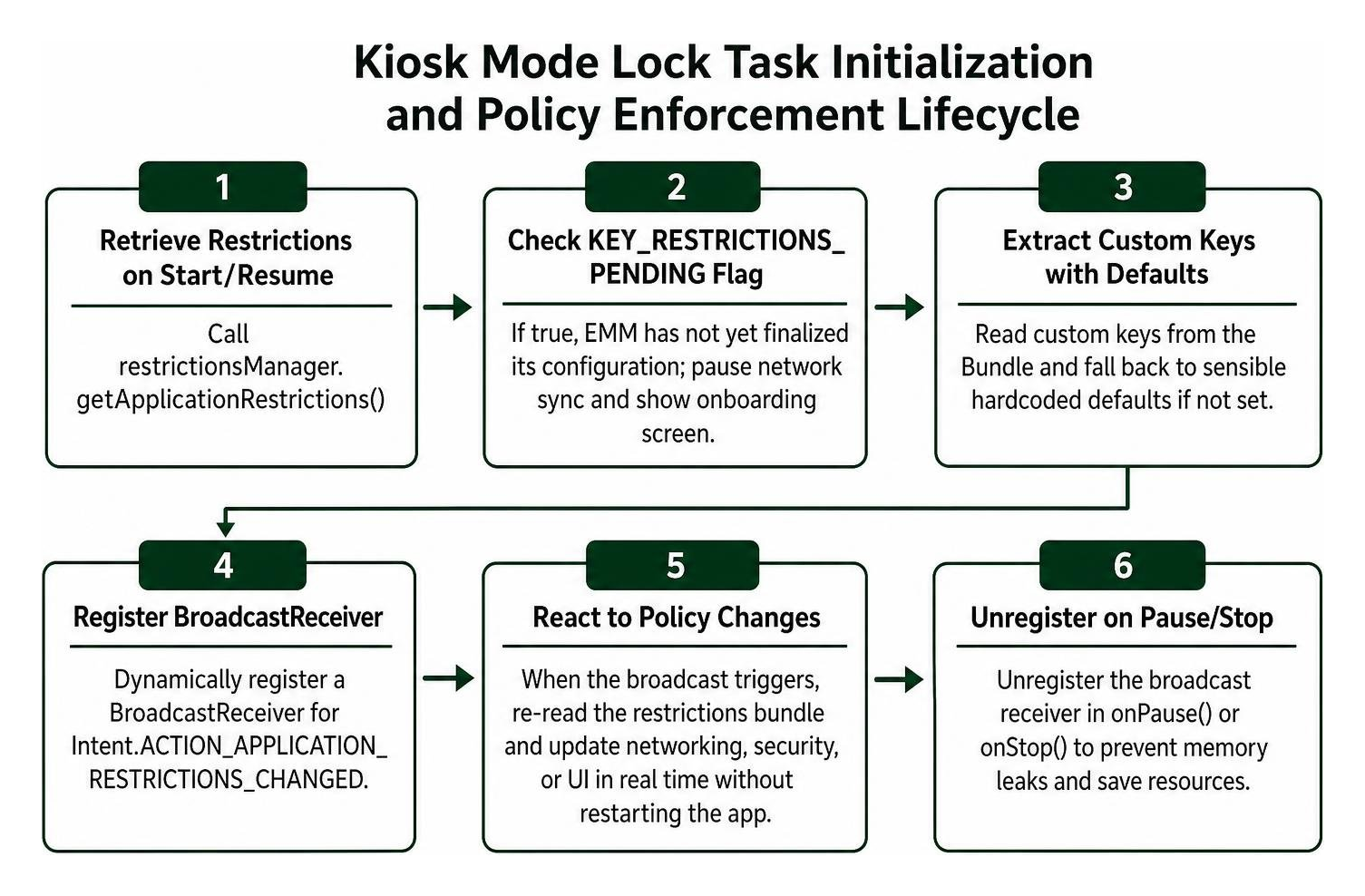
- Query restrictionsManager.getApplicationRestrictions() during the onStart() or onResume() lifecycle phases.
- Check if the returned Bundle contains the boolean flag KEYRESTRICTIONSPENDING set to true. If this key is present, the EMM has not yet finalized pushing its configuration payload; your app should pause initial network synchronization and display a friendly onboarding screen prompting the user to wait for automated setup.
- Extract your custom keys from the Bundle, falling back to sensible hardcoded defaults if a specific restriction key has not been explicitly configured by the IT admin.
- Dynamically register a BroadcastReceiver in your active foreground components listening for Intent.ACTIONAPPLICATIONRESTRICTIONS_CHANGED.
- Whenever this broadcast triggers, re-read the restrictions bundle and update your networking clients, security managers, or user interface state in real time without forcing an application restart.
- Always unregister the broadcast receiver during onPause() or onStop() to prevent memory leaks and conserve system resources on battery-constrained field hardware.
Building Dedicated Kiosk Devices and Single Sign-On (SSO) Authentication
Enterprise Android devices aren't just personal smartphones; they also power specialized field hardware, ruggedized warehouse scanners, hospital clinical assistants, and self-service airport check-in kiosks. These use cases require tailored architecture to ensure high availability, prevent user tampering, and deliver seamless, secure authentication.
Creating bulletproof enterprise mobility solutions for dedicated deployments requires mastering two critical capabilities: Lock Task Mode and Single Sign-On (SSO) federation.
Kiosk Mode and Lock Task Optimization for Android Enterprise App Development
Dedicated devices (formerly referred to as kiosk devices or Corporate-Owned, Single-Use hardware) are company-owned endpoints running a single app or a curated suite of operational tools. Building for this environment means locking down the operating system so retail customers or warehouse personnel cannot exit to the home screen, modify network settings, or download unapproved games.
Android delivers this capability through Lock Task Mode, managed via DevicePolicyManager:
- Whitelisting packages: The Device Policy Controller adds your application's package name to the list of permitted kiosk packages by calling DevicePolicyManager.setLockTaskPackages().
- Starting Lock Task: Within your application's main activity, initiate lock task mode programmatically by calling Activity.startLockTask() or launching the intent with ActivityOptions.makeBasic().setLockTaskMode(true).
- System UI lockdown: When Lock Task Mode is active, the operating system suppresses the home button, recent apps switcher, global status bar notifications, and keyguard lock screens.
- Power menu and volume controls: Advanced kiosk implementations use DevicePolicyManager.setLockTaskFeatures() to selectively enable or disable hardware power buttons, volume keys, and system information indicators depending on whether the hardware is an unattended display kiosk or an attended point-of-sale scanner.
To ensure your kiosk app recovers gracefully from unexpected power loss or crashes, configure its manifest activity with android:launchMode="singleInstance", declare an intent filter for Intent.CATEGORY_HOME, and register an explicit boot receiver to relaunch your UI automatically upon system startup.
Enterprise SSO Implementation: Chrome Custom Tabs vs. WebViews
Authentication is another common stumbling block in enterprise app development. In corporate fleets, employees switch between dozens of internal productivity tools. Forcing users to enter complex corporate credentials into every single app damages productivity and sparks helpdesk tickets.
In the past, developers frequently embedded standard WebViews to display OAuth login pages. In modern enterprise architecture, using WebViews for authentication is strongly discouraged due to critical vulnerabilities:
- WebViews lack a shared cookie store across distinct application sandboxes, meaning employees must re-authenticate individually across every installed corporate app.
- Host applications and malicious third-party SDKs can inspect, alter, and intercept user keystrokes, session cookies, and authorization tokens within a WebView DOM context.
- WebViews do not support hardware-backed FIDO2 security keys, certificate-based authentication (CBA), or corporate biometric passkeys effectively.
The gold-standard approach is implementing Single Sign-On using Chrome Custom Tabs alongside the open-source AppAuth library:
By delegating authentication to Chrome Custom Tabs, the sign-in flow executes within the secure, isolated sandbox of the system browser. Once an employee authenticates into their first enterprise application, the browser's persistent cookie container automatically resolves authentication challenges for subsequent enterprise apps, delivering a seamless Single Sign-On experience. Chrome Custom Tabs provide backward compatibility down to Android 4.0.3 (API level 15) when paired with Chrome 45 or higher, ensuring universal coverage across your fleet.
Local Testing, Provisioning, and EMM Validation Workflows
Building enterprise-ready features without a mechanism to test them locally is a recipe for broken production deployments. You cannot simply press "Run" in Android Studio and expect managed configurations or profile boundaries to simulate themselves on a stock emulator.
To test enterprise logic locally before rolling out changes to a staging server, developers use Google's official Test DPC application. Test DPC serves as an open-source reference Device Policy Controller that simulates an EMM management console directly on your local test bench.
Simulating Device Owner and Work Profiles with Test DPC
Using Test DPC, you can simulate both BYOD work profile isolation and fully managed corporate-owned device states on physical test devices or Android Virtual Devices (AVDs).
To provision a local Work Profile:
- Install Test DPC directly from Google Play or compile its source from GitHub onto your development device.
- Launch the "Set up Test DPC" application icon.
- Follow the on-screen setup wizard to create an isolated work profile container.
- Use Android Studio to deploy your debug APK directly into the newly created work profile container (marked with the orange briefcase icon in your target launcher list).
To provision a Fully Managed Device (Device Owner):
- Factory reset a dedicated physical hardware unit or create a pristine, non-provisioned AVD image.
- Skip all initial setup screens and do not add a personal Google account.
- Enable USB Debugging through Developer Options.
- Execute the following Android Debug Bridge (ADB) terminal command:
Once Test DPC assumes the Device Owner role, you can open its administration dashboard to inject custom managed configuration bundles, toggle camera access, simulate network loss, lock the device into Lock Task Mode, and test runtime permission behavior under strict corporate policies.
Meeting EMM Solution Set Requirements and Validation Cycles
Organizations building complete Enterprise Mobility Management solutions or custom device controllers must pass formal Android Enterprise validation. Google establishes clear feature baselines known as Solution Sets, categorizing hardware capabilities based on device ownership and operating system versions:
- Work profile on personally-owned devices: Focuses on BYOD privacy and containerized app security, requiring Android 5.1 Lollipop or higher.
- Work profile on company-owned devices: Manages mixed-use hardware (COPE) with administrative oversight over system updates and asset tracking, supported on Android 8.0 Oreo and later.
- Fully managed devices: Provides complete operational control over company-owned hardware dedicated exclusively to work tasks, supported on Android 6.0 Marshmallow and later.
- Dedicated devices: Tailored for single-purpose kiosk, digital signage, and shared frontline deployments, supported on Android 6.0 Marshmallow and later.
Commercial EMM vendors and specialized device management providers must satisfy stringent validation requirements. After registering with Google's EMM Community, providers have an exact 180-day window to develop their management software, pass formal product reviews, and deploy their solution publicly.
Furthermore, once approved, solutions must continuously implement newly published Android Enterprise feature requirements within 180 days of release to maintain active listing status within the official Android Enterprise Solutions Directory. Adhering to these specifications guarantees that your management stack aligns with official Android Enterprise solution release requirements.
Enterprise Publishing Strategies: Managed Google Play and Custom APIs
Once your enterprise app is compiled, signed, and validated, the final hurdle is distributing it securely to corporate devices. Distributing enterprise APKs by manually sideloading files via USB cables or unverified third-party web portals creates significant security risks, breaks automated background updates, and disables endpoint malware scanning.
Managed Google Play provides a private, secure content marketplace that bridges enterprise IT consoles directly with Google's cloud distribution infrastructure.
Public vs. Custom vs. Private Distribution via Organization IDs
Depending on who uses your enterprise application, you have three distinct distribution paths available within the Google Play Console:
- Public commercial distribution: Ideal for multi-tenant software-as-a-service (SaaS) products used by thousands of distinct enterprises. The application is publicly searchable on standard Google Play, but integrates managed configurations to let individual corporate clients customize their tenant endpoints upon installation.
- Custom B2B applications: Ideal for software vendors delivering bespoke builds tailored to specific enterprise clients. Developers upload their app to the Play Console and link the client's unique Managed Google Play Organization ID. The application remains completely invisible to the general public, appearing exclusively within the target client's private EMM app store catalog.
- Internal private applications: Ideal for proprietary line-of-business software developed exclusively for internal company staff. Internal apps undergo a streamlined verification process, and Google grants greater policy flexibility over restricted device permissions—such as fine-grained background location tracking or specialized telephony hooks—to accommodate custom enterprise workflows.
That even for private internal applications published within a single enterprise organization, every application package name (e.g., com.company.internalapp) must remain globally unique across the entire Google Play ecosystem.
To manage phased rollouts safely without disrupting frontline operations, developers can create closed testing tracks mapped to specific Managed Google Play Organization IDs. This allows enterprise IT departments to pilot release candidates across staging fleets before approving general production updates, following Google's guide to publishing enterprise apps.
Automating Deployments with the Google Play Custom App Publishing API
Modern engineering teams rely on Continuous Integration and Continuous Deployment (CI/CD) pipelines to compile, test, and release app builds automatically. Manually logging into the Google Play Console to upload private enterprise APKs or Android App Bundles (AABs) creates delivery bottlenecks.
The Google Play Custom App Publishing API documentation outlines how organizations and EMM platforms can publish private apps programmatically:
- Enable the Google Play Custom App Publishing API within the Google API Console for your enterprise development project.
- Create an IAM service account and generate a private JSON authentication key.
- Grant administrative publishing permissions to the service account email within the Google Play Developer Console.
- Extract your unique Developer Account ID from the Play Console administrative URL.
- Integrate headless deployment tools such as Fastlane or custom GitHub Actions scripts into your build pipeline, using service account credentials to push signed AAB artifacts directly to your Managed Google Play private repository.
Additionally, EMM developers can embed Managed Google Play iframes directly within their proprietary management web dashboards. This integration allows IT administrators to search for public applications, approve private enterprise packages, and bind managed configuration schemas without ever navigating away from their central administrative console.
Frequently Asked Questions About Android Enterprise App Development
How do work profiles separate corporate data from personal data on Android?
Android work profiles enforce hardware-backed, operating system-level containerization. The OS assigns separate user IDs to the personal space (User 0) and the work profile (e.g., User 10), isolating memory, SQLite databases, internal storage, and inter-process communication channels. Corporate applications display an official briefcase badge overlay, and file systems are kept strictly segregated using distinct encryption keys. IT administrators maintain full policy control over the work profile—including the ability to remotely wipe corporate data—without ever accessing, viewing, or altering the employee's personal photos, messages, or consumer apps.
Why are Chrome Custom Tabs preferred over WebViews for enterprise Single Sign-On?
Chrome Custom Tabs operate within the secure, isolated process of the system browser rather than the host application's local process. This architecture prevents host apps and embedded analytics SDKs from inspecting session cookies, altering form DOM trees, or stealing authentication tokens. Furthermore, Custom Tabs leverage the browser's persistent cookie container, allowing users to authenticate once and automatically share that active session state across all other enterprise applications on the device. WebViews lack shared state across distinct app sandboxes and do not support modern passkeys, FIDO2 security keys, or certificate-based enterprise authentication.
How can developers test Android Enterprise features locally without an EMM?
Developers can use Google's open-source Test DPC app to simulate a production EMM console locally on emulators or physical test hardware. By installing Test DPC, you can set up a local work profile container directly through its onboarding wizard, or use the ADB command adb shell dpm set-device-owner com.afwsamples.testdpc/.DeviceAdminReceiver on a freshly wiped device to establish full Device Owner control. This testbed lets you inject managed configurations, modify runtime permissions, test Lock Task kiosk modes, and validate cross-profile intent filters without purchasing a third-party MDM license.
Engineering Resilient Android Fleets with Synergy Labs
Building mobile software for the enterprise world demands an entirely different architectural playbook than shipping consumer apps. Between navigating strict work profile boundaries, building real-time managed configuration listeners, locking down ruggedized kiosk hardware, and automating private Google Play distribution pipelines, enterprise Android engineering requires deep domain expertise and relentless attention to detail.
When corporate apps fail in the field, delivery trucks idle, warehouse fulfillment stalls, and hospital staff lose access to clinical data. Ensuring your mobile technology runs smoothly across diverse device fleets requires an engineering partner that understands enterprise mobile architecture from the kernel to the cloud.
At Synergy Labs, we specialize in engineering high-performance, secure, and scalable mobile ecosystems for forward-thinking enterprises. Our unique engagement model pairs you with an in-shore CTO who oversees your architectural roadmap, while our world-class offshore development teams execute technical milestones with speed and precision.
By utilizing a transparent, fixed-budget model tied to verifiable project milestones, we eliminate cost overruns and ensure your enterprise deployment finishes on time and within scope. Whether you are modernizing legacy field operations or launching a new enterprise product line, explore our custom mobile app development services and let our senior engineering team build your next fleet-ready Android solution.